Read class needs and adjustments and contribute evidence
Written for: Staff with Needs & adjustments and the relevant class/source access.
Read practical class guidance, review changed versions, prepare a cover copy and contribute observations to upcoming reviews.
The page brings together permitted plan information; the original passport, health plan or access-arrangement record remains the place to review its full detail and make authorised changes.
Screenshots use fictional pupils and classes. Your available sources and actions depend on school configuration and access. A hidden or unavailable plan is not an empty plan.
Before you start
Section titled “Before you start”- Check the school and class. Teaching classes and tutor/registration groups can represent different pupil groups.
- You need page access and permission for the class, pupil and underlying source. Being able to open the class page does not grant access to every sensitive plan.
- Read the source dates, coverage and review warnings before relying on a short instruction.
- Use a private screen. Cover copy contains pupil information and needs careful sharing.
1. Choose the class and section
Section titled “1. Choose the class and section”Open Needs & adjustments from the available class navigation. Use Class to select the intended teaching class or tutor group. Check the pupil count beneath the selector; it is the number in this permitted class view, rather than necessarily the whole year or school.
The page can retain the chosen class when you reload and share a teaching-class selection with other class tools. Check it again after navigation or a school switch.
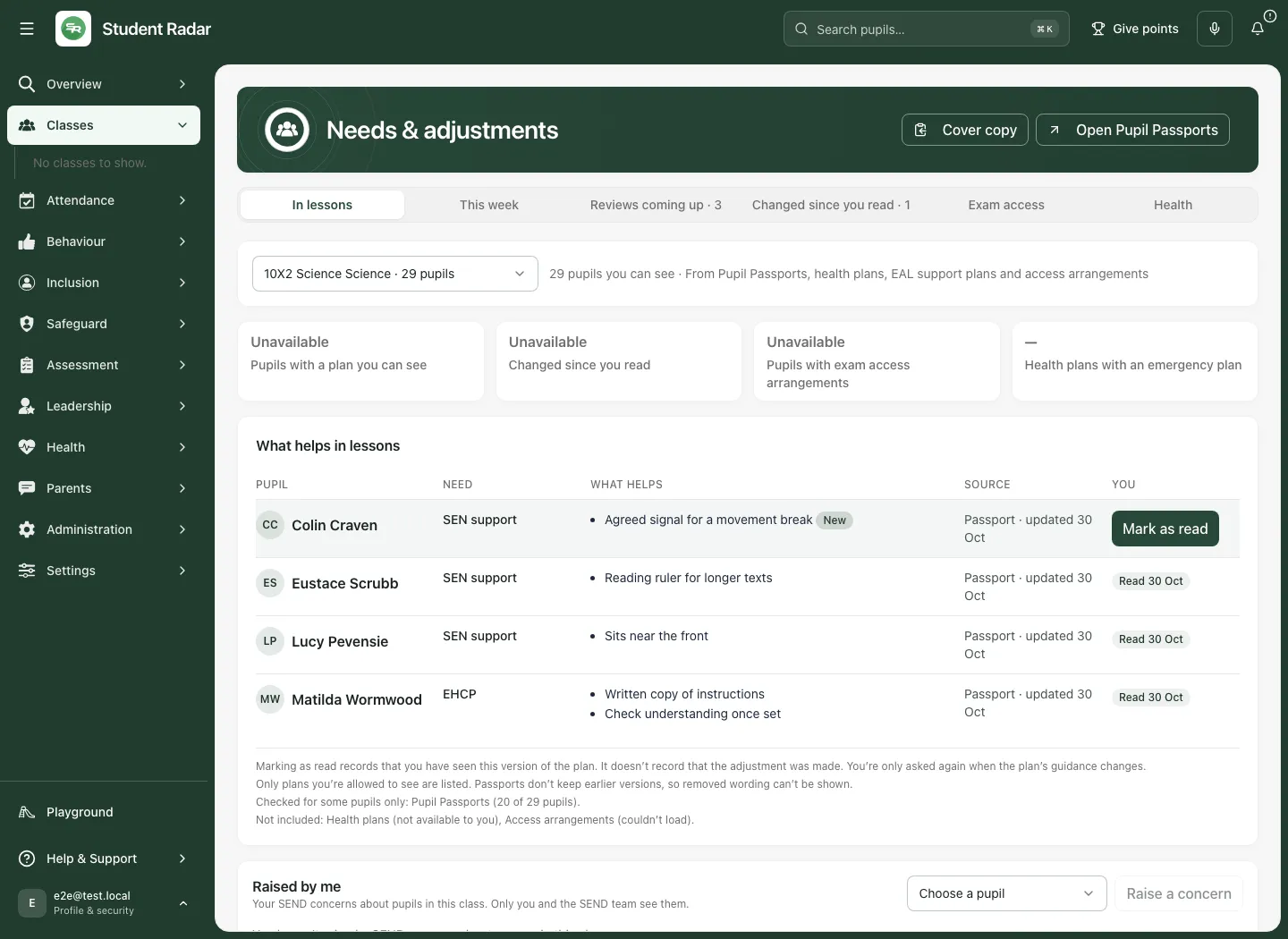
| Section | What to do there |
|---|---|
| In lessons | Read what helps each pupil and its source. |
| This week | Record optional weekly use and observations for the selected teaching class. |
| Reviews coming up | Review upcoming plan dates and contribute your view where offered. The label can include a count. |
| Changed since you read | Find plans changed since your recorded read; the label can include a count. |
| Exam access | Review available exam access arrangements. |
| Health | Review permitted health-plan guidance. |
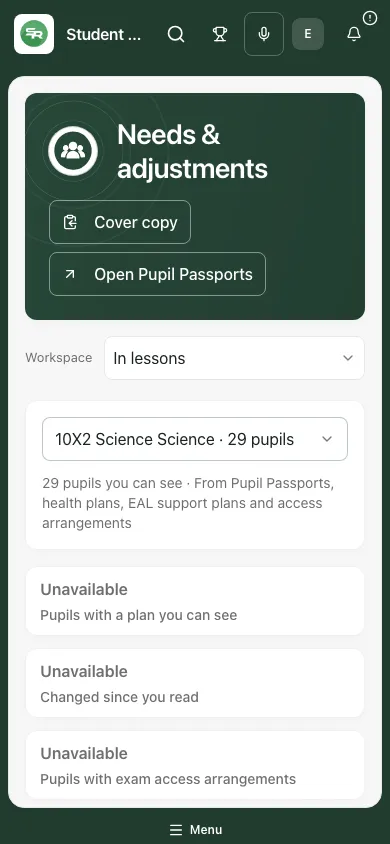
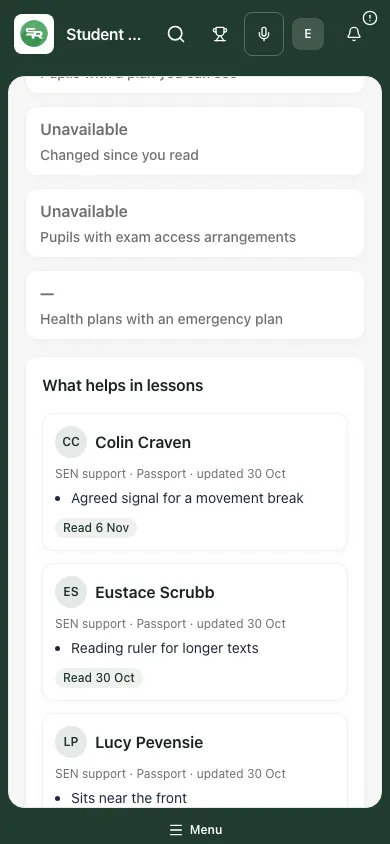
On a phone, use Workspace to choose a section and scroll through the pupil cards. A section being absent or having a dash does not establish that no sensitive record exists.
2. Read guidance with its source and coverage
Section titled “2. Read guidance with its source and coverage”In In lessons, read the pupil, need, What helps, Source and You columns or their phone-card equivalents. Check the source’s update date. If New is shown beside a strategy, read the change in context rather than treating it as an instruction generated independently by this page.
Where a plan has more guidance than the summary can show, use +N more in the plan or the permitted source link. Open Pupil Passports in the page banner opens the passport workspace where available. A passport still awaiting confirmation or past its review point carries a warning: read it and seek the appropriate review instead of assuming its guidance has just been reapproved.
Check the coverage statement for each source. For example, “Pupil Passports: checked for 20 of 29 pupils” is a limited check, even when four visible pupils have useful guidance. Unavailable, Not available to you and a recorded zero have different meanings. Do not infer that an unread health or exam source contains nothing.
If the guidance raises a concern about a pupil’s support, open the permitted pupil or source record, check the current evidence and use the school’s agreed process. A general class note is not a place to copy restricted medical or safeguarding information.
Check Exam access
Section titled “Check Exam access”- Choose Exam access and confirm Class.
- Under Exam access arrangements, read Pupil, Need, What helps, Source and You (or the equivalent phone card).
- Check the academic year in the Access arrangements [year] source label and any update date. A previous year’s arrangement must not be assumed to apply to a current assessment.
- Use an available pupil-name link to review the permitted pupil record and relevant access-arrangement workflow when more detail is needed. The Source column is a label, not a universal edit link.
- After reviewing the relevant guidance, use Mark as read when offered. This acknowledgement does not approve an arrangement or record that it was provided in an exam.
No current exam access arrangements you can see for this class describes the permitted list. Read the source coverage before interpreting it; an unavailable source cannot establish that no arrangements exist.
Check Health
Section titled “Check Health”- Choose Health and confirm the class.
- Under Health plans, read the same pupil, need, guidance, source and read-state fields. The source can identify Health plan vN with its update date.
- Read any In an emergency: instruction in the context of the current approved plan and the school’s emergency procedure. A short class summary is not a complete plan or clinical advice.
- Open the permitted pupil record or appropriate health-plan workflow for full detail; do not assume the Source label itself is an edit button.
- Mark the version as read only after reviewing it. A read receipt does not record medicine administration, care delivery or review approval.
No health plans you can see for this class, a restricted source and a failed source read have different meanings. A missing emergency-plan count does not confirm that no pupil has a health need.
3. Review changes and mark the version as read
Section titled “3. Review changes and mark the version as read”- Choose Changed since you read.
- Read each pupil’s changed guidance, source date and any removed-strategy message.
- Open the original plan if the summary does not explain the change or says detail beyond the displayed guidance has changed.
- Once you have read it, select Mark as read beside that source.
- Check the result. The source changes to a Read [date] state and no longer needs the same version acknowledged.
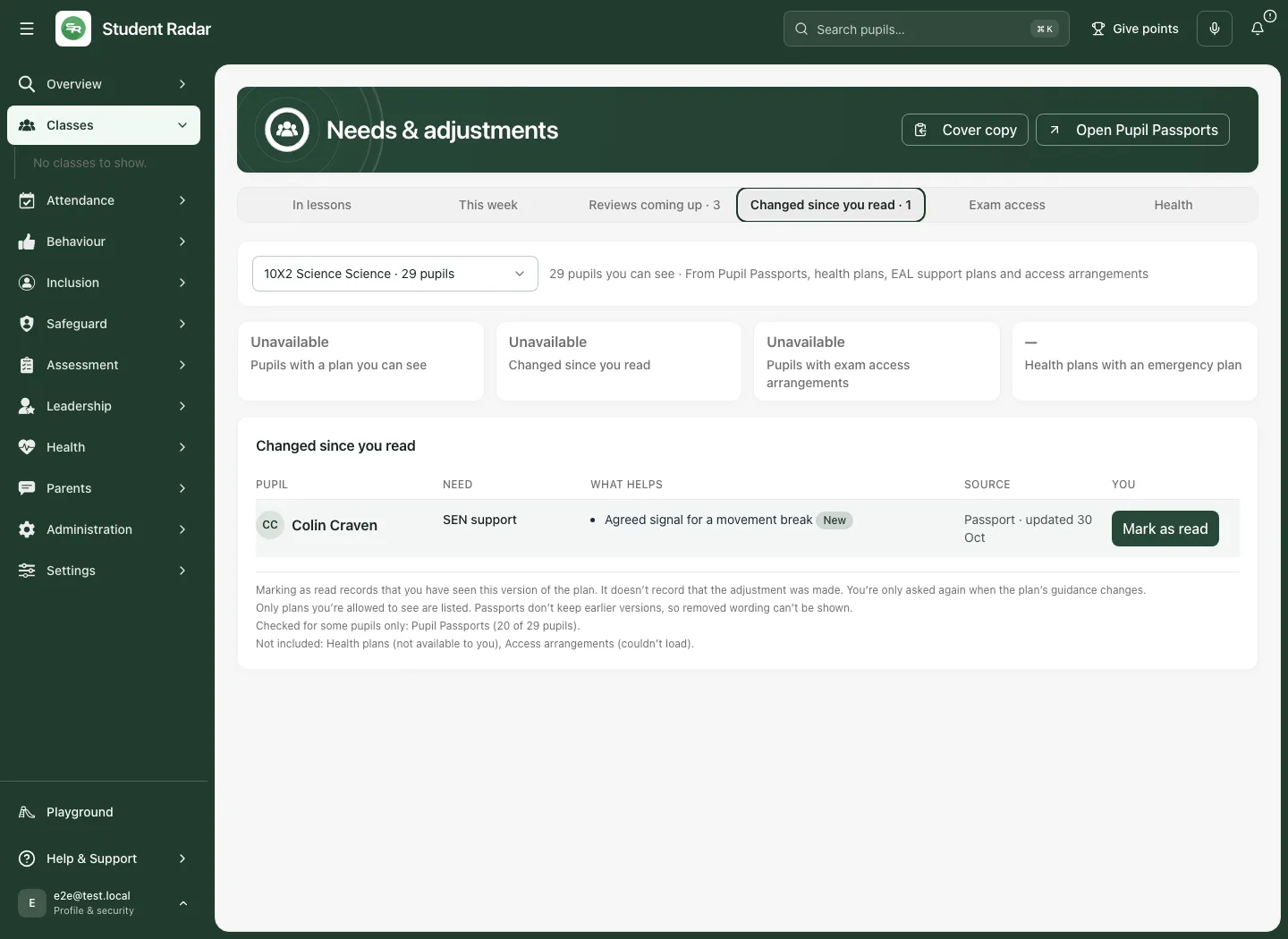
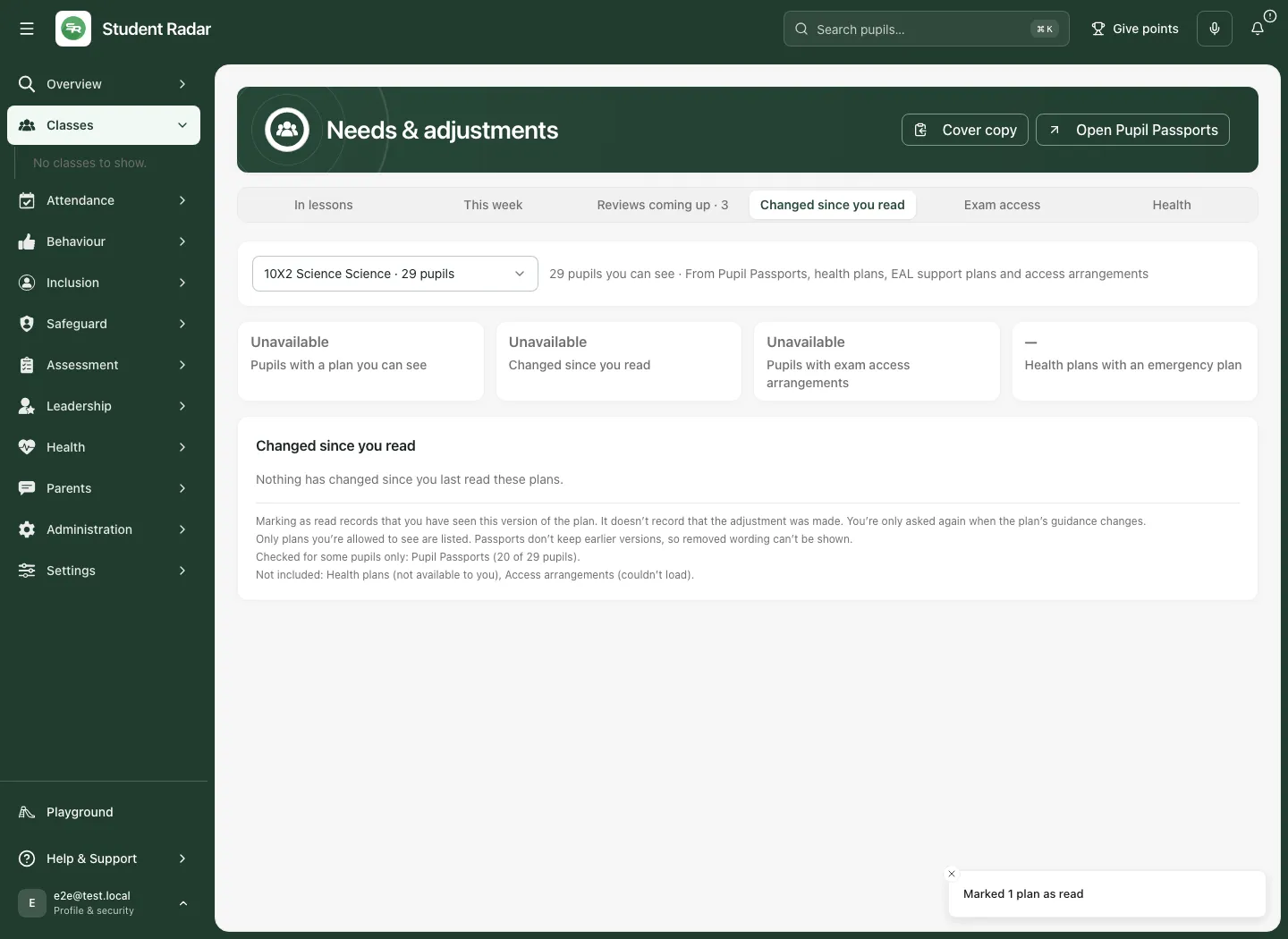
The section can offer Mark N changes as read for a bounded group. Read every included change before using it. A partial or stale result may leave some plans unacknowledged; review the message rather than assuming every row succeeded.
Mark as read records that you saw that version. It does not confirm delivery, endorse the plan, complete a review or establish that a strategy worked. If the plan changes afterwards, read the newer version and acknowledge it separately.
4. Prepare a cover copy
Section titled “4. Prepare a cover copy”- Check the selected class and the guidance you intend to share.
- Select Cover copy.
- Review the text, pupil names, source/review warnings and scope. It is a summary of available guidance, not a complete transfer of every plan.
- Select Copy text. Wait for Copied. If copying fails, follow the message to select and copy the text manually; do not assume it reached the clipboard.
- Select Done to return.
- Share it only through an approved route with staff covering the lesson. Remove temporary copies when no longer needed under the school’s process.
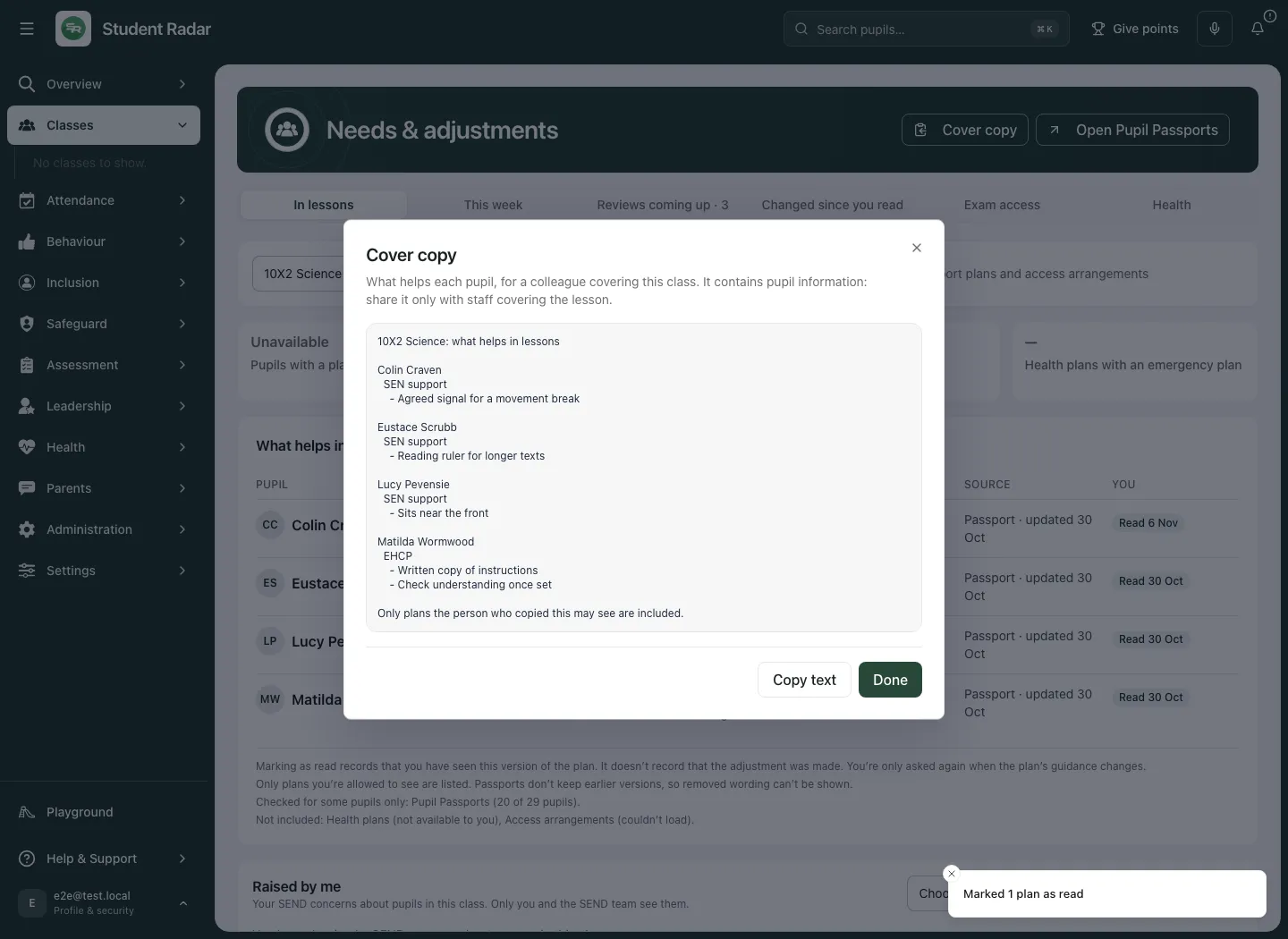
A copied summary does not update itself when a source changes. Check freshness before reusing one and do not use the copy to bypass access to a sensitive source.
5. Record your weekly observations
Section titled “5. Record your weekly observations”Choose This week for a teaching class you taught in the relevant week. A tutor group or a class you did not teach may not offer the same weekly workflow.
- Check the class and choose This week or Last week in the week selector.
- For each pupil you can meaningfully comment on, tick the strategies you actually used.
- Choose the available Better, Same or Harder response to describe what you noticed, where appropriate. Select it again to clear that choice if needed.
- Use Add a note for relevant context, such as the observation window or when the strategy could not be used.
- Review the pupil and week, then choose Save N pupils. Read the result for each submitted pupil.
- If saving succeeded but the reread failed, use the offered retry/reconciliation route. Preserve the confirmed save and any unsent edits rather than sending a fresh duplicate or assuming the old screen is the latest version.
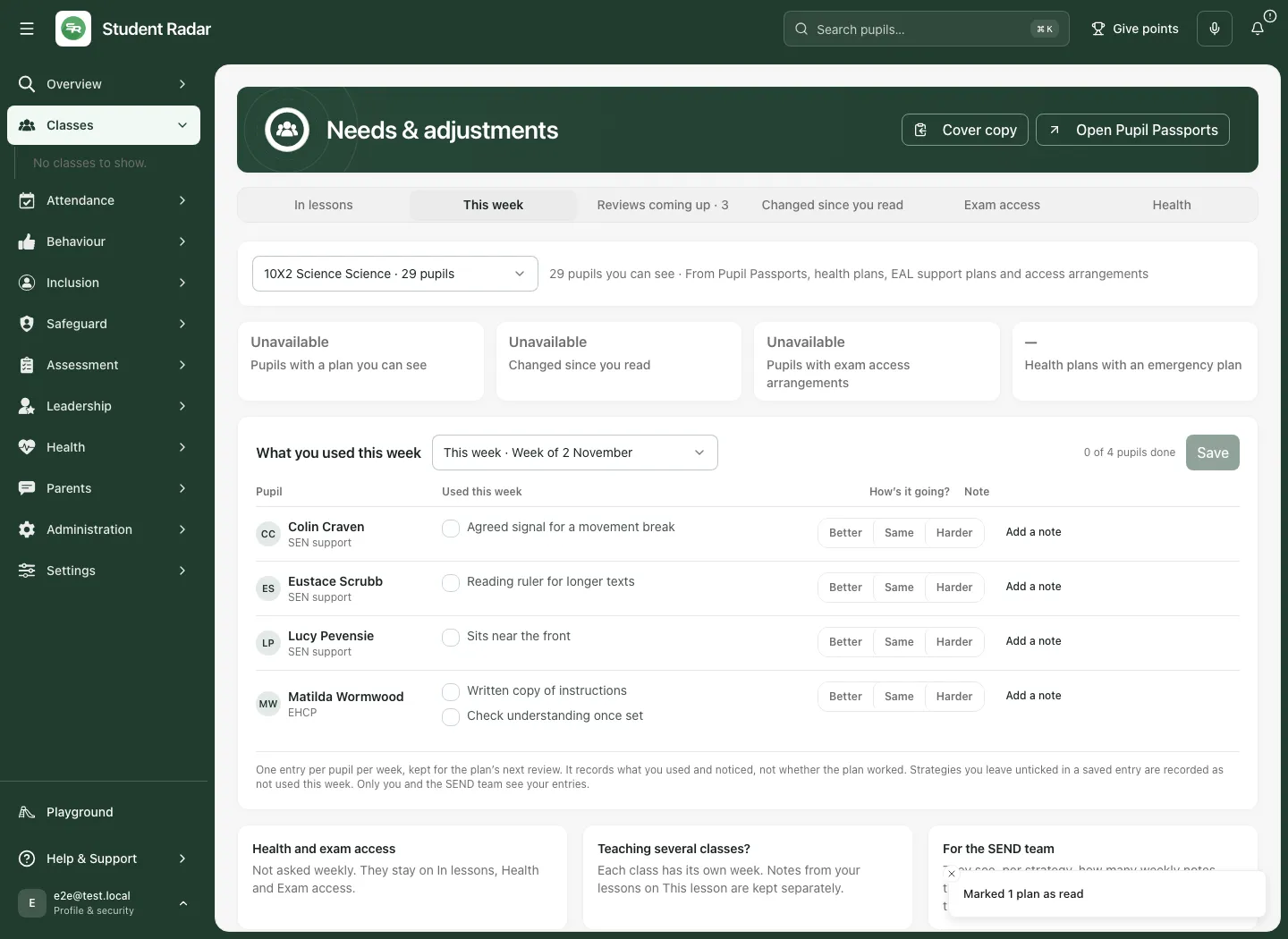
A saved weekly entry records unticked strategies as not used this week. Do not save an incomplete selection if you mean “not checked”. Health and exam access are not asked weekly here; they remain in the appropriate guidance sections.
Weekly entries are separate for each class and from observations recorded under This lesson. Your weekly entries are available to you and the SEND team for review. Counts of strategy use and contributor coverage support that review; they are not a score proving the plan worked.
6. Contribute to reviews coming up
Section titled “6. Contribute to reviews coming up”Choose Reviews coming up and check the review window, pupil, plan type and date. Read Your view and Pupil’s view states separately. Not asked, waiting, received and sent describe different stages.
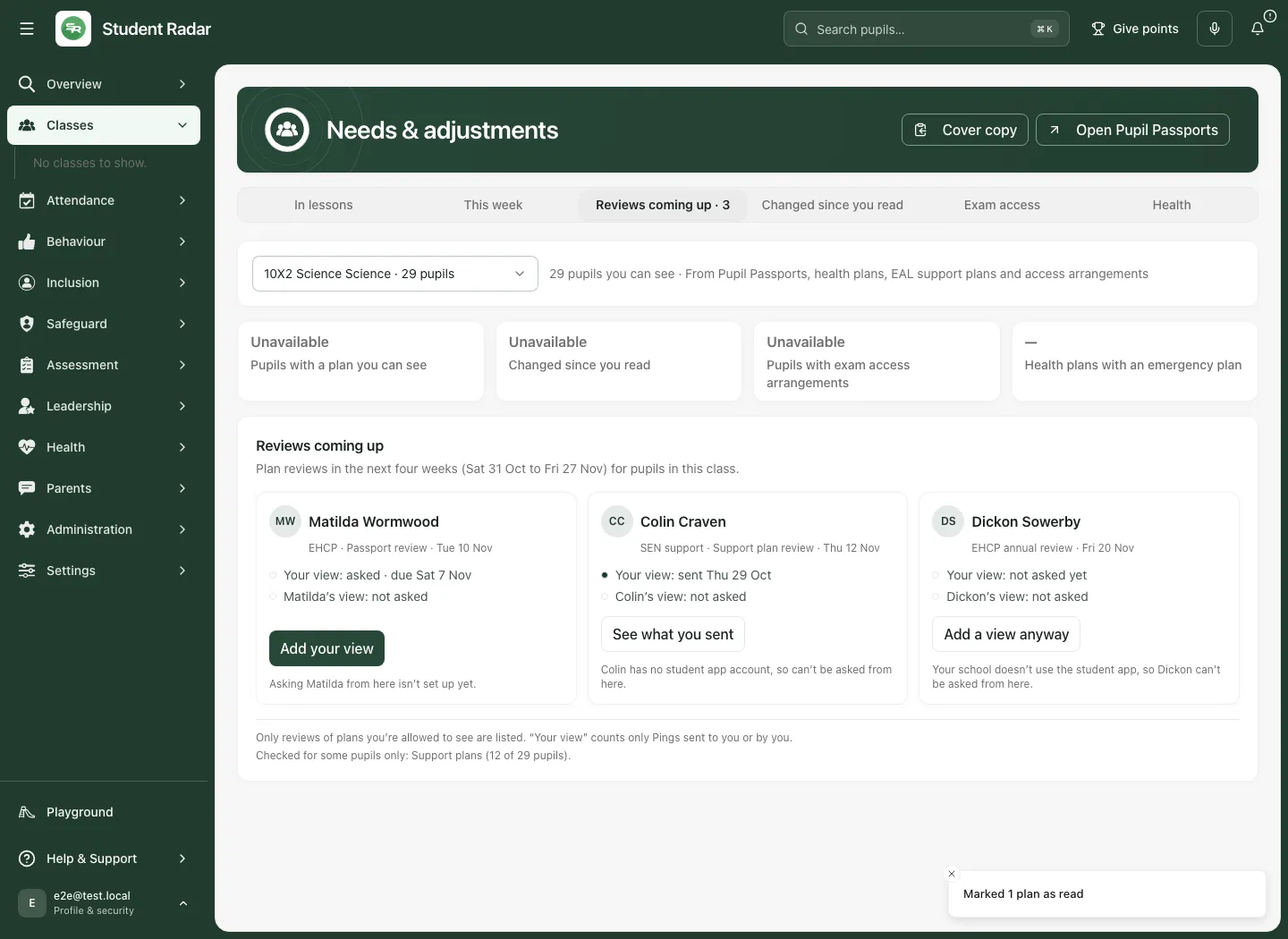
- If Add your view opens an existing request, read its questions and answer through that request’s workflow.
- If it opens a new view dialog, check the named pupil and plan, write a proportionate observation and select Send to the SEND team. Wait for the confirmed result. Cancel leaves without sending.
- If the system reports an existing request or an already-sent view, follow that route rather than sending another copy.
- If a pupil-view action is unavailable, read the reason. A missing account or pupil-app setup is different from the pupil choosing not to respond.
A contribution supplies evidence for an authorised review. It does not amend the plan, make a diagnostic judgement or close the review automatically. If sending is refused, the SEND team is not configured or the outcome is uncertain, keep your wording and use the supported recovery or school process.
Troubleshooting
Section titled “Troubleshooting”| What you see | What to check |
|---|---|
| No class selected | Choose the correct class; check teaching-class versus tutor-group scope. |
| No plans you can see | Check class and source coverage. This is not a statement that every pupil has no needs. |
| A metric says Unavailable or — | Read the source/access explanation. Do not substitute zero. |
| Read acknowledgement is stale | Open the updated plan and review the change before marking its newer version. |
| Cover copy failed | Use the offered manual-copy fallback; verify the copied text and recipient. |
| Weekly notes unavailable | Check the selected teaching class, week and your teaching relationship. |
| A confirmed save could not refresh | Reconcile the original result before further changes; do not repeat the write as a fresh operation. |
| A review contribution cannot send | Read the refusal/recovery wording and retain the draft. Check the school’s SEND-team process. |
| A source link refuses access | Request an authorised access review; the class summary does not override source permission. |
For support, provide page, class, section, approximate time and error wording through the approved route. Avoid unnecessary identifying screenshots.
Common questions
Section titled “Common questions”Where should I change an individual plan?
Section titled “Where should I change an individual plan?”Open the original passport, health plan or access-arrangement record and use its authorised workflow.
Does marking guidance read show that I delivered the support?
Section titled “Does marking guidance read show that I delivered the support?”No. It records that the version was seen. Record your observations or contribute to the review separately.