Draft, preview and review a behaviour rule
Save a disabled rule, preview its impact, obtain required approval and inspect activity after deliberate activation.
Staff define an approved event and actions, inspect the current impact and obtain independent approval where required before activating an exact version. Activity and attention records help staff check what actually happened afterwards.
Screenshots show a fictional disabled rule. The example incident count, window and task are demonstrations, not recommendations for a child’s support or a school’s sanctions policy. Rules must not replace professional judgement or the authorised specialist process.
Before you start
Section titled “Before you start”Open Behaviour → Automation → Rules & Automations. This page filters the rule builder and rule-related activity to behaviour. The main Leadership → Operations → Automation workspace also has broader subjects and pupil-review tools; do not assume every tab exists on this behaviour page.
Reading, authoring, enabling, approving, running and changing school policy are separate permissions. Check the required actions with the school administrator. A person who can draft may not be able to activate or approve the same version.
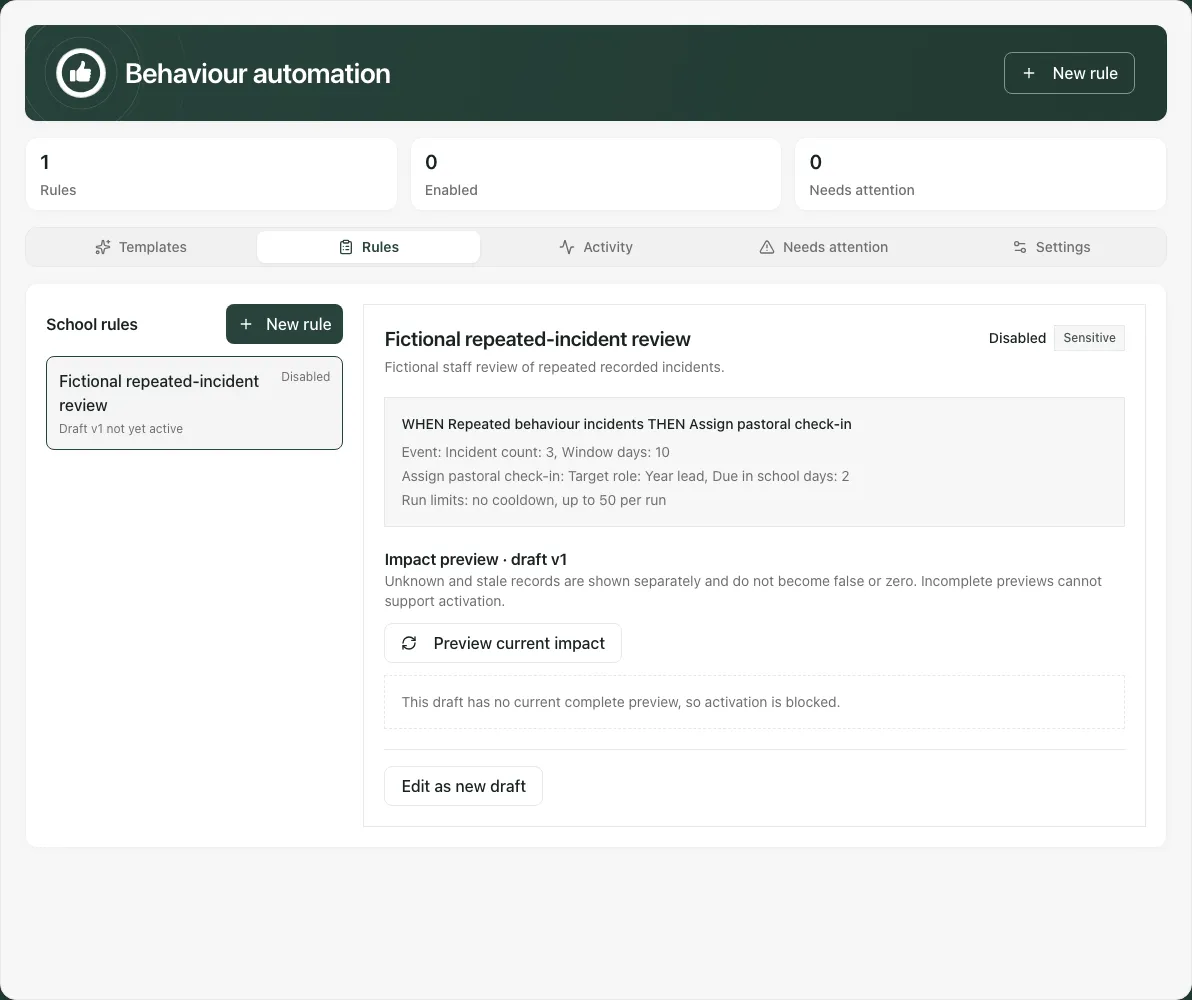
1. Start from a template or a new rule
Section titled “1. Start from a template or a new rule”In Templates, read the name, purpose, sensitivity and Rule summary. Adopt as disabled draft creates a draft for school review; it does not activate the template. Inspect any template/version or migration notes rather than assuming a template is already the school’s agreed policy.
Alternatively choose New rule. Enter Rule name and Purpose, choose the applicable Subject and a behaviour Approved event. On this page the offered event/subject choices follow the behaviour domain.
For the incident-window event, set the required incident count and calendar-day window. Current input bounds are one to 20 incidents and one to 95 days; these are form limits, not evidence-based thresholds for a pupil. Counted committed incidents are not every event that happened in school.
2. Choose conditions, actions and practical limits
Section titled “2. Choose conditions, actions and practical limits”Use Add fact under Additional conditions where the rule needs another supported check. Select the fact, operator and required value. There can be up to five additional conditions. Read missingness and freshness in the eventual preview; do not interpret missing information as a negative answer.
Under Ordered actions, choose the actual supported action and fill its required parameters. Add action adds another action; the standard behaviour rule supports up to three, in their displayed order. Read the final summary to check that the combined actions represent the intended authorised workflow.
For Assign pastoral check-in, choose an offered role and due interval. The accepted role list is Year lead, SENCO, DSL, DDSL, SLT, Headteacher, Service lead or Pupil Premium lead. An input accepting a role is not proof that staff can see the resulting work; verify the actual recipient/work queue after any authorised live run.
If a supported action offers Delivery mode, distinguish an Approval draft from Approved auto-send. Choosing a draft prepares work for review; auto-send depends on school opt-in, action permissions and the applicable independent approval. Do not assume it can send when any prerequisite is missing.
Set Cooldown days and Maximum firings per run to bound repeat work. The current form accepts zero to 365 cooldown days and one to 500 firings per run. These limits do not authorise bulk sanctions or sensitive assignments. Use a scope and cap the responsible school team can review and deliver.
3. Save a disabled draft and reopen it
Section titled “3. Save a disabled draft and reopen it”Check the Rule summary, action order, parameters and all inline validation. Choose Save disabled draft. Wait for success and reopen the rule from Rules to verify its purpose, exact draft version and definition.
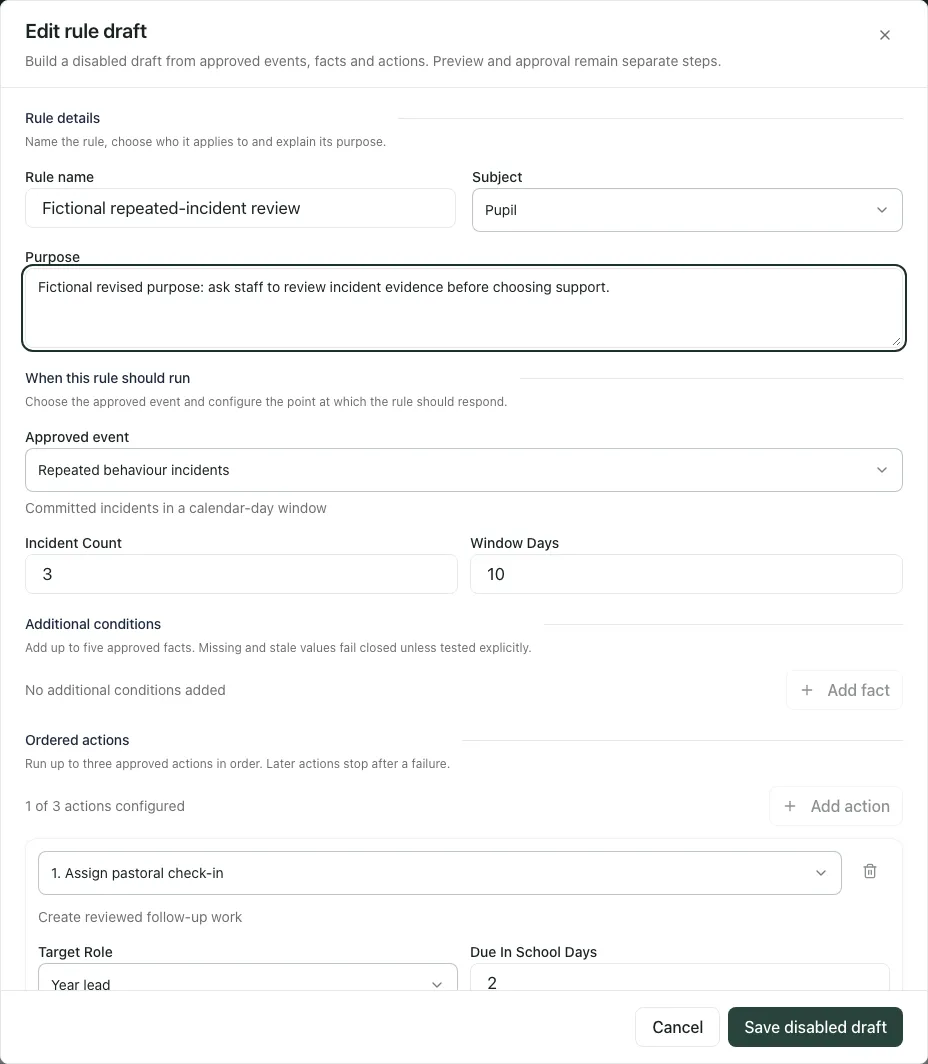
Edit as new draft starts a new editable version of an existing rule. A current active version and a newer draft can coexist; check both labels. Saving a new draft does not mean that the active rule changed or stopped.
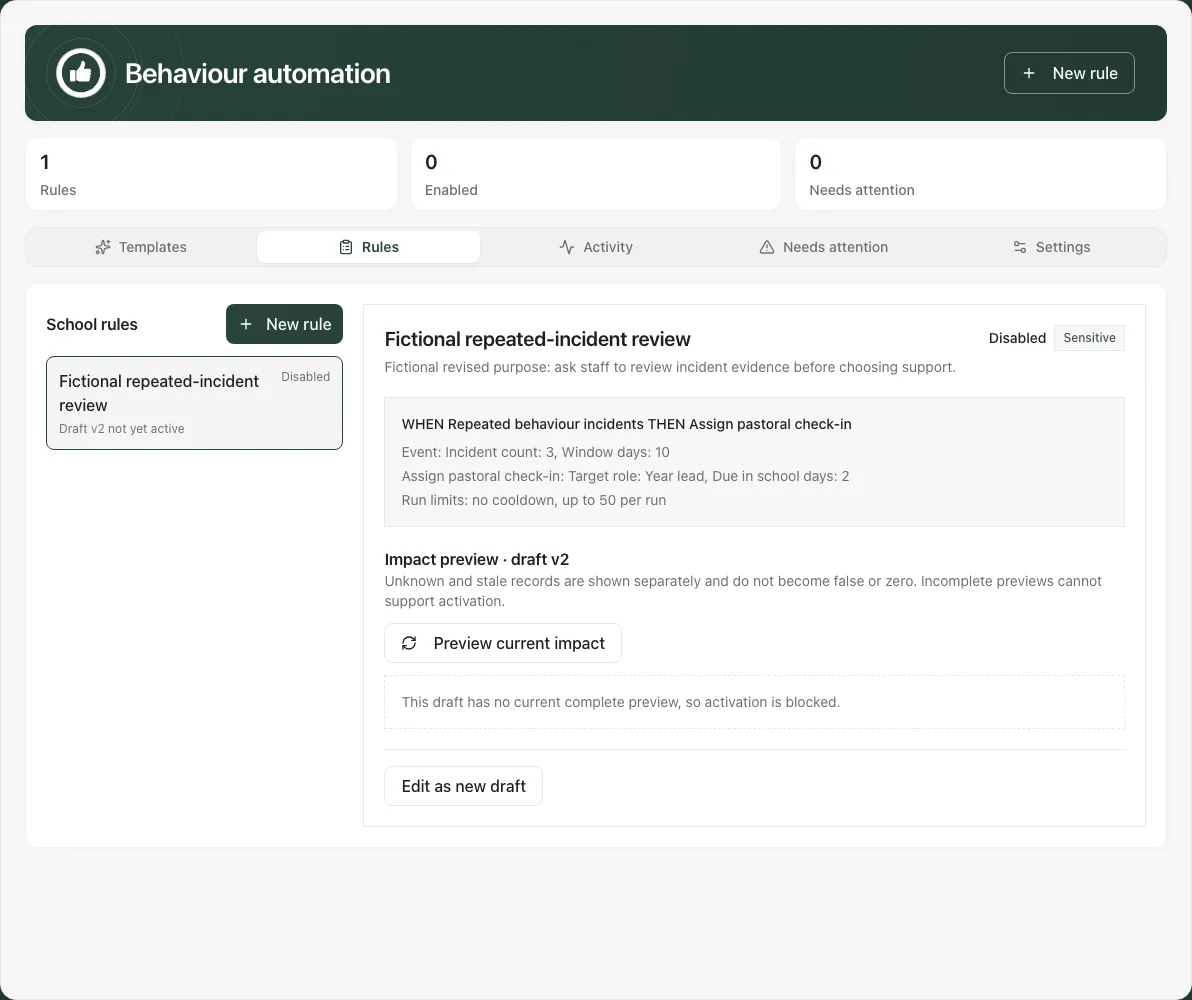
If a colleague saved a newer draft first, the builder closes and reloads the rule on conflict. Inspect that new state before editing again; do not re-enter the same old assumptions merely to force a save.
4. Preview the current impact before any activation
Section titled “4. Preview the current impact before any activation”Select Preview current impact on the exact draft. Read:
- Current matches: records matching this preview’s definition/window.
- Action targets: the targets of the defined actions, which need not equal the match count.
- Unknown data: checks with information missing.
- Stale data: checks whose evidence is out of date.
An incomplete preview cannot support activation. Unknown/stale information is not silently converted to false or zero. If the scope is too large or records could not be checked, narrow the definition or resolve the source problem and preview again.
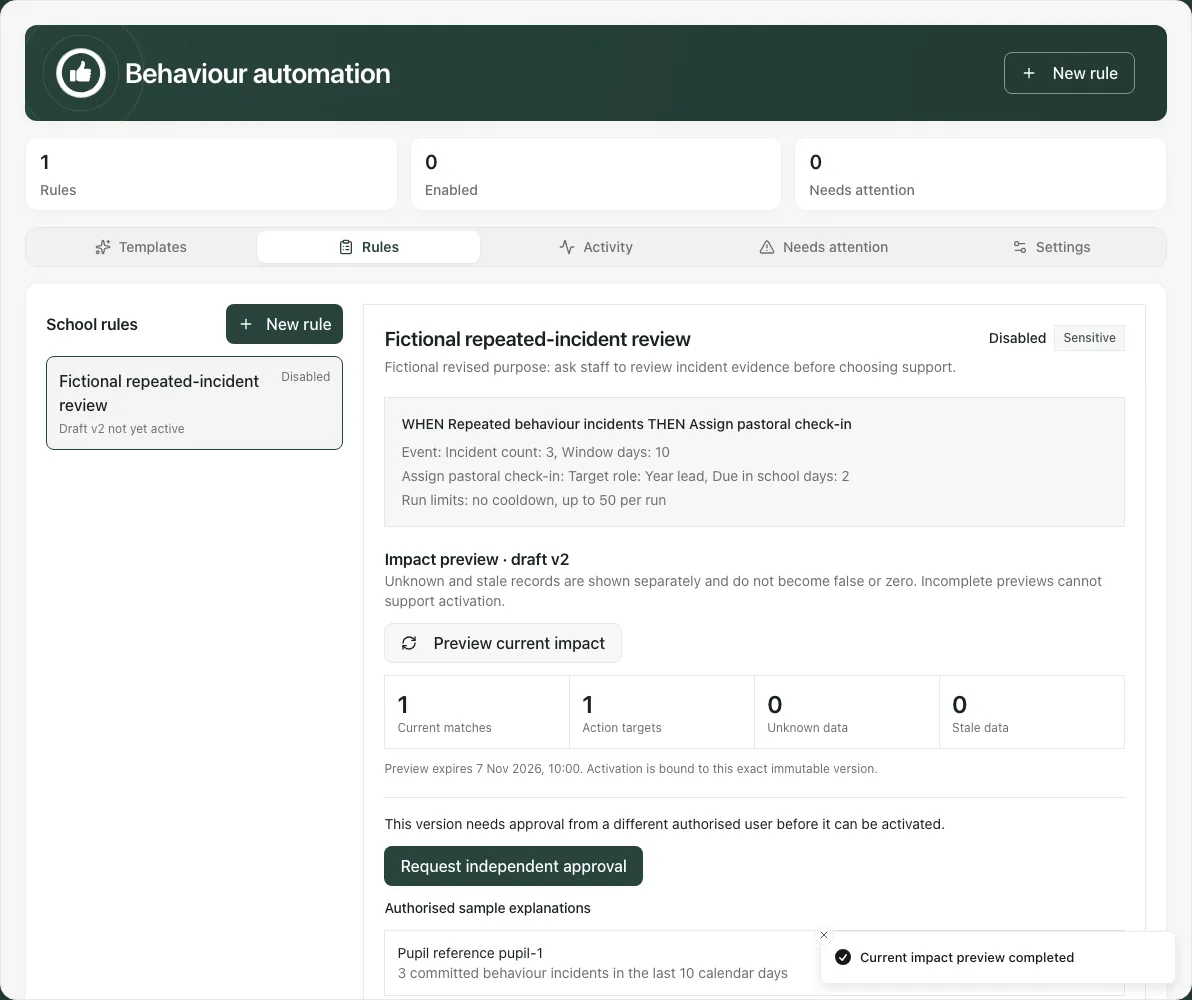
The displayed sample is limited to the first 20 matches. The total can be larger; a small sample is not the complete affected list. Read the evidence explanation, such as committed incidents in the stated calendar-day window, alongside the count. A match is a prompt under the defined rule, not a diagnosis or a finding that a sanction is appropriate.
Read the expiry time. Preview, approval and activation bind to the exact version and preview. If an open preview expires, the page withdraws activation/approval and asks for the next valid step. A new preview clears an old apply-current confirmation. Check the actual date/window, especially around a school-day boundary, before relying on the results.
5. Obtain independent approval where required
Section titled “5. Obtain independent approval where required”The preview’s recorded approval requirement controls this step. If the requirement is unknown, approval is required rather than guessed as unnecessary.
- Read the definition, current preview, risk and proposed recipients/actions.
- Use Request independent approval where offered.
- A different authorised user opens that exact version and preview, checks them and chooses Approve exact version or Reject. Authors cannot approve their own high-risk version.
- Refresh/check the resulting status before attempting activation.
A pending draft can wait for someone with approval access. A rejected draft needs Edit as new draft, correction, a fresh preview and approval request. An approved version whose preview expired needs re-drafting as explained by the page. Do not treat an old approval as permission for changed matches or a new version.
6. Activate deliberately, with a separate decision about current matches
Section titled “6. Activate deliberately, with a separate decision about current matches”Activation can create downstream work or communication when live policy allows it. Only authorised staff should perform it after reviewing the impact and the school’s actual ability to deliver the response.
Leave Apply to current matches unticked to avoid applying the initial baseline to current matches. If the school has explicitly decided to apply to those current targets, tick it and type APPLY CURRENT MATCHES for this version and preview. Recheck the count and audience before Activate exact version.
Activation does not override Automation platform, Shadow mode, action permissions, independent approval or school caps. In shadow mode the platform evaluates/records without committing the actions. Enabled status alone is not proof that tasks/messages were created.
A fresh preview, another rule or another version needs its own confirmation. Never copy a previous confirmation as though it authorised a different set of pupils.
7. Check Activity and Needs attention after a run
Section titled “7. Check Activity and Needs attention after a run”Activity shows recorded firings and each action outcome. Inspect executed, skipped, failed or other reported states rather than treating the firing count as successful delivery. Open rule returns to the original definition/version context.
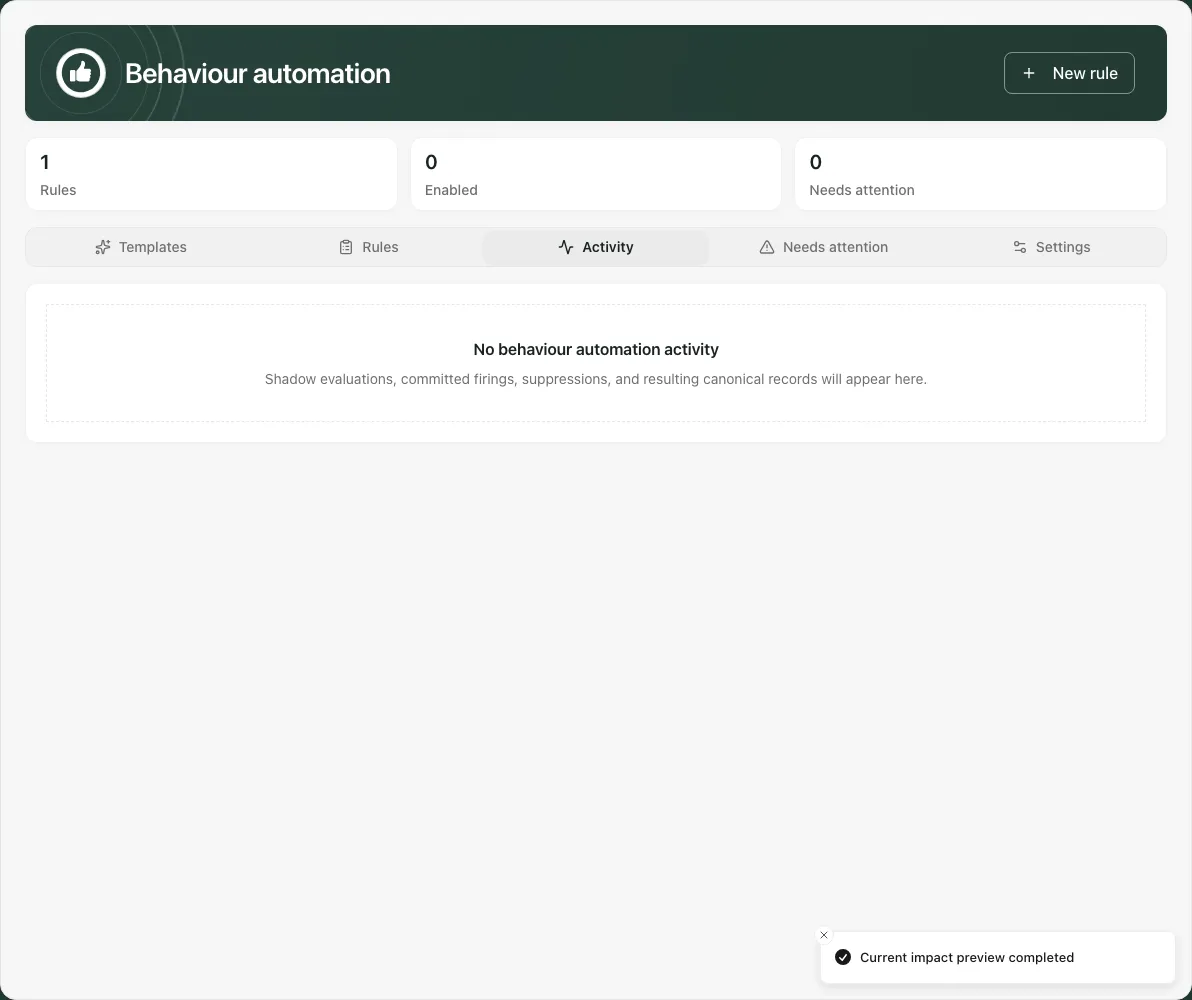
Needs attention identifies approval and operational problems, such as missing recipients, stale source or failed actions. Use Open rule and the action-specific message to find the next step. The page does not offer a universal resolve/dismiss action for every attention item; some open items can persist after staff investigate them.
Activity and attention show at most the latest 100 entries. A full list is labelled and counts can read 100+. Do not report those lists as complete school history. A task creation outcome is not proof that the assigned role can find, claim or complete it; check the work destination through the appropriate authorised route.
8. Switch off, revise or compare a legacy source carefully
Section titled “8. Switch off, revise or compare a legacy source carefully”Disable rule switches off a live rule directly. Re-enabling is not a casual toggle: use the current preview/activation process. Disabling does not automatically undo work or messages already committed, nor reactivate a legacy source.
For a rule with source-cutover controls, Run bounded source comparison compares the supported source before a deliberate migration. Read matched/mismatch and completeness first. The typed cutover confirmation and any switch of evaluator can change which source acts; this is an administrator operation requiring the exact displayed prerequisites. Do not run legacy and replacement paths in parallel merely to compare their visible outcomes.
9. Review school automation policy
Section titled “9. Review school automation policy”In Settings, check Automation platform, Shadow mode, Family auto-send opt-in and the displayed action/message caps. Those settings affect more than this one behaviour rule. A viewer can inspect policy while being unable to change it.
An authorised manager changes only the intended fields, checks allowed whole-number cap ranges and chooses Save automation policy. If settings changed elsewhere, reload and reconcile them rather than overwriting another administrator’s policy. Switching off shadow mode or enabling family auto-send is a consequential live-action decision, not a routine preview step.
10. Find the pupil-review workflow in the main workspace
Section titled “10. Find the pupil-review workflow in the main workspace”The behaviour page does not expose Pupil reviews. For a human-reviewed welfare/pupil suggestion, use the main Automation workspace or the appropriate pupil-welfare link. Acknowledge, monitoring, dismissal, reviewed resolution and acceptance of proposed follow-up work are explicit human decisions. See Act on a pupil review suggestion.
Phone use and troubleshooting
Section titled “Phone use and troubleshooting”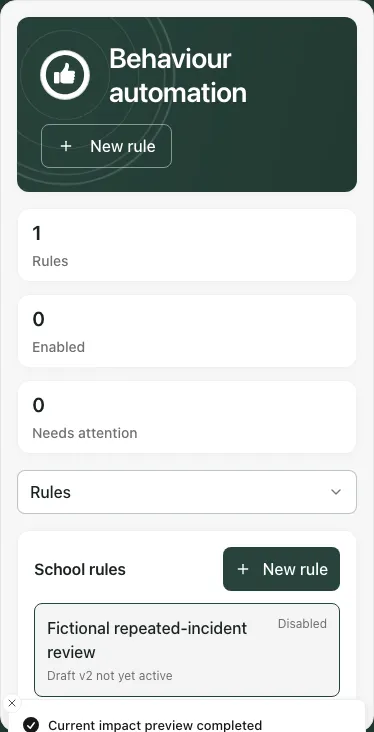
Scroll the rule details and builder to inspect the full definition and footer. A saved draft, preview, approval and active version are four different states.
| Situation | Next step |
|---|---|
| Automation access required | Ask the school administrator for the exact action permission. |
| Save disabled | Correct the named fields, event/action parameters and run limits. |
| Rule changed elsewhere | Reload its new draft before editing. |
| Preview incomplete/expired | Resolve coverage or narrow scope, then use the offered fresh-preview/re-draft step. |
| Self-approval refused | Ask a different authorised approver. |
| Approval pending/rejected | Follow the displayed pending/re-draft path; do not bypass it with a duplicate rule. |
| Platform off or shadow mode on | Check policy with the authorised manager; enabled is not proof of live actions. |
| Action failed or recipient missing | Inspect the original rule and downstream work; do not infer delivery from a match. |
| Cap reached | Review scope/caps with the responsible manager rather than repeatedly running the same work. |
Common questions
Section titled “Common questions”Why is my new rule disabled?
Section titled “Why is my new rule disabled?”Rules begin as disabled drafts so staff can check conditions and impact and obtain required approval before deliberate activation.
Does activating a rule automatically approve action on existing matches?
Section titled “Does activating a rule automatically approve action on existing matches?”No. The workflow separates activation from the decision about current matches. Review the displayed impact and the exact version before deciding.