Record AP incidents and contact already made
Written for: AP colleagues recording permitted behaviour incidents and significant-incident reports.
Record the observed incident and its significance, then record who was actually told at the commissioning school and when. The Record report action records contact already made; it does not send a message or complete a separate safeguarding response.
Open the AP log and check its scope
Section titled “Open the AP log and check its scope”Open Pupils → Behaviour → Incident Log. The page heading is Behaviour. This guide describes the AP view of that route; other settings have a different behaviour workspace.
Check the provision, dates and pupil. Current access controls reading incidents and recording/reporting for a particular pupil. Log incident is only offered when the source names pupils you may record for. A pupil link does not grant full profile or restricted case access.
Use professional judgement and the provision’s behaviour and safeguarding procedures. The examples are fictional observations and staff decisions, not categories or reporting thresholds to copy into a real case.
Set the reporting window and read its counts
Section titled “Set the reporting window and read its counts”The initial range is the last seven calendar dates, including today on the school clock. Use From and To for a range of up to 93 calendar days, ending no later than today. Choose Pupil for one permitted pupil and Refresh for the latest source.
| Figure | What it means |
|---|---|
| Incidents | Distinct incident records in the chosen scope, rather than every displayed pupil row for a group incident. |
| Significant | Incidents with a recorded human significance decision. |
| Reported same day | Significant incidents whose recorded contact date is the incident day. It is not a delivery receipt from a messaging service. |
| Reported late | Significant incidents with a recorded contact after the incident day. |
| Awaiting report | Significant incidents without a report recorded yet. An empty report record does not establish no contact occurred. |
A dash can mean not applicable; Unavailable is not zero. Incident log shows the included incidents; Significant incidents narrows to significant ones, with outstanding reports first.
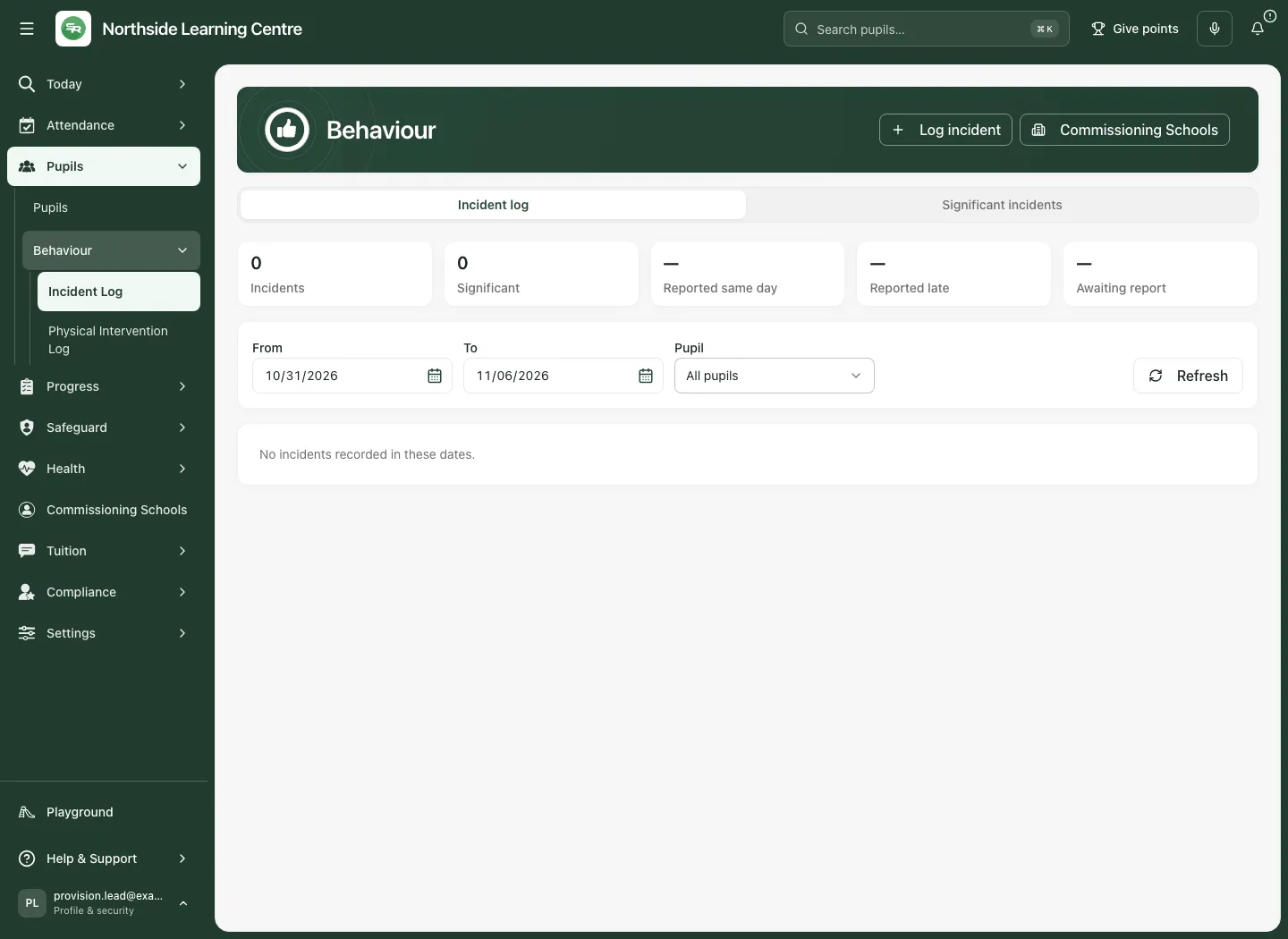
The list is bounded to 200 rows. Where truncated, it prioritises incidents awaiting a report, then other significant incidents, then recent ones, while displaying the selected rows newest first. Read Showing 200 of N incidents and shorten the dates to see the remainder. Whole-window totals can exceed the loaded rows; a filtered pupil’s counts become unavailable when completeness cannot be established rather than infer totals from a partial list.
Record today’s incident
Section titled “Record today’s incident”- Select Log incident and choose Pupil. The picker uses permitted on-roll pupils, not whichever names remain after a dashboard header filter.
- Enter Category, up to 100 characters. You can use a suggestion or a precise appropriate description; the app does not decide the category for you.
- In What happened, up to 1,000 characters, describe observed actions, time/context as known and attributed reports. Avoid inferring motive or diagnosis.
- Choose Behaviour points from −1 to −5, in line with the provision’s policy. This is an incident record, separate from the positive Points award workflow.
- If significant under the actual professional decision, tick Significant incident and enter Why it is significant. It is not automatically classified by the chosen points value.
- Select Log incident and wait for confirmation. The record is created against the current school day; this form does not offer backdating an incident date.
- Check the new record in the refreshed log. The view moves its dates/pupil filter as needed to reveal the saved incident.
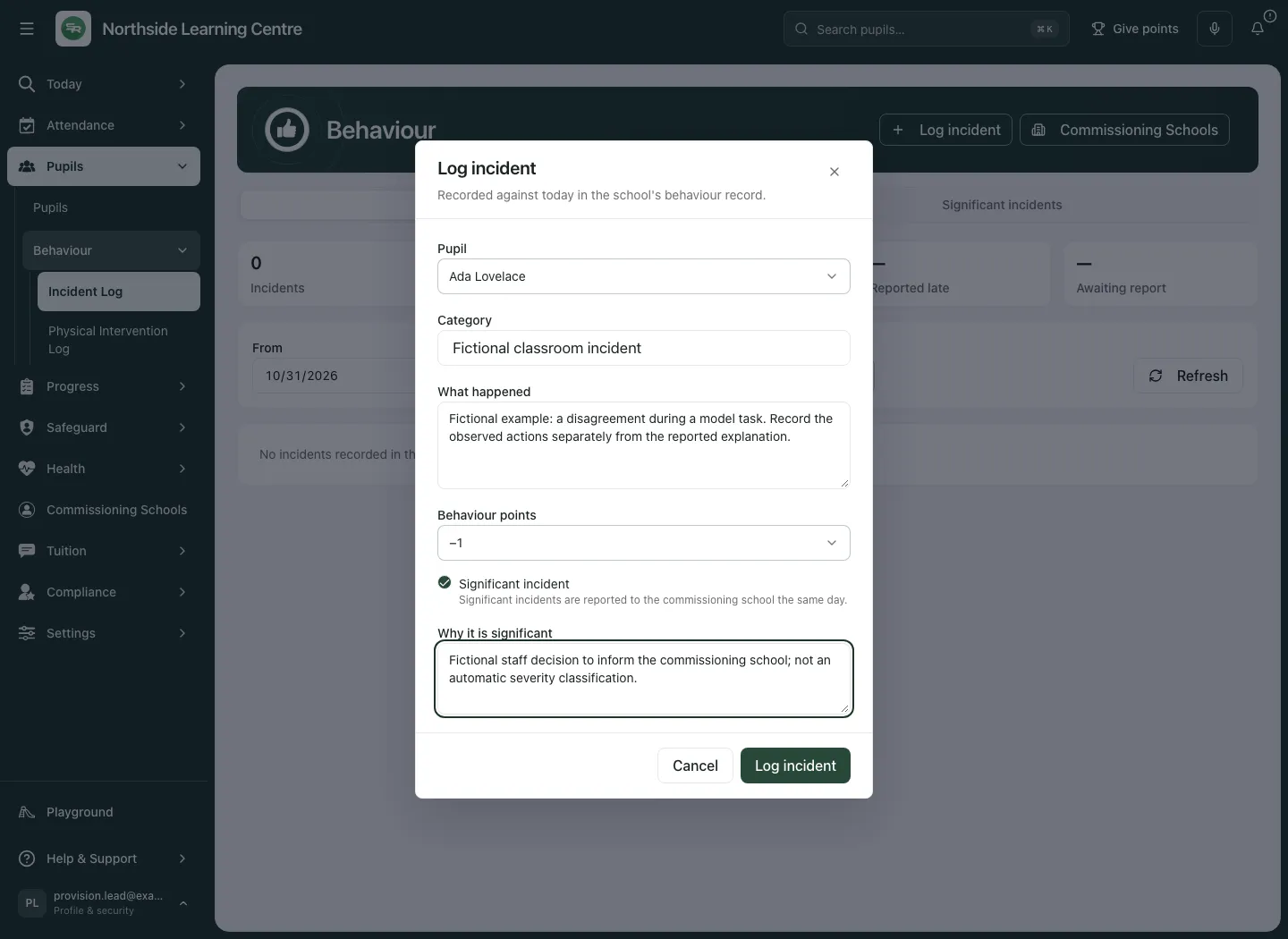
If significance was requested, logging and marking significant are two confirmed steps. Incident logged, but it was not marked significant means the incident itself is already saved; return to it and complete the significance check instead of logging a duplicate.
A lost response can be retried with the same intended request. If the app says an earlier attempt may already have saved, inspect the log before trying again. A changed/refused attempt and an unconfirmed network result need different recovery; a click is not proof of a new incident.
Mark or change significance before recording a report
Section titled “Mark or change significance before recording a report”For an existing eligible incident:
- Select Mark significant.
- Enter Why it is significant and select Mark significant.
- Check Significant, the saved reason and the commissioning-school/report-due context.
- To correct the significance reason before the report is recorded, choose Edit significance, edit it and Save reason. If the incident is not significant after review, choose Not significant instead.
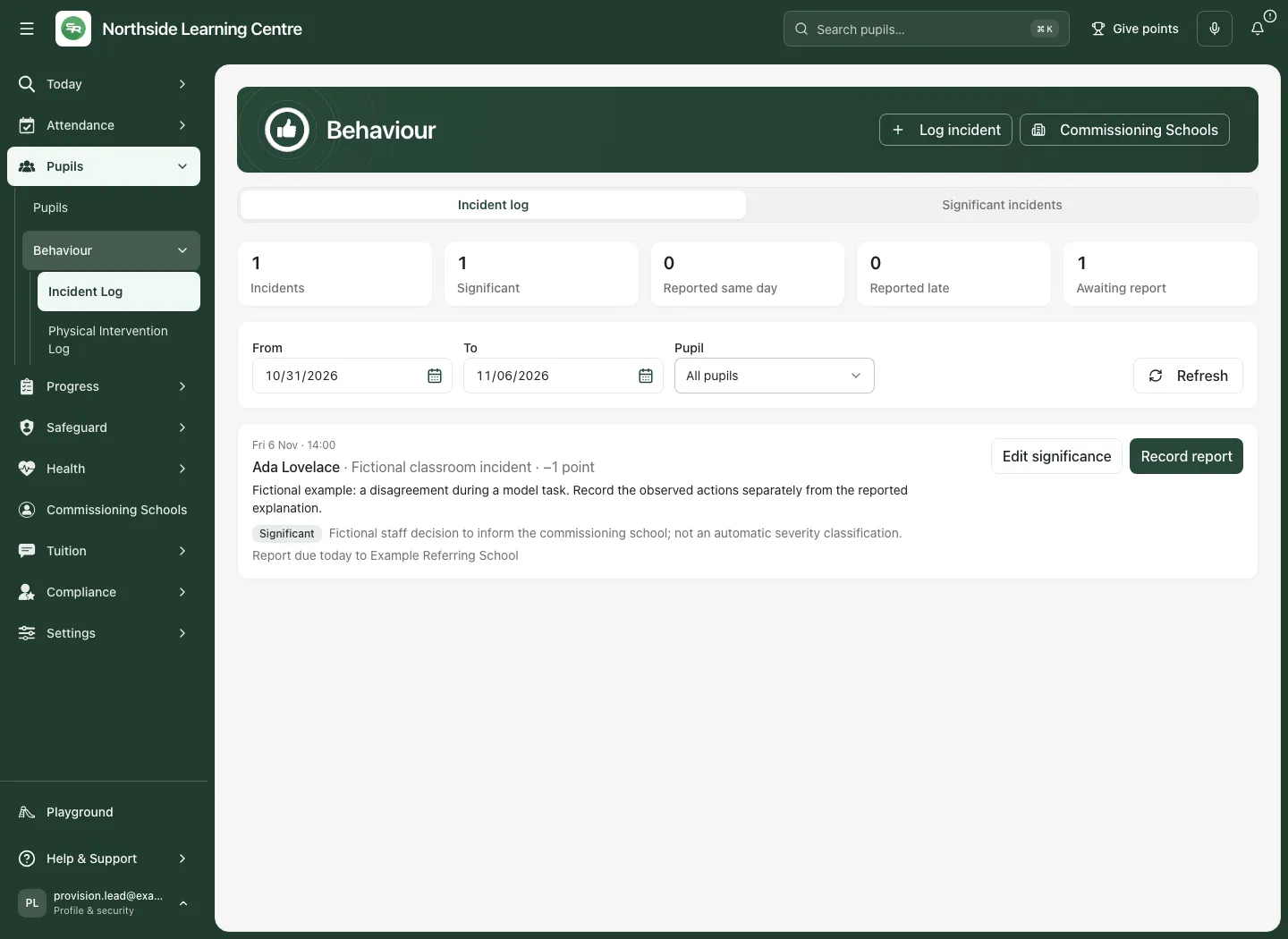
The school is taken from the placement covering the incident date. If none exists, the screen says so; do not substitute an unrelated school or change a placement merely to clear a prompt. Use the permitted Commissioning Schools route, or ask the colleague who manages placements, to establish the agreement.
Once a report is recorded, this log does not offer those significance/report controls as a way to rewrite it. It has no general incident amend, close, delete, family-notice or follow-up-completion action. Correct the original record through the provision’s authorised source process; recording a report is not closing a case or completing linked work.
Tell the school, then record the actual contact
Section titled “Tell the school, then record the actual contact”The workflow prompts same-day reporting for significant incidents. Arrange the actual contact through the provision’s agreed procedures before recording it.
- Tell the appropriate commissioning-school contact using the agreed channel.
- Select Record report on the correct significant incident. Check the pupil and school’s name.
- Enter Date reported and Time for the actual contact. The defaults follow the school clock; check them. It cannot be before the incident or in the future.
- Under How, choose Phone call, Email, In person, Secure message or Other.
- Enter Who you told, including the relevant name/role, and What was shared (optional) where useful.
- Select Record report and wait for confirmation. If the contact was after the incident day, the app says it was made late; do not alter the date to make it appear same-day.
- Refresh and read the school, channel, contact, time, same-day/late label and saved note.
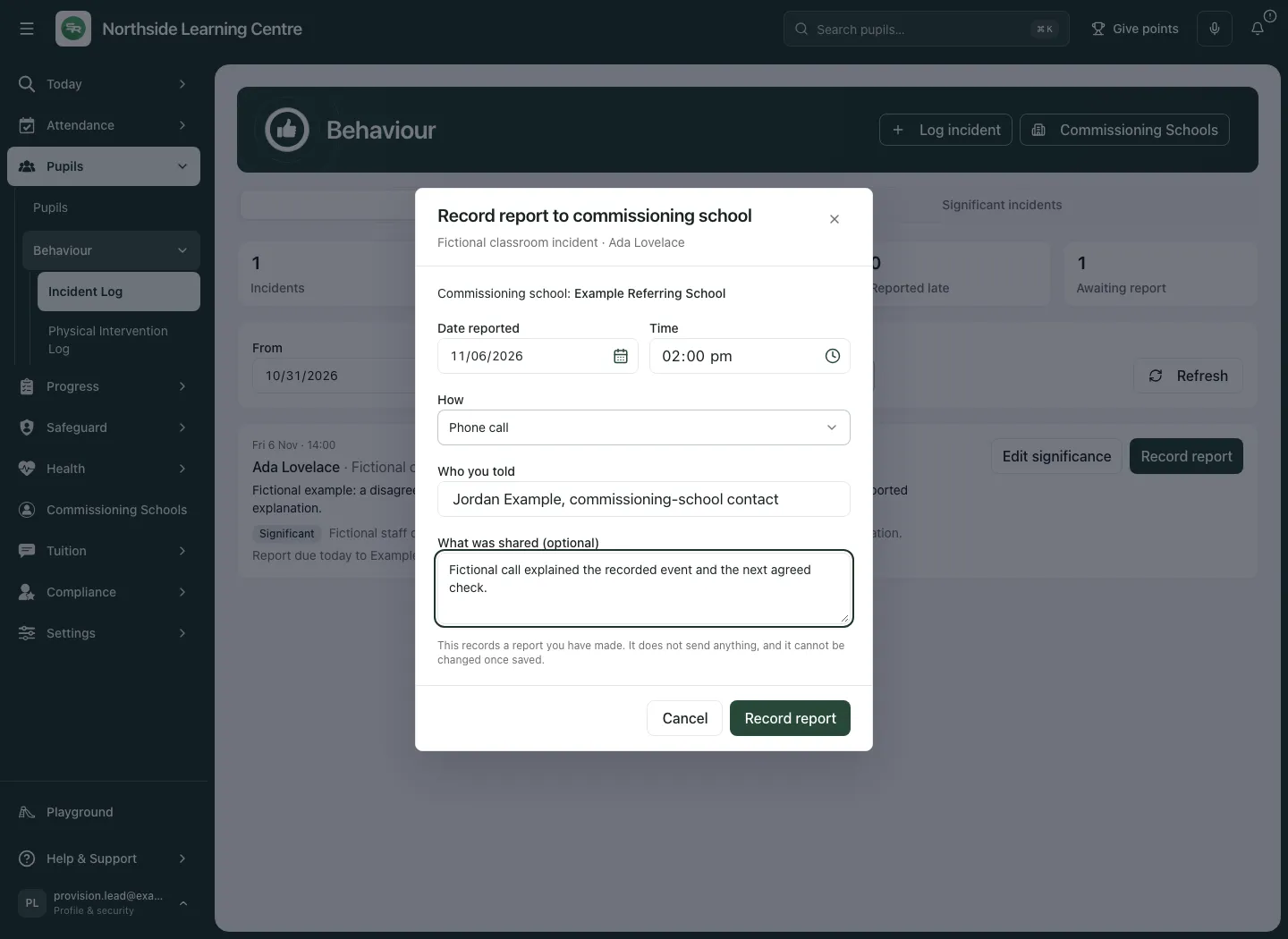
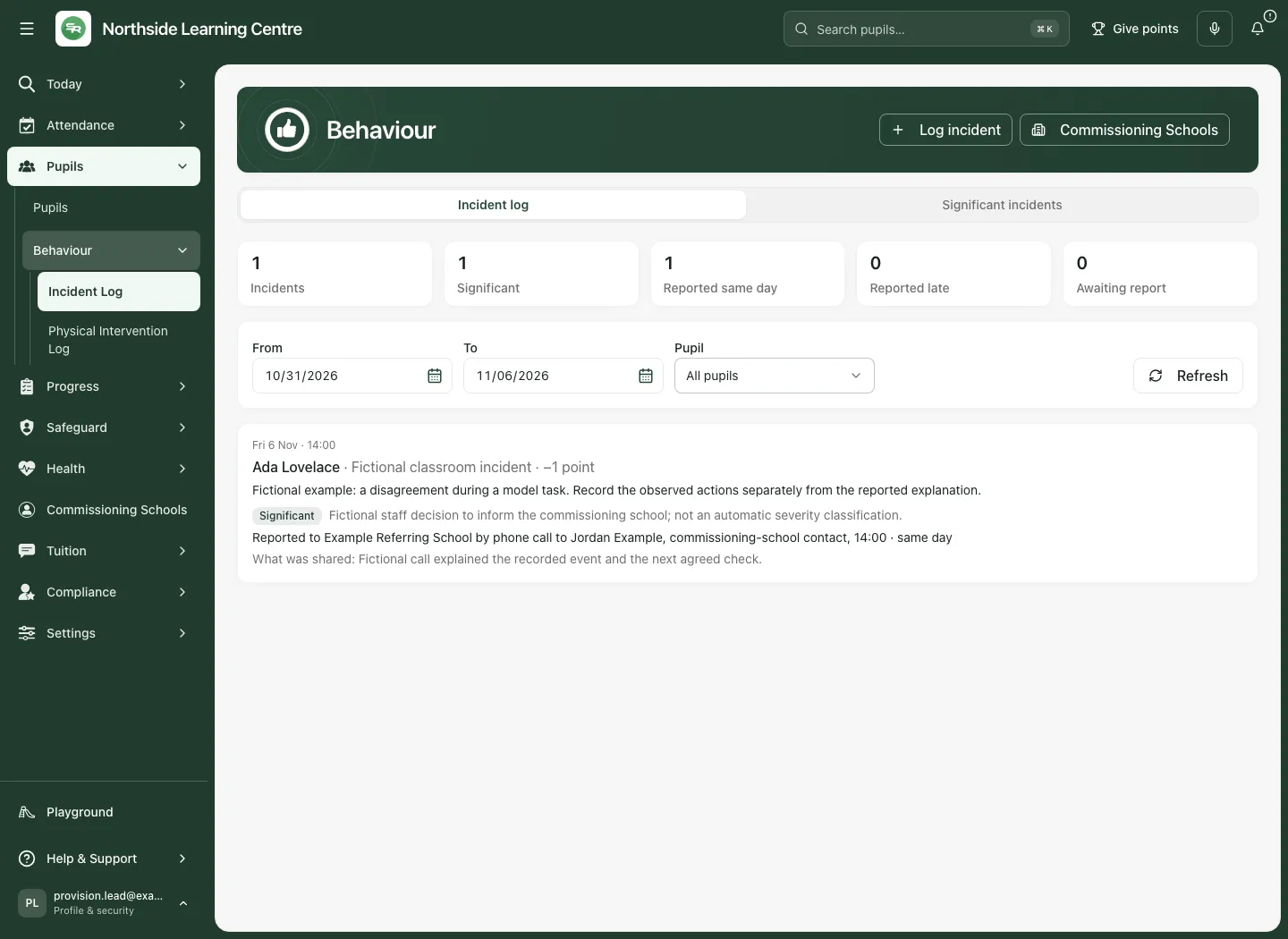
This is a manual account of contact, not evidence that an email was delivered or read. A report note also does not create an agreed task, notify a family, refer to safeguarding or complete any support action.
Read imported and group incidents accurately
Section titled “Read imported and group incidents accurately”Imported records retain labels such as From MIS, From automation or Imported. A sync timestamp is not the incident time; a missing imported event time remains unknown. Positive numeric values on an MIS concern are not automatically a positive reward. Pure positive app Points awards are excluded from this incident log.
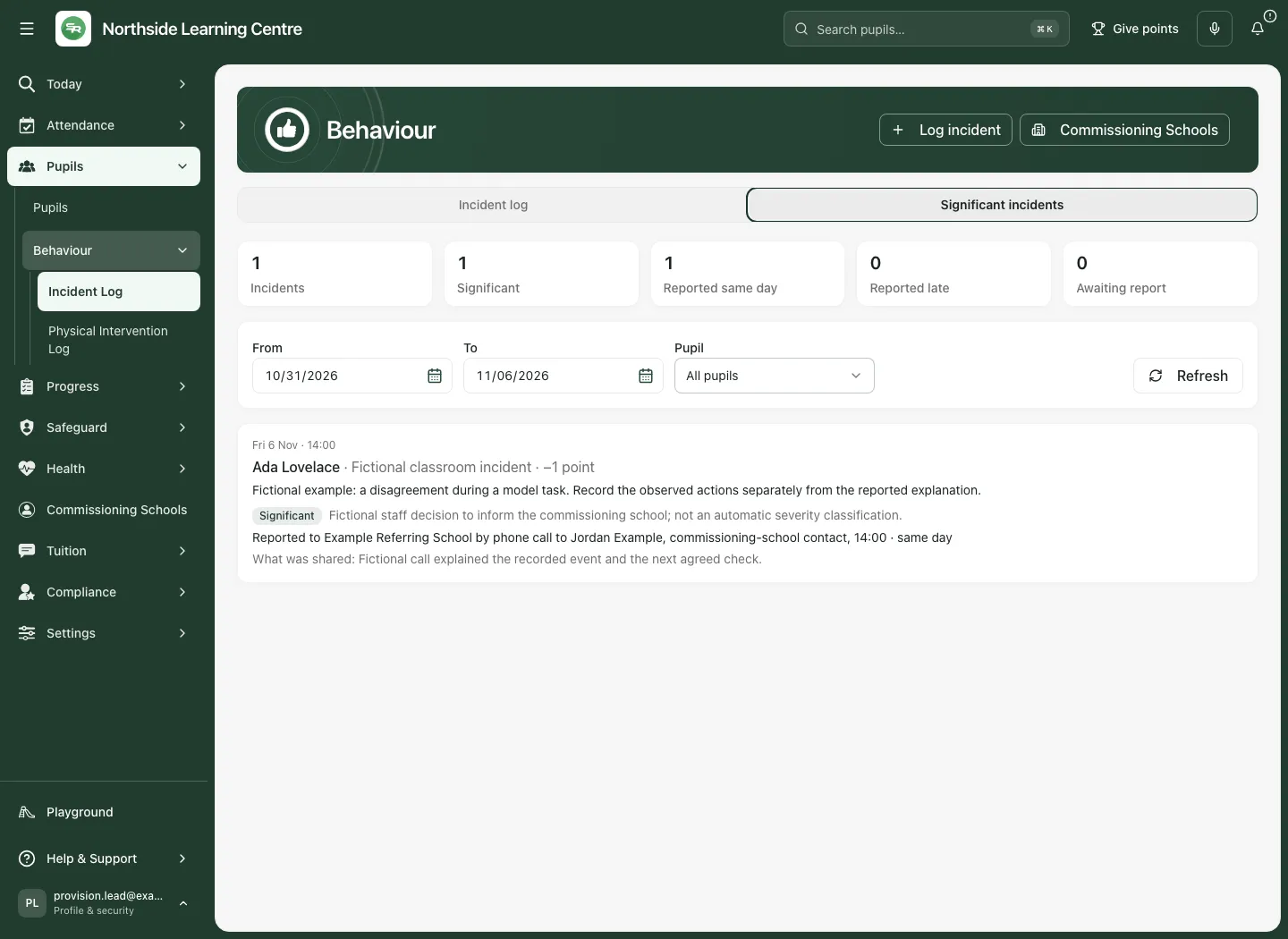
A multi-pupil MIS event can appear as a Group incident row for each permitted pupil. It is read-only here, with no points or significance/report action. The distinct incident count does not increase simply because more than one permitted pupil row is shown. An excluded pupil’s involvement must not be inferred from a visible group row.
Resolve a newer decision before saving yours
Section titled “Resolve a newer decision before saving yours”Significance and report forms stay on the revision you opened. If a newer source appears:
- Read Reason now saved and any newly recorded report. Your typed text is not silently saved against that new version.
- Use Use the saved reason or the offered keep/reconcile choice after comparing it. In the report form, Continue with this version adopts the displayed current decision before a new save.
- If the report is already recorded, the form explains it can no longer be saved. Copy any unsaved notes you need; closing it is not a correction to the existing report.
- A source refresh failure does not mean your report saved. Use Refresh/retry and check current dates, pupil and permissions before another command.
Use the phone view
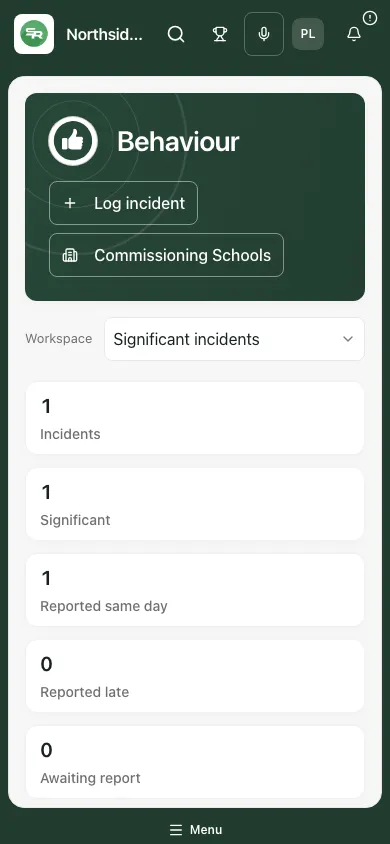
Section titled “Use the phone view”Choose the required section and dates, then scroll the named incident. Check the reason, report status and actual contact before interpreting the headline counts.
Common questions
Section titled “Common questions”When should I use Record report?
Section titled “When should I use Record report?”Use it to record contact already made to the commissioning school, retaining who was told, the date and the channel.
Does recording a significant incident send a message?
Section titled “Does recording a significant incident send a message?”No. The professional significance decision and recorded report do not send a message or complete a separate safeguarding response.
Related: Placement agreements, Safeguarding concern, Support. A saved incident/report is evidence to review, not a finding that the underlying concern has been resolved.