Raise a safeguarding concern and check its receipt
Written for: School staff.
Choose a report type, record the facts and evidence, then check the concern reference and attachment confirmation.
Choose the closest report type and write the facts in your own words. The safeguarding team makes the professional decisions; you do not need to classify the concern or establish its cause before recording it.
If someone is in immediate danger, follow the emergency guidance shown on the page and your school’s urgent safeguarding arrangements first. Completing a form or receiving a reference is not a substitute for contacting the appropriate safeguarding lead when urgent action is needed.
All examples are fictional. The screenshots demonstrate the reporting workflow, not a real child, allegation, alert or safeguarding response.
Open the start page
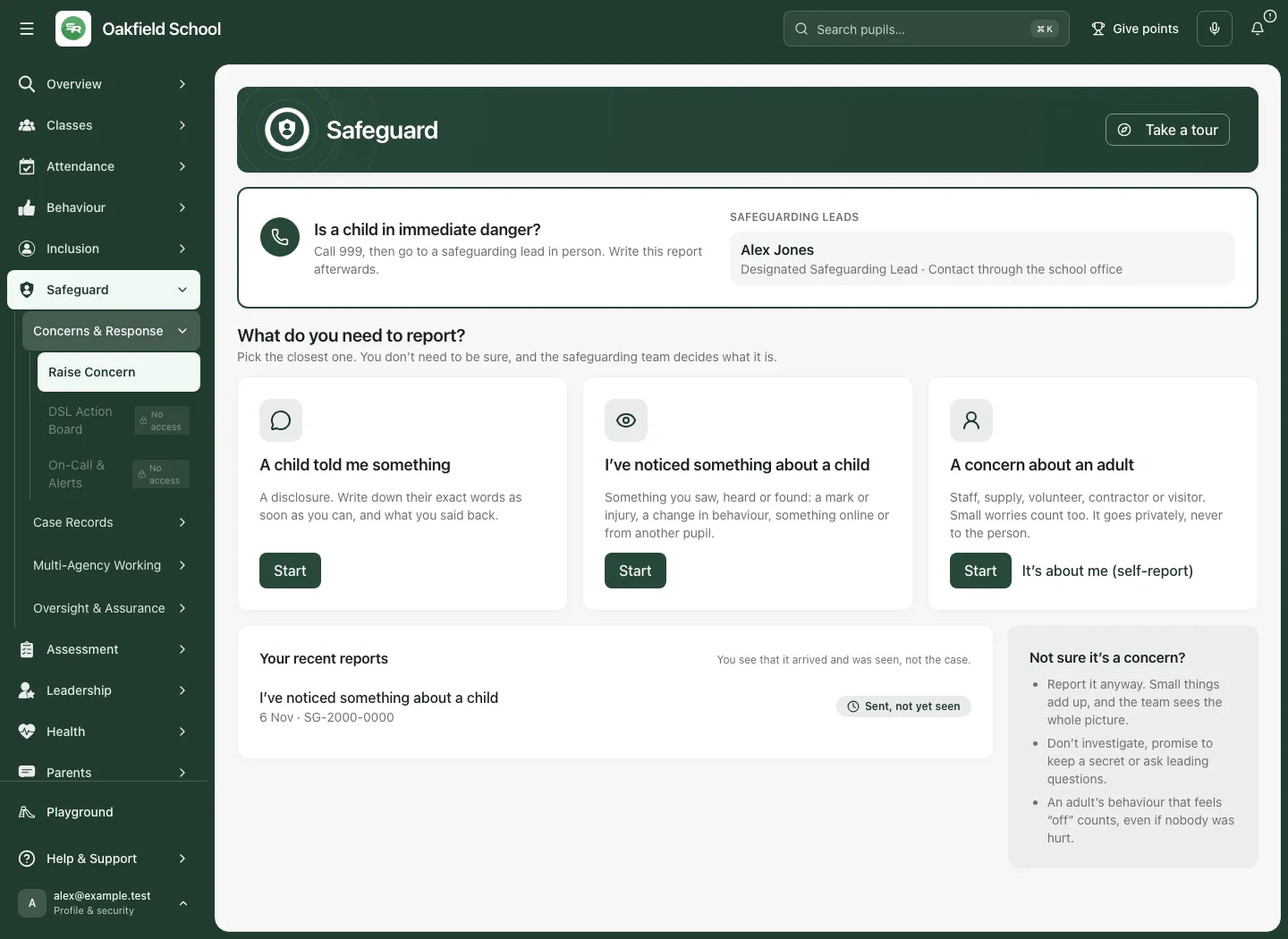
Section titled “Open the start page”- Open Safeguard → Concerns & Response → Raise Concern.
- Check that you are in the correct school.
- Read the immediate-danger guidance and the safeguarding leads shown on the start page.
- If the on-duty information is unavailable or no lead is recorded, use the school office to find the appropriate person. A missing name here is not evidence that nobody is responsible.
- Choose the closest report type.
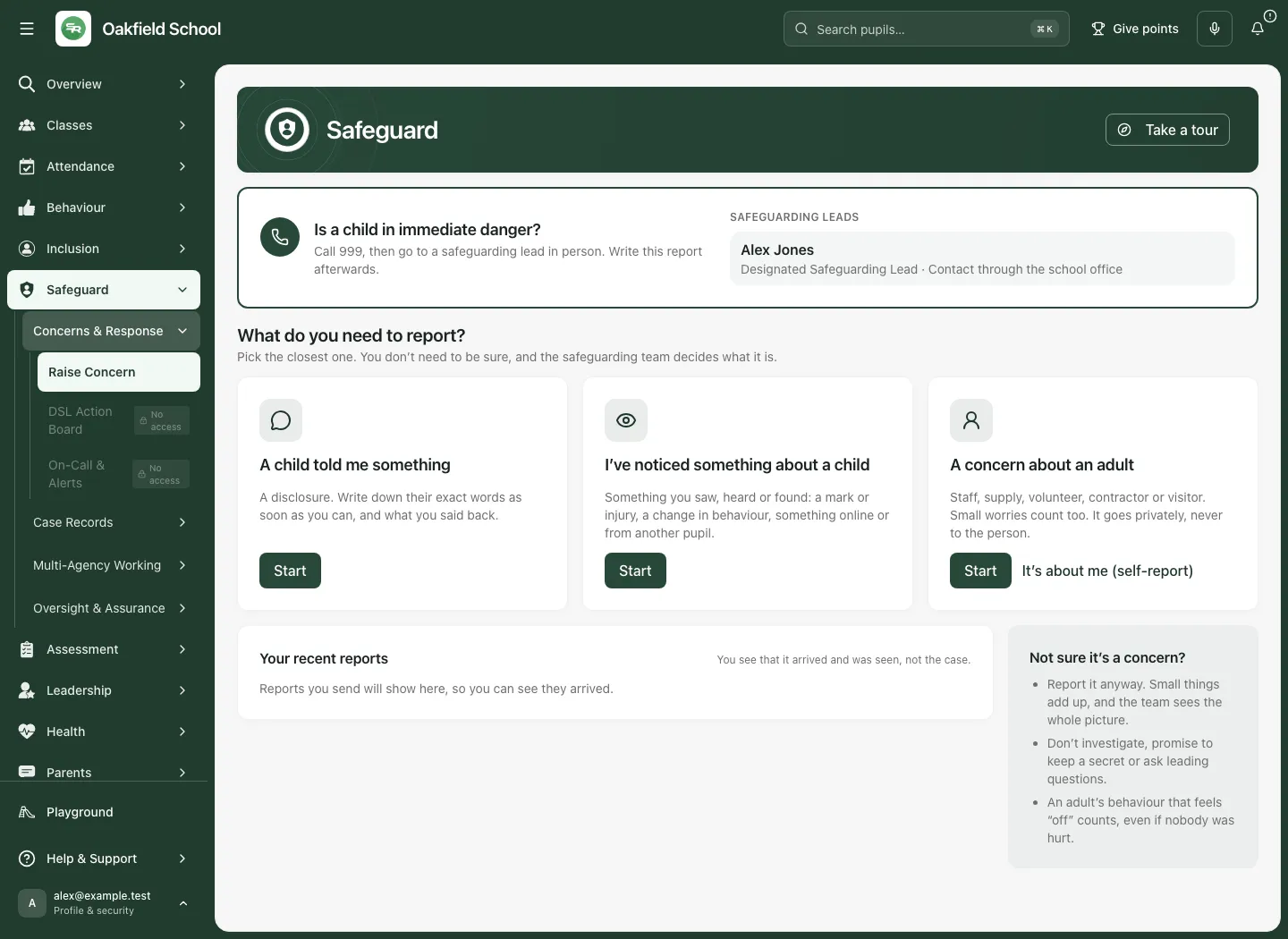
| Choice | Use it for |
|---|---|
| A child told me something | A disclosure: the child’s words and what you said back. |
| I’ve noticed something about a child | Something seen, heard, found online or reported by someone else. |
| A concern about an adult | Staff, supply, volunteer, contractor, visitor or another adult described in the form. |
| About my own conduct | A report about your own actions or words, using its private route. |
Choose the report for the facts you have. Changing report type can affect fields, attachments and routing; read any warning before switching after you have started.
Record a concern about something you noticed
Section titled “Record a concern about something you noticed”- Choose I’ve noticed something about a child.
- Under Pupil, start typing and choose the matching pupil. Check the name, year and class. Search results provide identifying context; they do not give unrestricted access to the pupil’s record.
- If you do not know the name, choose I don’t know their name, then Describe them with the identifying details you actually know. Do not guess a pupil or attach the concern to a similar name.
- Check Date and Time. Use Not sure of the time when appropriate rather than inventing a precise time.
- Choose Where?, or Somewhere else… and write the location. Use the stated unknown option if you genuinely do not know.
- Under How do you know?, choose the relevant source: what you saw/heard, another pupil, an adult, online/messages or something else.
- In What did you see, hear or find?, describe the actions and words. Separate what you observed from guesses about why it happened.
- Add Exact words used, if any (optional) when you have them.
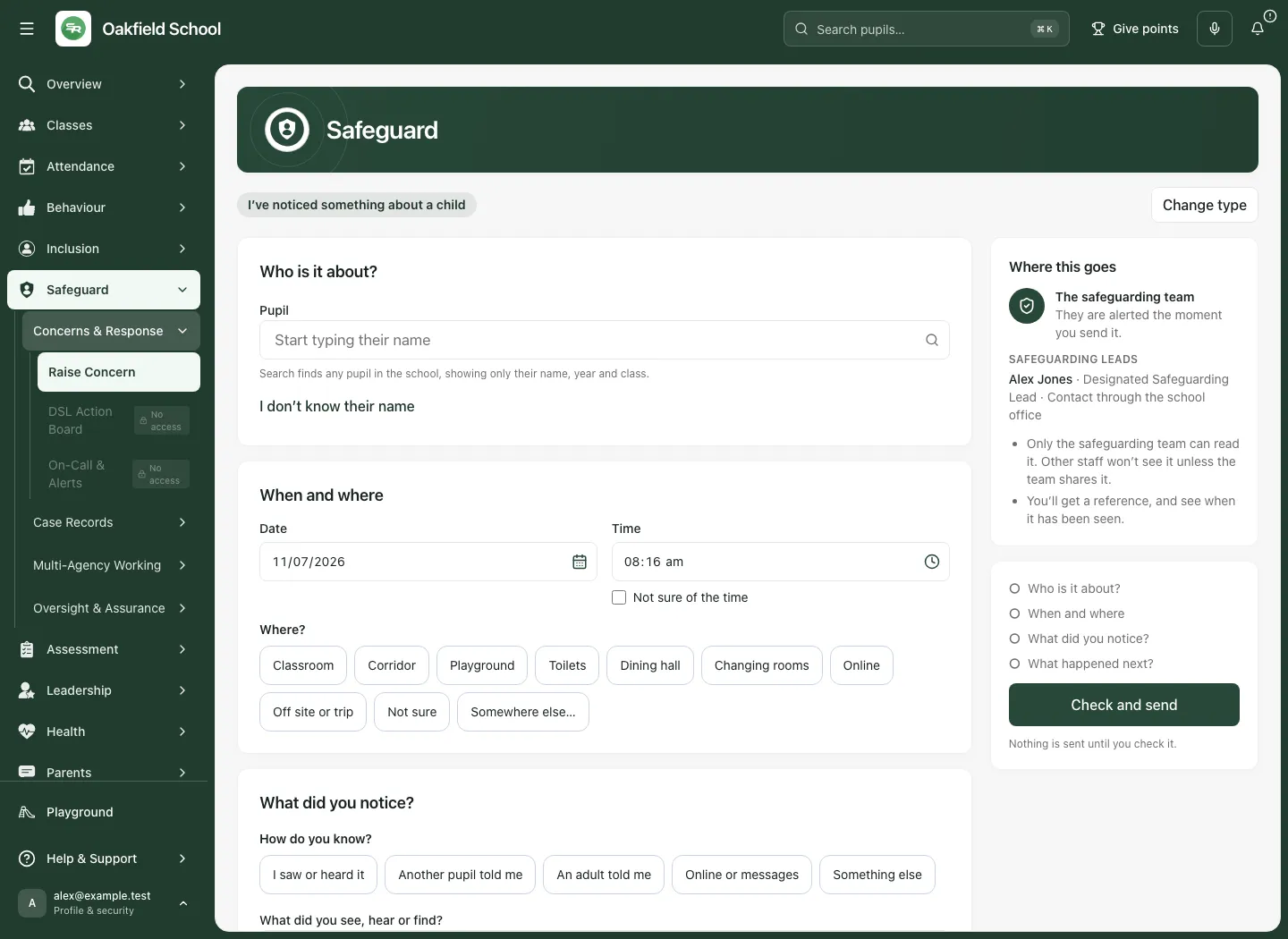
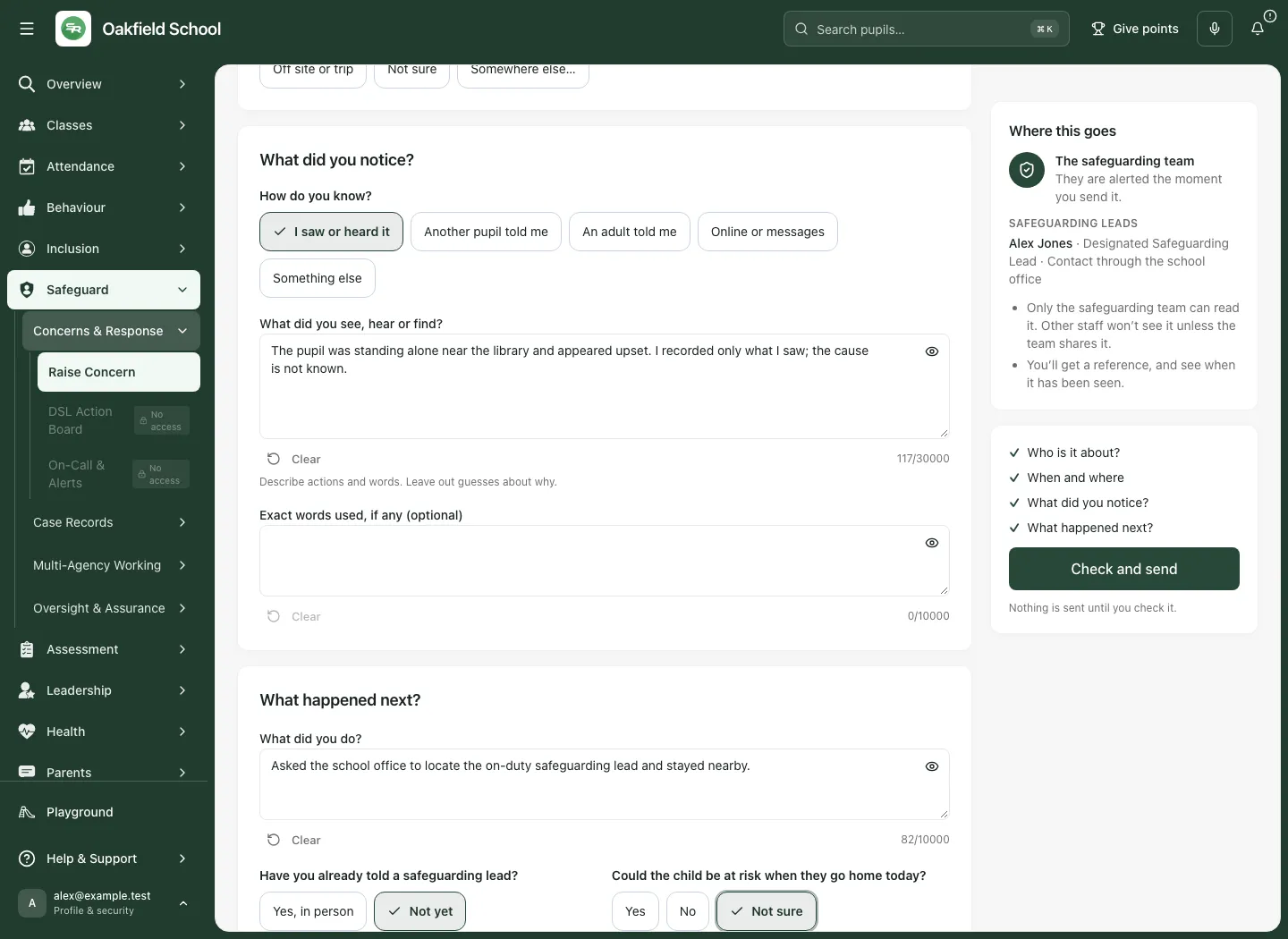
Keep uncertainty explicit. An unknown pupil, approximate time or unclear cause should not become a fabricated identity, timestamp or diagnosis. The safeguarding team can follow up the identifying details through its authorised workflow.
Record a child’s disclosure
Section titled “Record a child’s disclosure”- Choose A child told me something.
- Identify the child, or record the identifying details you know through the unknown-name option.
- Under When did they tell you? and Time they told you, record the disclosure’s time.
- Use When did it happen, if they said? (optional) for the separate time described by the child. Do not confuse when you heard the account with when the described event occurred.
- Choose Where were you when they told you?.
- Write In their words, as close as you can to the child’s own words.
- Record What did you say or ask? (optional) and Anything you noticed? (optional) where relevant.
- Complete the immediate-action and current-safety questions honestly.
The form is for recording the account, not investigating or prompting a child to supply a particular explanation. Preserve what was said and the context; do not convert an uncertain account into an established conclusion.
Record what happened next
Section titled “Record what happened next”For child reports, complete What did you do?, including relevant immediate actions. If the action is reporting it here, say that rather than inventing a conversation or intervention.
Answer Have you already told a safeguarding lead?. If Yes, in person, record Who? and When? accurately. Otherwise choose Not yet and follow your school’s contact arrangements when the concern needs direct attention.
Answer the question about whether the child may be at risk going home today, or whether they go home to the person described. Yes and Not sure are meaningful answers; the form flags the need for action before home time. This is attention information for the team, not proof that a safety decision has been made or carried out.
Report a concern about an adult
Section titled “Report a concern about an adult”- Choose A concern about an adult.
- Select the adult’s relationship: Staff at this school, Supply or agency, Volunteer or governor, Contractor or visitor, Used to work here or Don’t know.
- Select an existing staff record where the form offers one, or describe the person with the details you know.
- Answer the role question accurately, including whether the person is The headteacher or A safeguarding lead (DSL or deputy) where asked. The routing differs for those roles.
- Record how you know, what you saw/heard/became aware of, any exact words and the current-safety/action questions.
- Add involved children/people only when relevant and supported by the facts.
- Read Where this goes and the review’s private-recipient description before sending.
Do not assume every adult concern goes to the ordinary pupil safeguarding team. The form explains the route appropriate to the report and the school’s configured recipients, including concerns about a headteacher or safeguarding lead. It also explains the named person’s exclusion. Report the facts without treating the report as an accusation or deciding the outcome yourself.
About your own conduct
Section titled “About your own conduct”Use About my own conduct or the offered self-report action. Describe what you did or said and what you have done since. The private route is shown before sending. The current self-report workflow does not carry files or voice notes; changing to it can remove those pending attachments. Tell the recipient that relevant material exists through the appropriate school process rather than forcing it into an unsupported field.
The form explains that you will not be able to view the sent report’s content. Keep the reference and follow the school’s process for any further information.
Add other people and evidence carefully
Section titled “Add other people and evidence carefully”Where offered, use + Pupil, + Adult at school or + Someone outside school for relevant people. Choose the correct role, such as Was there, Also affected or the other role shown for that report. An added person is not a finding about responsibility; preserve who said what and the relationship you actually know.
Body map observations (optional) records the location and description of an observation. Use Front, Back, the region chooser/diagram or Add observation in words when the diagram does not fit. Record what you observed or were told; the body map does not establish diagnosis, cause or clinical severity.
Use Add files for permitted evidence. The form states its current bounds: up to ten files, 50 MB total and 10 MB each. Check filenames and the accepted formats. It explains how supported photos are prepared and refuses a photo it cannot process safely. Follow the on-page restrictions about inappropriate images; do not photograph a child’s body or retain/forward prohibited imagery to make an attachment.
If voice notes are unavailable, type the account. Where enabled, use the supported original-audio/transcript review controls and inspect the wording before adding the evidence. Adding a file or recording is not confirmation that the report or attachment reached the team.
Check the report before sending
Section titled “Check the report before sending”- Select Check and send.
- Review Who, When and where, the observed/disclosed account, immediate actions, current safety, involved people and evidence.
- Use Change beside an item or Back to correct it. The review shows uncertainty and unmatched identity explicitly.
- Read Who this goes to and the named route. Check that a private report has the intended recipient boundary.
- Read the reminder that a sent report cannot be changed or deleted by the reporter.
- Select Send to the safeguarding team for a child report, or Send privately for the private route, only when you intend to submit.
- Wait for the confirmation/reference; do not treat a click or a closed screen as acceptance.
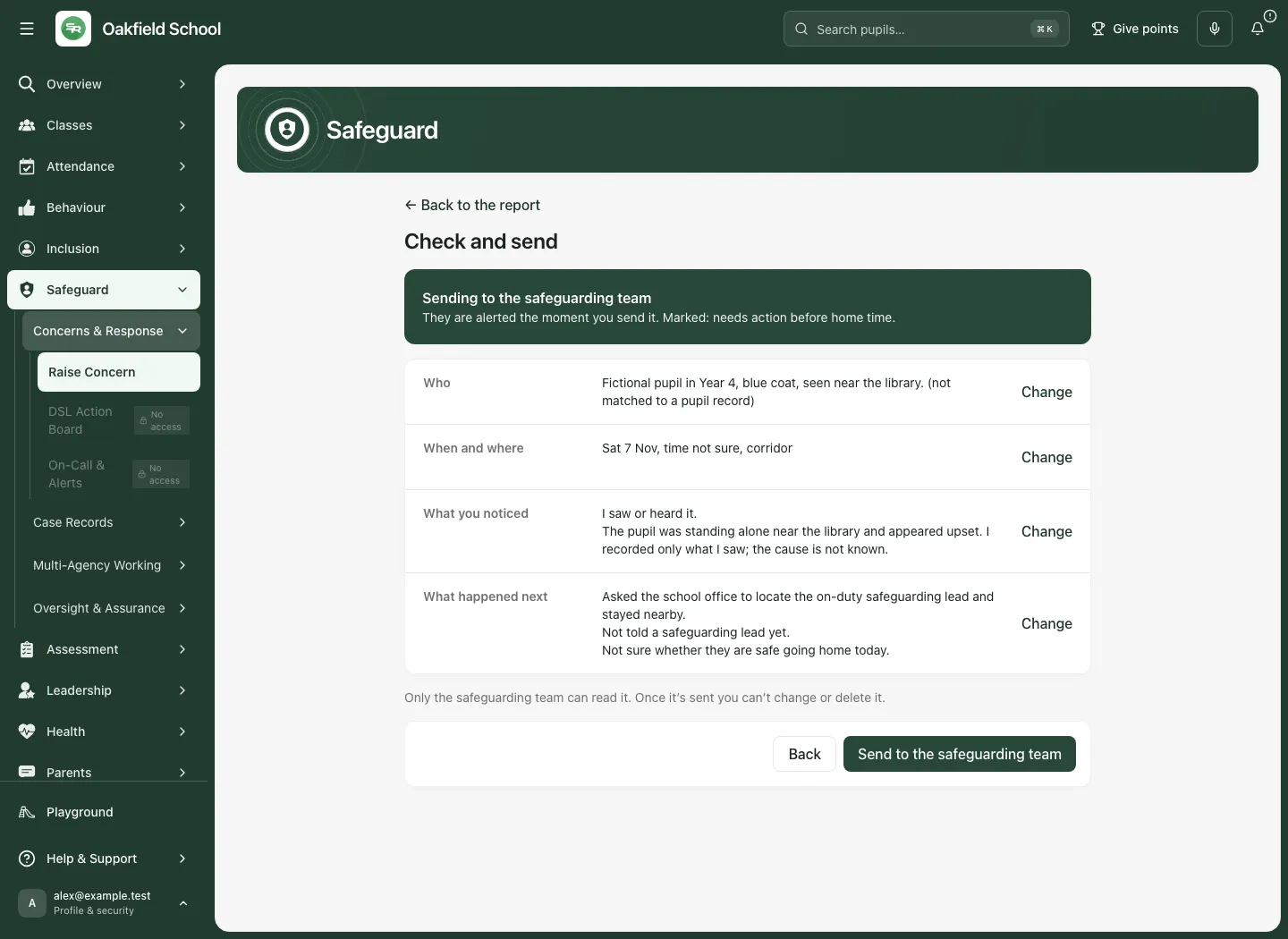
You do not choose a definitive category or make the safeguarding team’s case decision here. The report should contain enough factual context for an authorised person to review and respond.
Confirm the reference and attachments
Section titled “Confirm the reference and attachments”A successful submission shows Sent to the safeguarding team or Sent privately and Your reference. Use Copy reference if needed and check the copy result. The reference confirms the accepted report; it does not prove the team has read it or acted.
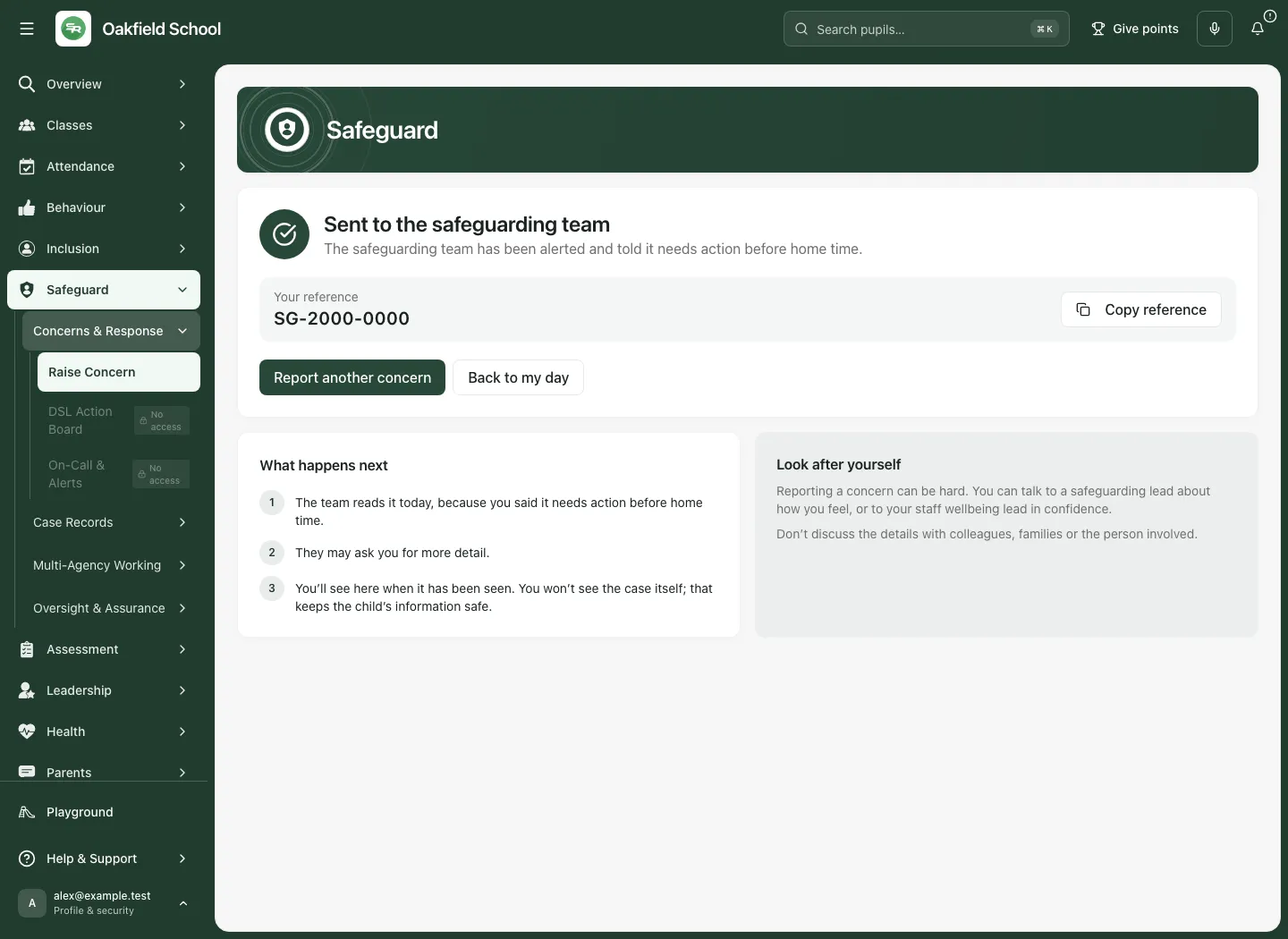
Read each attachment’s result. The report can reach the team while one or more attachments fail. Try the attachments again retries supported pending files. If you finish without them, tell the appropriate team, quoting the reference. Finishing must not be treated as sending a new duplicate report.
Use Report another concern for a genuinely separate report, or Back to my day when finished. On the start page, your recent reports show limited metadata such as kind, time and Sent/Seen state; they do not provide unrestricted access to case content.
If the outcome is uncertain
Section titled “If the outcome is uncertain”A failed response can mean the original report may already have arrived. Keep the report open and use the offered Send it again recovery action rather than copying it into a new report or changing its original intent mid-retry. The workflow checks the original request to avoid recording it twice.
If a previous report is confirmed but its attachments are incomplete, Send attachments again is a different action. Read the specific message. If the screen cannot confirm the outcome, contact the safeguarding team through the school’s urgent arrangements; do not wait for a technical retry when safety needs attention.
Work on a phone
Section titled “Work on a phone”The phone form presents one section at a time with Report progress and a step count. Complete the current section, use the offered next/back controls and check the full review before sending. Going back to correct one field is different from abandoning the report or starting a new request.
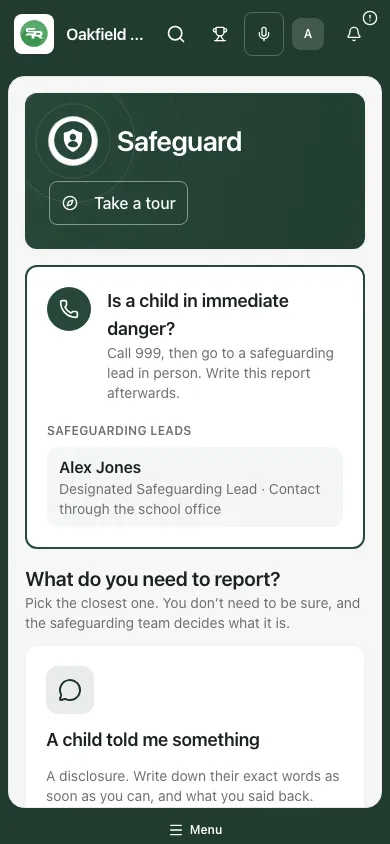
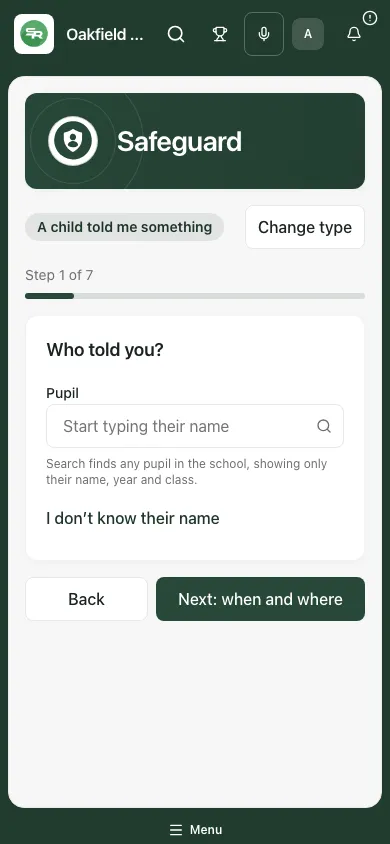
Keep original words and uncertain facts intact while navigating. Read warnings about leaving, switching report type or removing pending files before confirming them.
Troubleshooting
Section titled “Troubleshooting”| What you see | What to do |
|---|---|
| A required detail is missing | Use the linked field/error, add what you know and keep unknown details explicit. |
| No matching pupil | Recheck the name/year/class, or use the unknown-name description rather than a guessed record. |
| On-duty lead unavailable | Ask the school office or follow the urgent school contact process. |
| Date in the future | Correct the event/disclosure date; do not substitute the time you opened the form. |
| Voice notes unavailable | Type the account and follow the school’s evidence process. |
| File not added | Read the type/size/preparation message. Do not assume it is attached. |
| Report not confirmed / may already have arrived | Use the original-request recovery action and contact the team where needed. |
| Report accepted but attachment incomplete | Retry the attachment or tell the team with the reference. Do not resubmit the whole report as a new concern. |
| You cannot see the sent report | Reporter metadata/content access is deliberately limited; follow the displayed route and reference. |
Frequently asked questions
Section titled “Frequently asked questions”Must I know the category or cause first? No. Record the facts and uncertainty; the authorised safeguarding team decides the next step.
Does a reference mean someone has acted? No. Accepted, seen and responded are different states.
Can I change the original report after sending? The reporter form explains that you cannot edit/delete it. Provide further information through the appropriate authorised process.
Does the same recipient receive adult and child concerns? Do not assume so. Check the route shown for the report type and adult’s role.