Plan appointments and record meetings and follow-up
Written for: Meeting coordinators, hosts and authorised follow-up reviewers.
Set up the appointment programme and booking arrangements, then record what happened and assign the agreed follow-up. The workspace separates Plan, Run and After so a booked slot is not mistaken for a completed meeting or an implemented professional outcome.
All screenshots are fictional examples. No real booking, message, recording or support decision was made.
Before you start
Section titled “Before you start”Check the school, programme and current authority. Managing the school schedule, personal availability, bookings, meeting records, family-summary publication and specialist follow-up are separate capabilities. Hosts see their permitted records; a coordinator’s calendar view can show opaque busy periods without the contents of another professional’s appointment.
Agree actual availability, location/video arrangements, travel time, booking deadlines and who will review follow-up. A named attendee, booking link or parent-visible summary does not grant general pupil, SEND or safeguarding access. Use the authorised source workflow for any specialist decision.
1. Choose the programme and stage
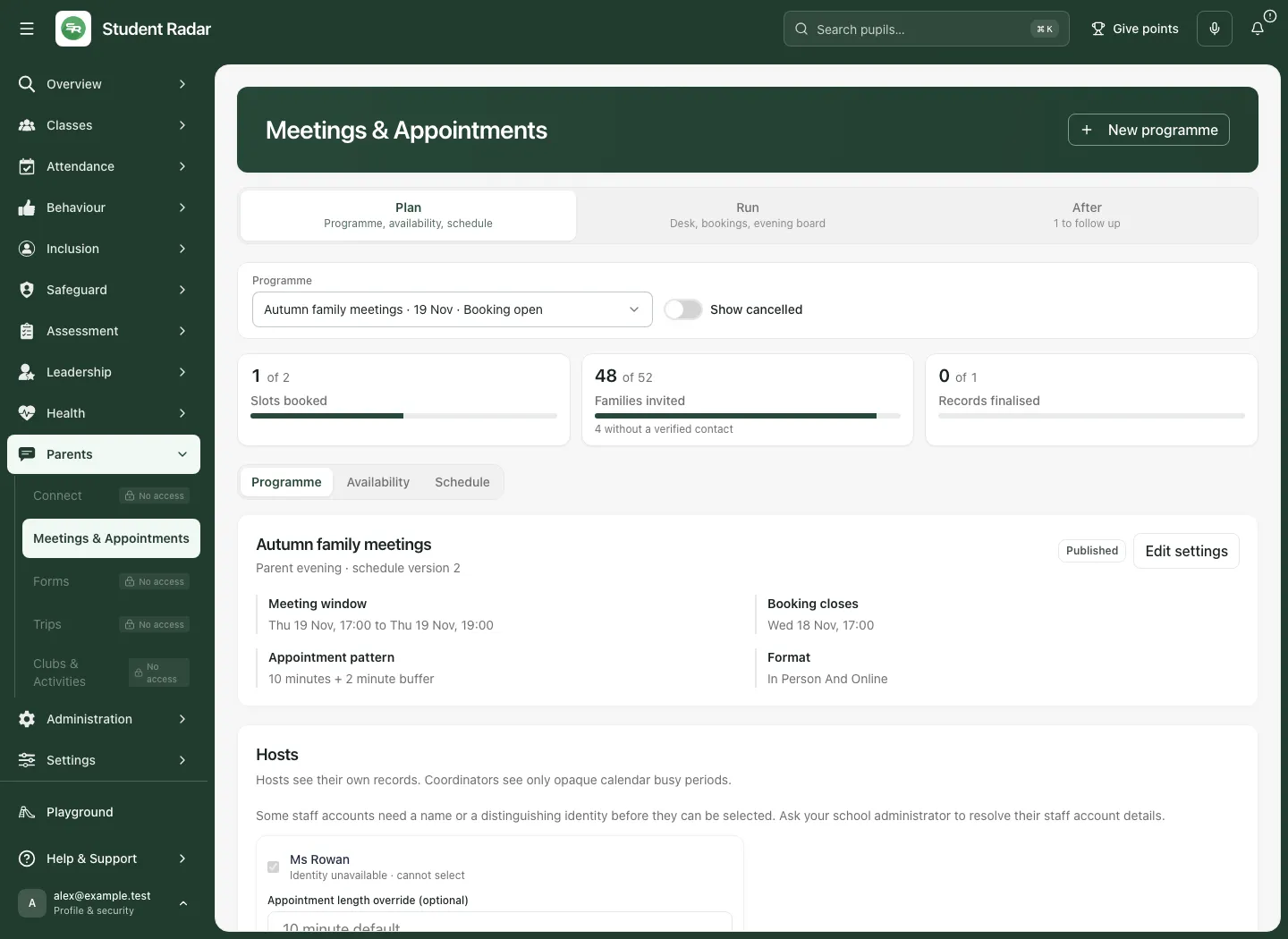
Section titled “1. Choose the programme and stage”- Open Parents → Meetings & Appointments.
- Select the intended programme and read its title, type, status and schedule version.
- Choose Plan for Programme, Availability and Schedule where permitted.
- Choose Run for Meeting desk, Bookings and Evening board.
- Choose After for follow-up and authorised outcome review.
- Read loading, unavailable and coverage messages before interpreting a count. An unavailable programme or booking list is not an empty evening.
- On a phone, use Meetings sections, then the relevant compact subsection selector.
2. Create or edit a meeting programme
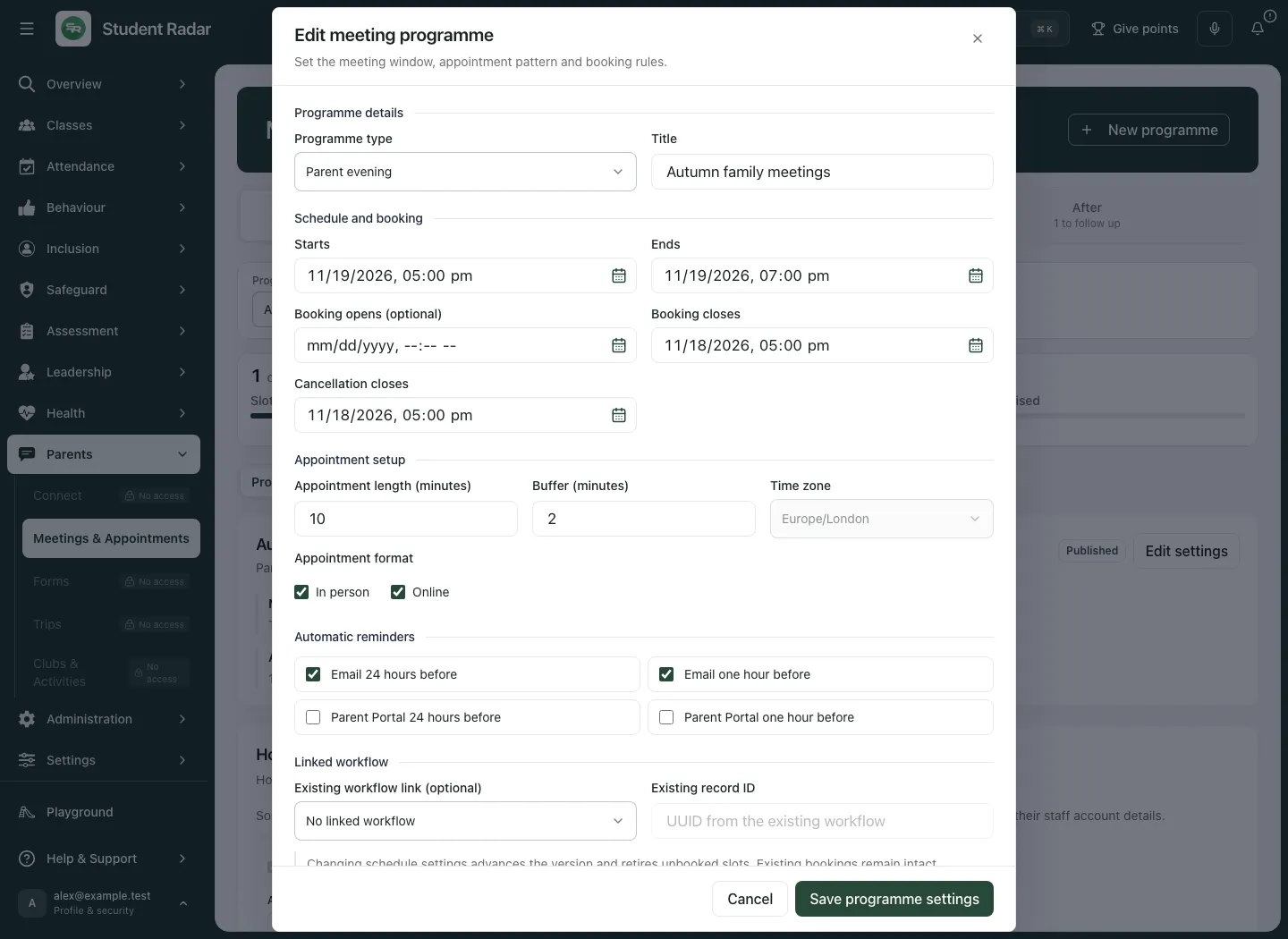
Section titled “2. Create or edit a meeting programme”- Use the new-programme action where your authority permits it. For an existing programme, choose Edit settings.
- In Create a meeting programme / Edit meeting programme, choose Programme type and enter Title.
- Set Starts and Ends, then Booking opens (optional), Booking closes and Cancellation closes. Review them as school-local dates/times.
- Set Appointment length (minutes), Buffer (minutes) and Time zone.
- Choose Offer in-person appointments, Offer online appointments, or both as appropriate.
- Review the offered Automatic reminders choices. A configured reminder is not a delivery receipt.
- If connecting to an existing workflow, choose Existing workflow link (optional) and supply Existing record ID for the actual authorised source. A context link does not create or approve the source record.
- Choose Create programme or Save programme settings, then wait for the returned programme/version.
- Reopen its settings and inspect the confirmed values before previewing or publishing a new schedule version.
A clock-change error means the supplied school-local time is not usable. Choose the actual intended time rather than treating a browser time string as a confirmed instant.
3. Set hosts, locations and travel assumptions
Section titled “3. Set hosts, locations and travel assumptions”- In Plan → Programme, review the host list and current identity warnings.
- Select the intended eligible host. A missing or ambiguous staff identity can make the option unavailable; ask the administrator to resolve the directory account rather than selecting another same-name person.
- Set Appointment length override (optional) for a host only when that different appointment length is intended.
- Choose Save hosts and read the resulting programme version.
- Hosts can be changed only while the programme is a draft. Do not assume a published booking arrangement can be edited like an unused draft.
Locations and directed journeys
Section titled “Locations and directed journeys”- Under School travel and video settings, choose Add location and supply a clear Name and Kind.
- Set Default journey (minutes) for journeys without an explicit direction.
- Use Add journey to select From, To and Minutes for a directed exception.
- Add the reverse direction separately if the journey takes a different time. Same-location and online-to-online changes use zero minutes.
- Review the intended locations and travel assumptions together; they affect whether appointment sequences are feasible.
Video hosts
Section titled “Video hosts”- Enter Allowed video hosts, one hostname per line, using the school’s approved providers.
- HTTPS remains required for meeting links. A permitted hostname is not proof that a specific room link is correct or private.
- Choose Save school meeting settings and wait for confirmation. These settings are shared across programmes; review the wider school effect before saving.
4. Record availability
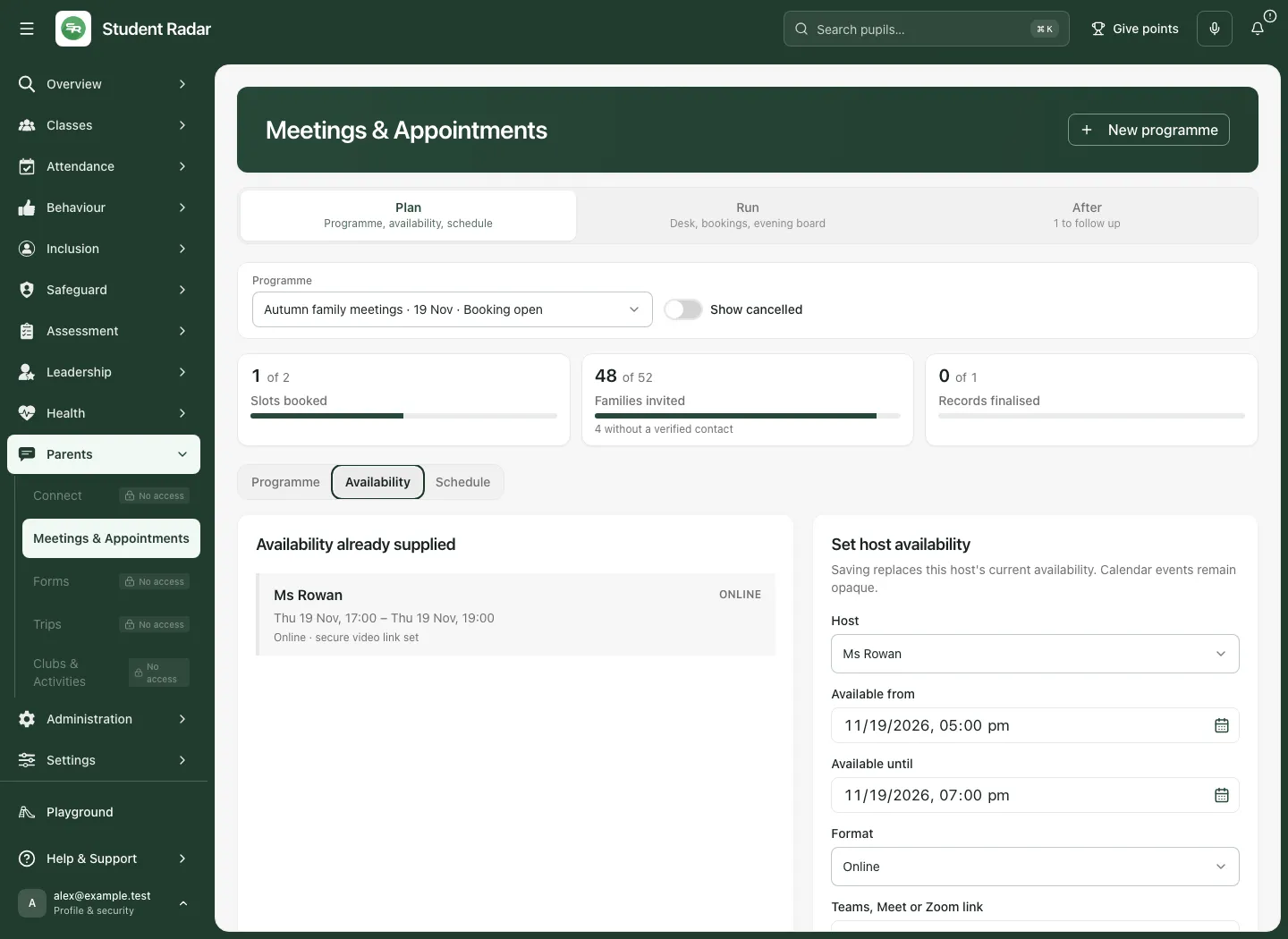
Section titled “4. Record availability”- Open Plan → Availability.
- Select Host from the currently permitted hosts.
- Set Available from, Available until and Format.
- For in-person availability, choose the appropriate Location.
- For online availability, enter Teams, Meet or Zoom link and check the allowed host/HTTPS guidance.
- Choose Save availability and inspect the returned availability/version.
- For a published programme, read the current edit/impact restrictions. A personal-availability permission is not the same as authority to change published school bookings.
5. Preview and publish the intended schedule version
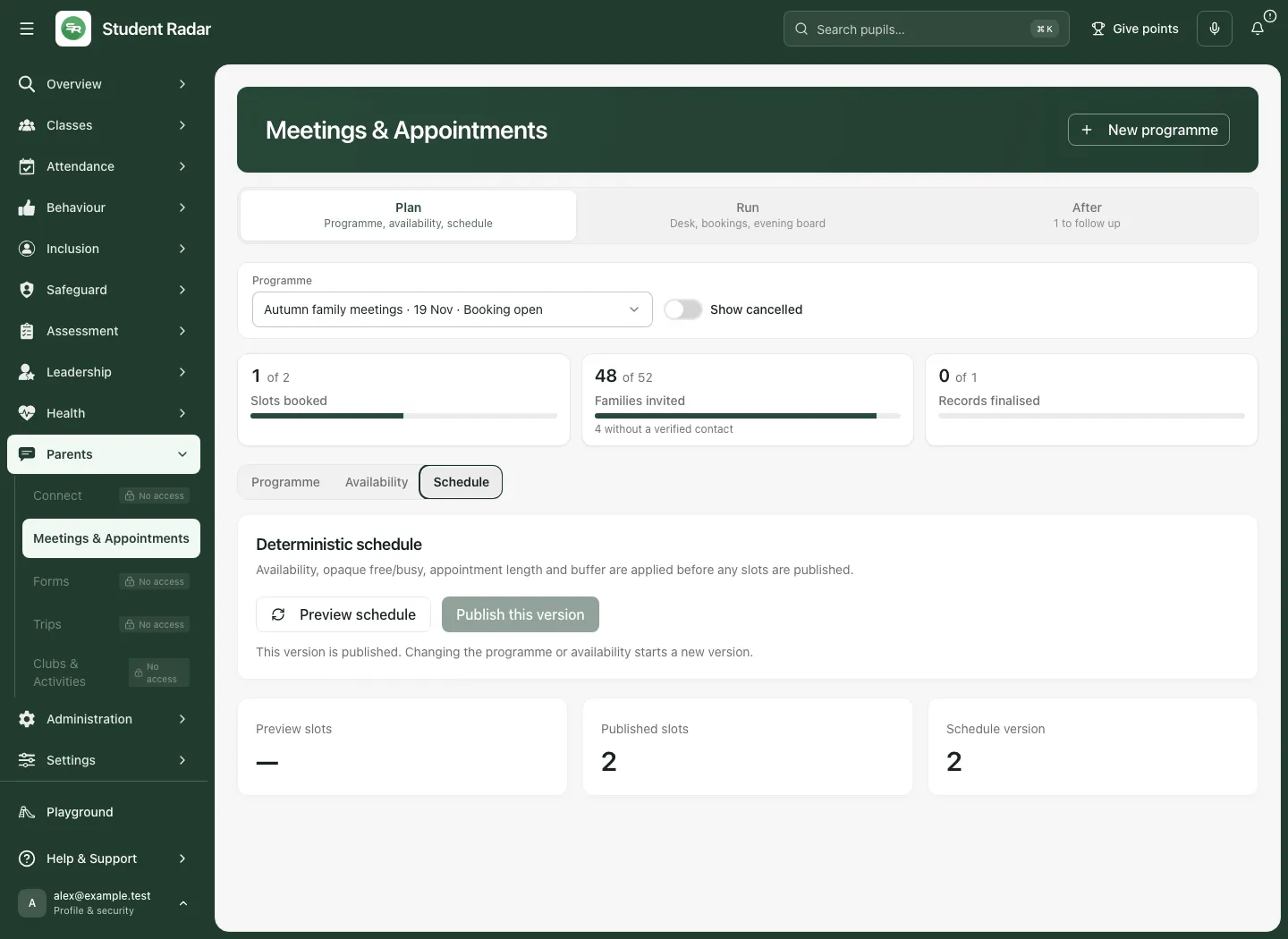
Section titled “5. Preview and publish the intended schedule version”- Open Plan → Schedule.
- Read the programme window, host availability, appointment/buffer pattern and Schedule version.
- Choose Preview schedule.
- Inspect the preview slots, conflicts, actual coverage and any truncation/load-more controls. A preview is not a published booking offer.
- Resolve missing availability, unusable location/video details or conflicts before publishing.
- Choose Publish this version when the reviewed version is eligible and you are authorised to publish it.
- Wait for Schedule published and check Published slots and the actual version. A version already published should not be published again as a competing schedule.
- If the source changed, preview the current version again before publishing.
6. Invite verified families and read coverage
Section titled “6. Invite verified families and read coverage”- Open the booking/coverage area for the intended published programme.
- Under Invite a verified parent or carer, use Find a pupil and choose Pupil.
- Review the currently eligible trusted family relationship and the intended host/programme.
- Choose Send private booking link only when the audience and actual invitation purpose are correct.
- Read the returned invitation/delivery state. Sending a link does not prove the family received, opened or booked it.
- Read programme coverage and outstanding invitations separately from bookings. A missing family account or relationship needs the school’s authorised correction process; do not guess an address.
- Keep private booking links within the agreed secure route. A link carries its own limited authority; do not post it in an open channel or reuse another family’s link.
7. Understand the family’s appointment journey
Section titled “7. Understand the family’s appointment journey”Families use their authorised Parent Portal or private appointment route to review the relevant programme and permitted child/host options.
- Read the appointment window, modes and cancellation deadline.
- Review the offered Recommended bundle or other candidate sequence, including time, host, location/video arrangement and travel feasibility.
- Choose Confirm this bundle only for the intended child and appointments.
- Read the actual confirmed result. A slot can be taken by another booking before confirmation; review the refreshed available choices if a race/conflict is reported.
- Use the permitted manage/change/cancel controls on the actual booking and read their current deadline restrictions.
- An expired private link is not a booking failure to retry indefinitely; follow the school’s authorised route for a replacement.
Booking preference or recording-preference information is not recording consent for the actual meeting. Confirm the current participants and consent when the meeting takes place.
8. Run the appointment from the meeting desk
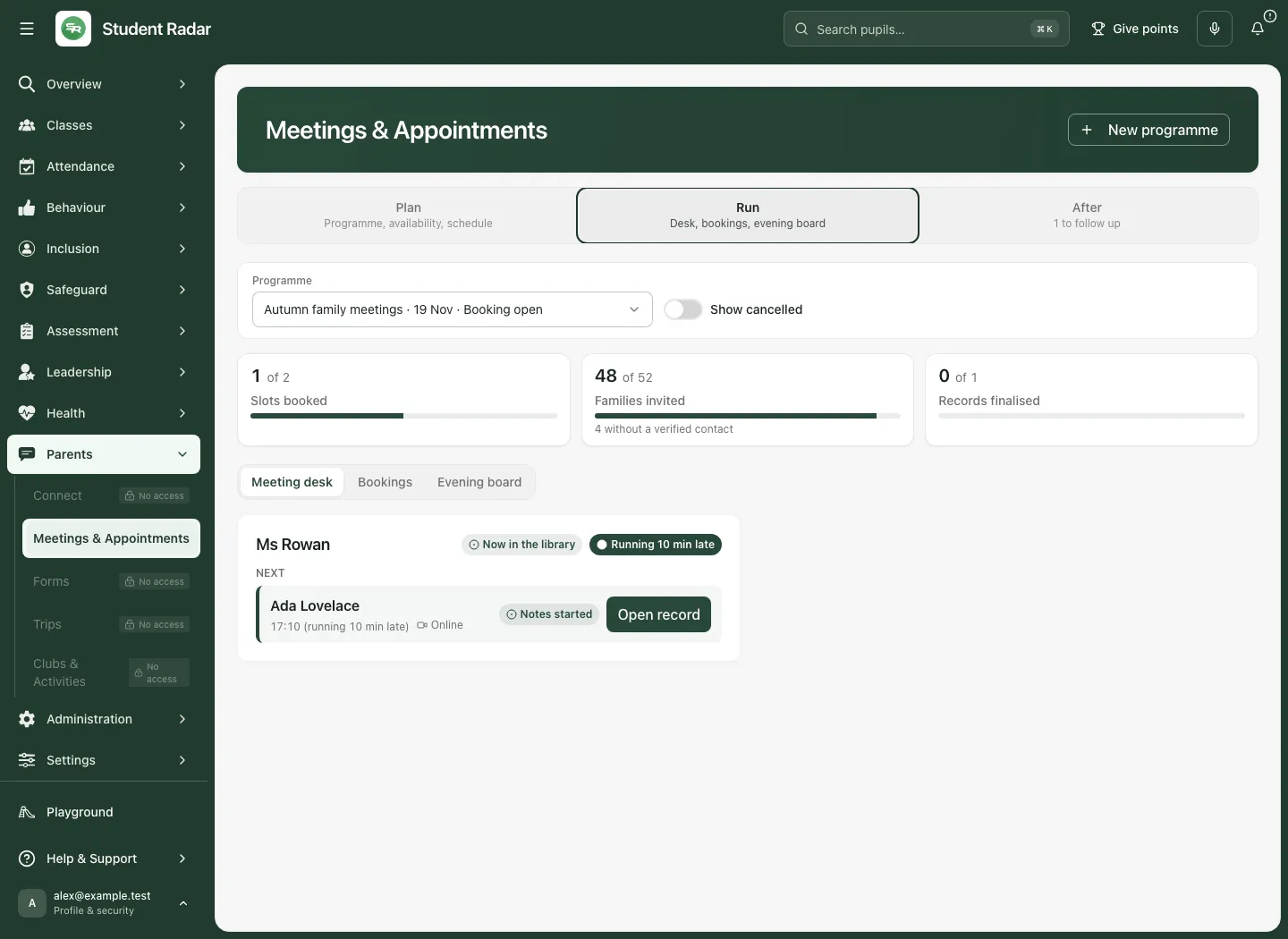
Section titled “8. Run the appointment from the meeting desk”- Choose Run → Meeting desk.
- Read the appointment’s child, host, time, format, booking and record state.
- Check the host’s current status and any waiting/arrival information available to your authority.
- Use the named Open meeting record for [pupil] control for the intended appointment. Add notes for [pupil] can provide another entry point where offered.
- The Bookings view is for appointment records; Evening board provides the permitted operational overview. Neither proves the professional meeting happened.
- Do not infer unrestricted access to another host’s notes from a coordinator’s operational view.
9. Keep the meeting record factual and private
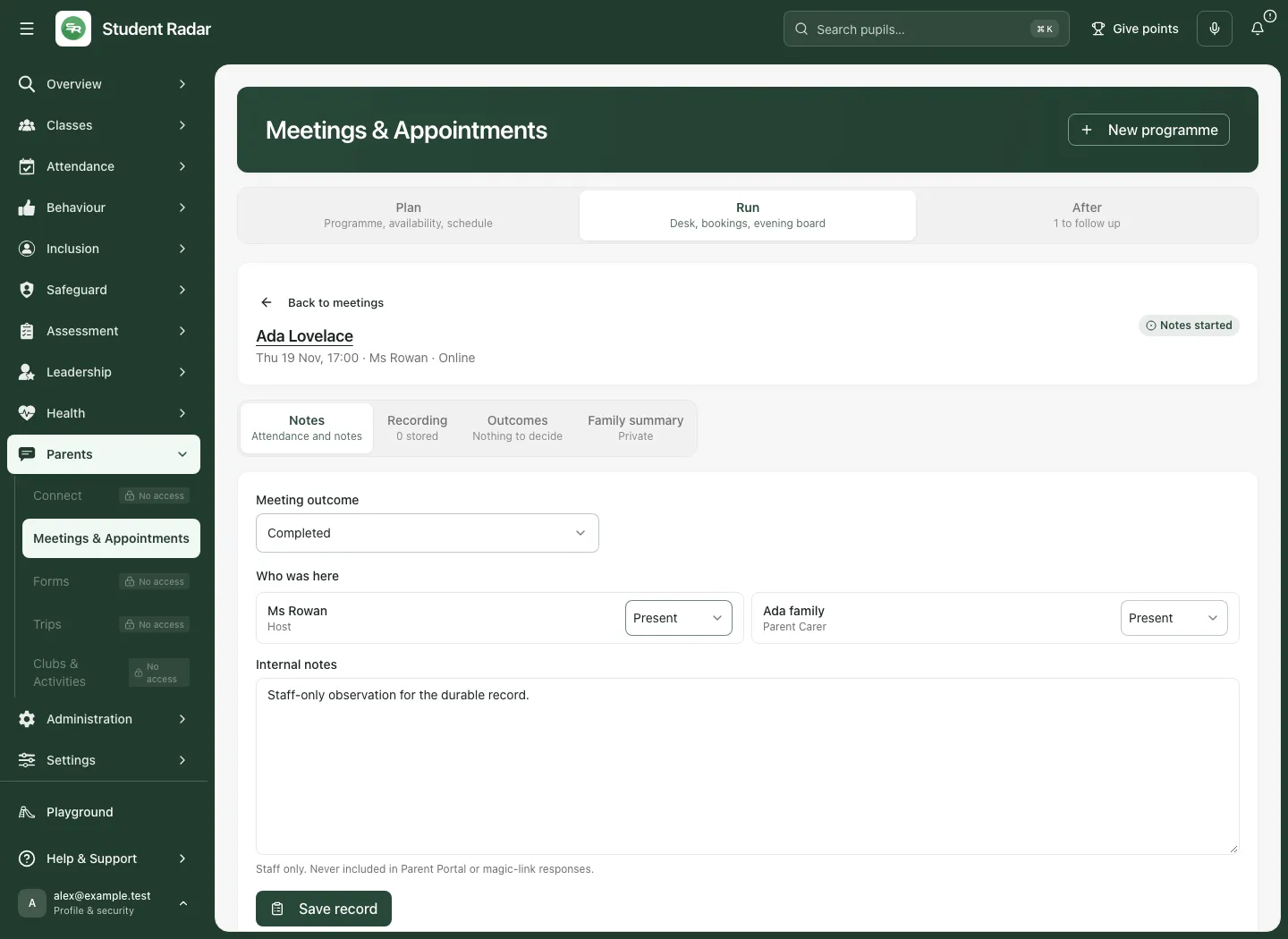
Section titled “9. Keep the meeting record factual and private”- Open Meeting record and check child, appointment time, host, location/mode and record version.
- Under the record’s meeting section, set Meeting outcome to the actual outcome, such as completed/attended or the appropriate non-attendance result offered.
- Check actual participant attendance and current information rather than copying the invitation list as proof of presence.
- Enter Internal notes with the factual discussion, uncertainty and decisions. These are separate from the agreed family summary.
- Prepare the agreed family-summary text in its dedicated section, using only content appropriate for the family’s view.
- Choose Save record and wait for the confirmed version. Unsaved changes is not a saved record.
- If the source changed, use the offered conflict/source review. Preserve your draft, compare it with the current record and deliberately choose what to save rather than overwriting another professional’s change.
- Use Back to meetings to leave, resolving any unsaved/recording guard first.
Recording, captions and suggestions
Section titled “Recording, captions and suggestions”Read Recording and captions and actual consent information before recording or live captions. A family preference captured during booking is not automatically present-participant consent. If a participant does not agree, or permission/state blocks recording, follow the school’s process and the displayed controls.
Recording, captions, transcription and generated suggestions are separate operations with their own source and recovery states. Do not start them merely because the appointment exists. Review any transcript and suggested outcome against what was actually agreed. Generated text is a proposal, not a professional instruction or source of new specialist authority.
10. Review actions and outcomes before finalising
Section titled “10. Review actions and outcomes before finalising”Add a practical action
Section titled “Add a practical action”- In the record’s action-review area, enter Manual action wording, choose a real Manual action assignee and set Manual action due date where appropriate.
- Select Parent-visible after publication only when that action wording is suitable for the family.
- Choose Add for review.
- Review the actual suggested/manual item and its source before accepting it into the finalisation plan. Adding a proposal is not yet the same as creating completed work.
Review a specialist outcome
Section titled “Review a specialist outcome”Use Outcome type and the actual offered fields for provision, support or review-date proposals. Record the agreed support, needs and dates in the appropriate proposal; do not infer a legal or SEND decision merely from a meeting discussion.
Where the After queue requires authorised review, inspect Reviewed support name, Provision type, Specific needs and intended support, dates and the stated required permission before an Apply provision or other specialist command. A link to SEND does not grant that authority. Rejected, superseded or awaiting-review outcomes remain distinct from an applied source result.
Finalise deliberately
Section titled “Finalise deliberately”- Save the current meeting record first.
- Review every outstanding suggestion and give it the required decision.
- Read Finalising will: the actual list of actions/owners and other resulting effects.
- Check that the wording, assignees, deadlines, parent visibility and source-linked outcomes match the human agreement.
- Choose Finalise when enabled and wait for the actual result.
- Finalisation keeps the family summary private until separately published/sent. It does not establish the actions were done or support made a difference.
11. Publish or send the family summary separately
Section titled “11. Publish or send the family summary separately”- Open the intended finalised record and read the full agreed family summary.
- To publish it on the family’s permitted portal view, choose Show on Parent Portal when offered. Check the returned On Parent Portal state and publication time.
- To deliver through Communications, review Send to the family, current permission and whether the content changed since an earlier send.
- Choose Send for approval, or Send the corrected summary where that is the actual offered action.
- Complete the separate independent Communications review and delivery process. A summary sent for approval has not reached the family.
- Read actual delivery, rejected or uncertain states and use the original-operation recovery process before repeating a send.
Publication and messaging are different deliberate choices. Neither discloses internal notes automatically. A portal publication time or queued message does not prove the family read or acted on it.
12. Follow up after the meeting
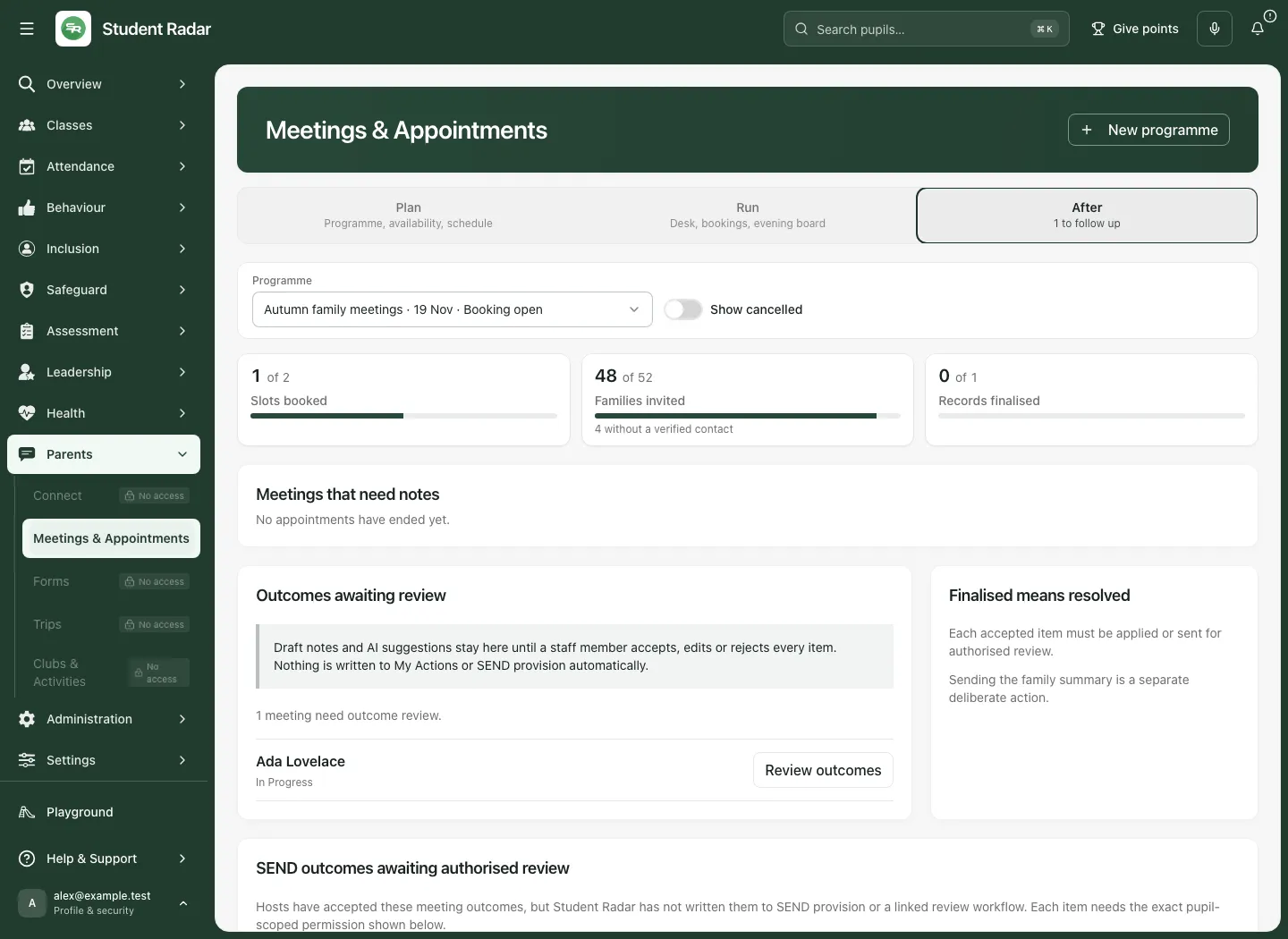
Section titled “12. Follow up after the meeting”- Choose After and read records needing notes, review or authorised follow-up.
- Distinguish legacy follow-up records from the current authorised work queue where both appear.
- Open the specific item and inspect the meeting decision and current specialist source.
- Confirm real staff ownership, Reviewed action wording, Real staff assignee and Due date for a work proposal before applying it.
- Review specialist support fields with the required permission before any source change. Meeting access alone is insufficient.
- Read the actual applied/rejected/superseded result. A completed meeting or reviewed proposal is not proof of the specialist mutation or pupil outcome.
- Use the pupil’s permitted earlier-meeting context to review previously agreed actions with their current state, rather than treating an old action as still open by assumption.
13. Use the same boundaries on a phone
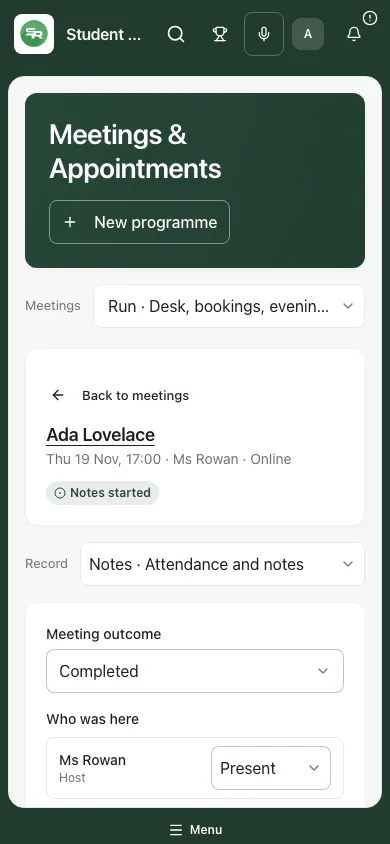
Section titled “13. Use the same boundaries on a phone”- Use Meetings sections to select Plan, Run or After.
- Use the subsection selector for the relevant programme, availability, schedule or operational view.
- Open the intended named meeting record and check its identity before editing.
- Save or resolve the draft and recording guard before Back to meetings.
- Keep the screen private; smaller-screen access does not change the record’s confidentiality or specialist permissions.
Troubleshooting
Section titled “Troubleshooting”| Situation | What to do |
|---|---|
| Programme or coverage unavailable | Retry the offered read; do not infer no appointments or no outstanding families. |
| Host identity unavailable | Ask the administrator to resolve the linked staff account and identity; do not select a same-name substitute. |
| Host edit blocked | Check draft versus published state and current management authority. |
| Video link refused | Check HTTPS, approved hostnames and the actual intended meeting link. |
| Schedule changed after preview | Preview the current version before publishing. |
| Booking race/conflict | Read the refreshed available sequence and confirm the intended replacement. |
| Private link expired | Use the school’s authorised reissue process. |
| Notes conflict | Compare current saved and local draft; do not overwrite another change blindly. |
| Finalise disabled | Save current notes and decide all outstanding suggestions first. |
| Family summary private | Publication or sending is a separate deliberate action after finalisation. |
| Specialist outcome waiting | Use the named authorised source-review queue; meeting access is not specialist authority. |
Frequently asked questions
Section titled “Frequently asked questions”Does a booking mark the meeting completed? No. Record the actual attendance/outcome in its durable meeting record.
Does Save record publish the notes? Internal notes and family summary have separate disclosure boundaries. Publication/sending is explicit.
Does Finalise complete the resulting tasks? No. It records the agreed reviewed work and outcomes; people still carry out and review that work.
Can coordinators inspect all other meetings through calendar conflicts? Operational busy information is deliberately separate from private meeting contents and host record access.
Does booking recording preference establish consent? No. Review actual present participants and current consent when recording/captions are considered.
Where do invitations and summary messages go next? See Connect for the separate governed Communications approval/delivery workflow. TAC/TAF Scheduling covers its specialist meeting route.