Record staff absence and arrange lesson cover
Record the absence dates and authorised decision, inspect affected lessons and arrange cover or retain the outstanding gap. The board separates an absence, its approval, an internal cover assignment and an outstanding gap; none is a substitute for the others.
Open Leadership → Staff → Staff Absence & Cover. The school may also offer Cover scheduling. Alternative provisions use the same absence record but arrange session staffing on the Weekly Rota. Screenshots show fictional staff, a pending training absence and a lesson still needing cover.
1. Set the day before reading the figures
Section titled “1. Set the day before reading the figures”Choose Today, Tomorrow, Pick date or Range. Today/Tomorrow follow the school clock. For a range, set both dates and use Day to show from the range to choose the actual day displayed. The board is a daily view within that range, not a total across all its days.
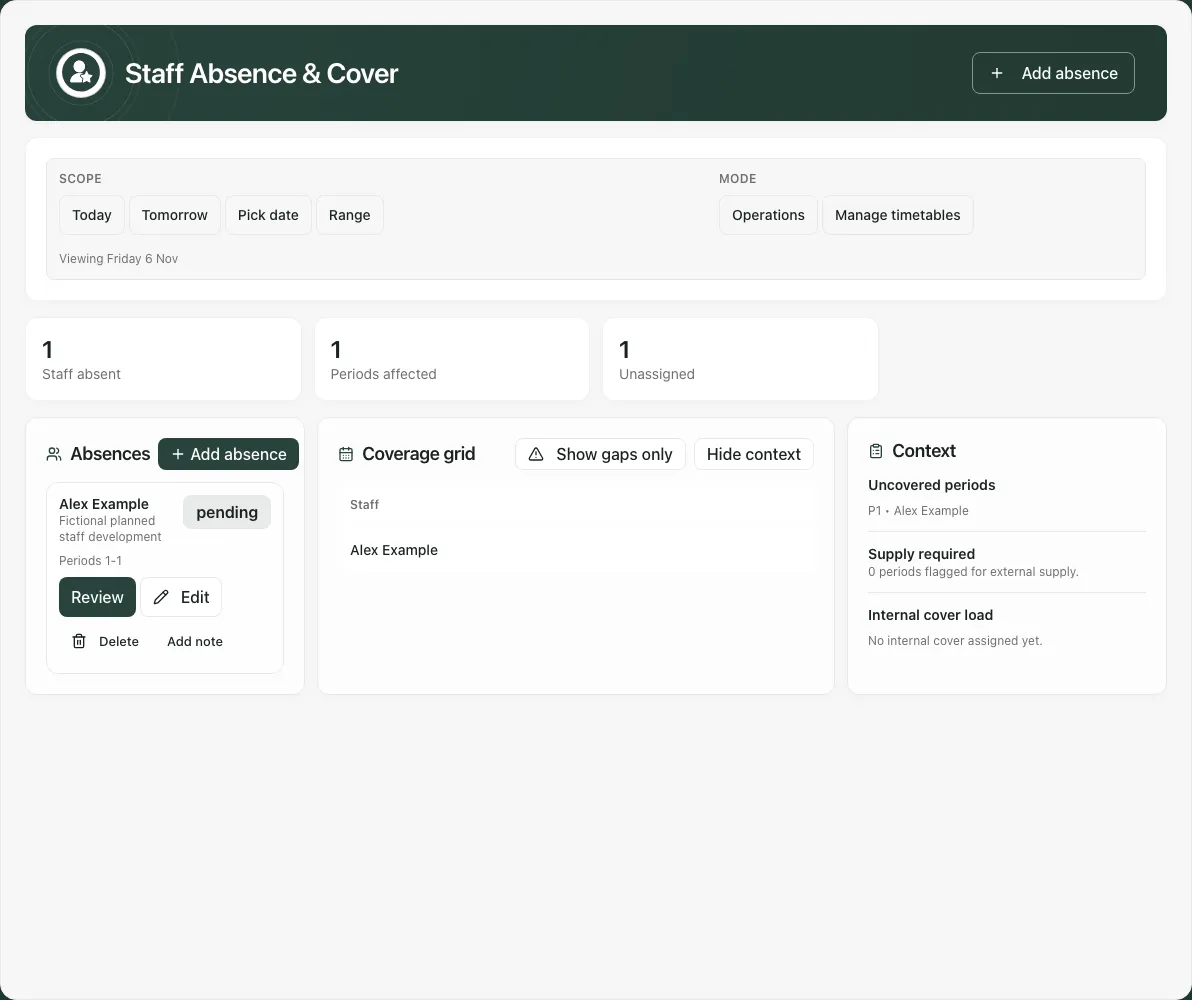
Read the displayed day beside the controls, then the absence list, coverage figures and Coverage grid. Counts distinguish people absent, lessons and arrangements; duplicate historic records do not mean two different absent people. Cancelled/rejected records do not establish a live absence. A weekend with no lessons differs from unavailable timetable coverage.
Show gaps only filters staff rows with outstanding gaps; it does not relabel already covered cells. Show all staff restores the wider grid. A Free period is not a lesson needing cover. Read Gap, Covered, Supply and Merged as different arrangements, rather than assuming every non-gap means an internal teacher is assigned.
If operational staff-to-period mapping is missing or unusable, coverage is Unavailable. Imported lessons alone do not establish which staff need covering. Review timetable setup before reporting “no gaps”.
2. Check whether you have a whole-school or own-absence view
Section titled “2. Check whether you have a whole-school or own-absence view”Cover managers can use the operational board and offered commands. A person with only their own absence access sees Your absences, an explanatory notice and the offered Staff Hub route; whole-school coverage figures/grid are withheld. That smaller list is not the school’s complete absence total.
Cover management can expose absence reason and notes to other cover managers. Enter only what is needed for operational handling; do not put detailed medical records, safeguarding reports or confidential case handovers here. The Notes guidance points safeguarding concerns to Safeguarding.
A button or named staff record is not authority to decide your own request. Follow the school’s agreed approval arrangements even where a manager’s account technically offers the decision.
3. Log a new absence or update the correct record
Section titled “3. Log a new absence or update the correct record”Select Add absence. In Log a new staff absence, choose Staff, Start date, End date, Reason type, optional Reason detail and proportionate Notes. The initial dates follow the day being viewed; check them before saving. End cannot precede start.
Use Cover slots to inspect the affected lessons and choose available internal cover where appropriate. For a long absence the form lists up to ten school days of lessons; this is not permission to assume the rest are covered. Internal cover is bounded to 100 lessons per absence. Plan a longer arrangement with the responsible team instead of repeatedly forcing an oversized save.
Choose Save absence, wait for confirmation and check the record. Recording an absence is not approving it. Overlapping dates, a staff member no longer current or a TA-managed absence can require a different correction; use the specific message. TA dated cover belongs in the offered TA workflow.
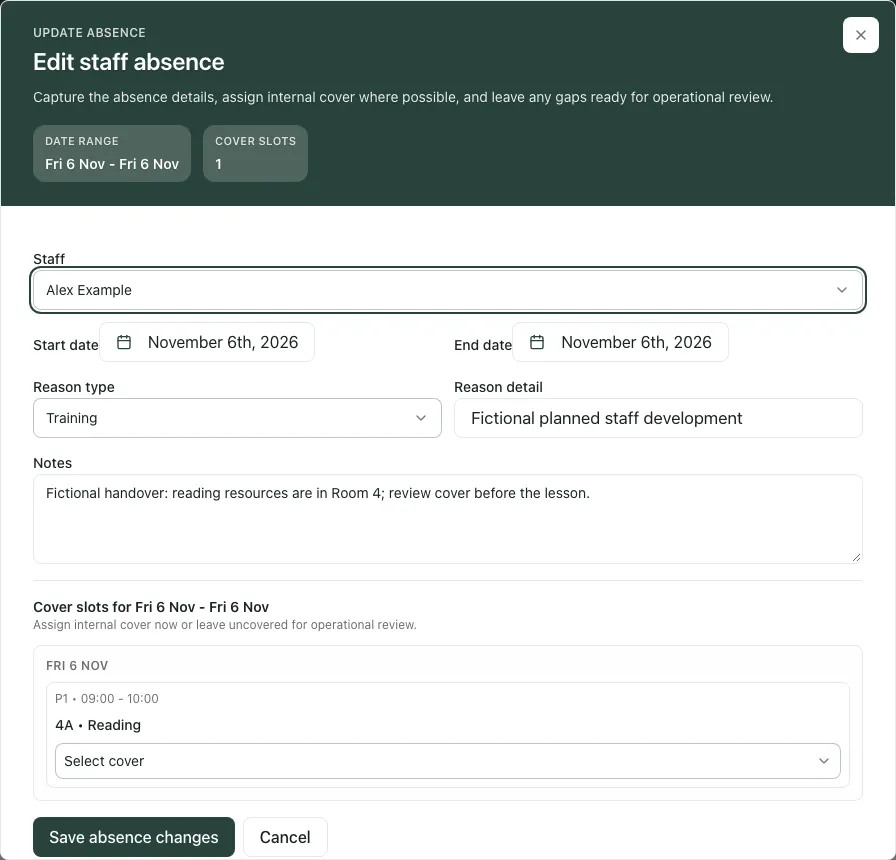
For an existing absence, use its Edit or Add note. Check the staff member and date range before changing Notes or cover. Changing the person clears the previous person’s arrangements; changing dates can make selected lessons irrelevant.
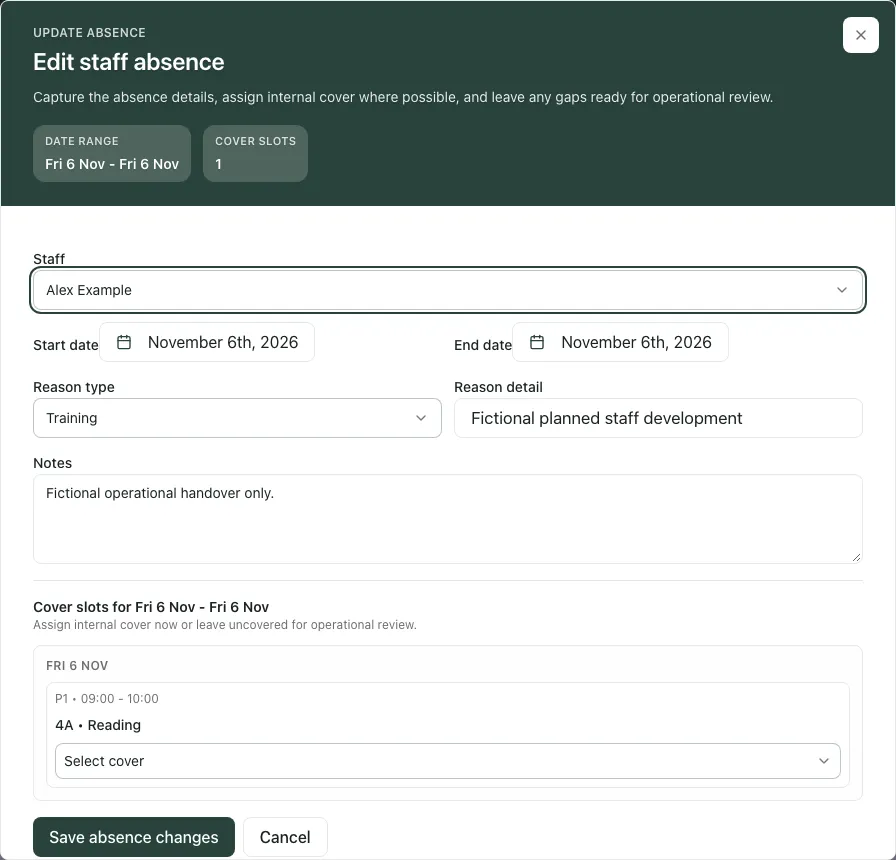
Select Save absence changes, then reopen the record and check the retained text, dates and arrangements. A successful note edit does not approve the request or fill its lesson gaps.
4. Review the absence decision deliberately
Section titled “4. Review the absence decision deliberately”A pending record offers Review. In Approval review, read the person, full date range, absence type, Reason, Notes, recorded time and any known Recorded by information. The person who logged it can differ from the person absent.
Choose Approve or Reject only when authorised to make that decision; Close leaves without deciding. Wait for the outcome and check the record’s current status. If another person already decided, read their current result rather than trying to submit the old decision again.
Approval and cover remain separate. An approved absence moved to different dates can retain its approval state, so agree whether the changed dates need fresh school review instead of assuming the previous decision covered them.
5. Arrange the actual lesson
Section titled “5. Arrange the actual lesson”In Coverage grid, select the relevant cell. If the grid is narrow, use Hide context to give its lesson columns more space; Show context restores the side panel. Its accessible name includes status, staff member and period, for example Gap: Alex Example, P1. Check the Assignment panel staff, period, date, class, subject and room before changing anything.
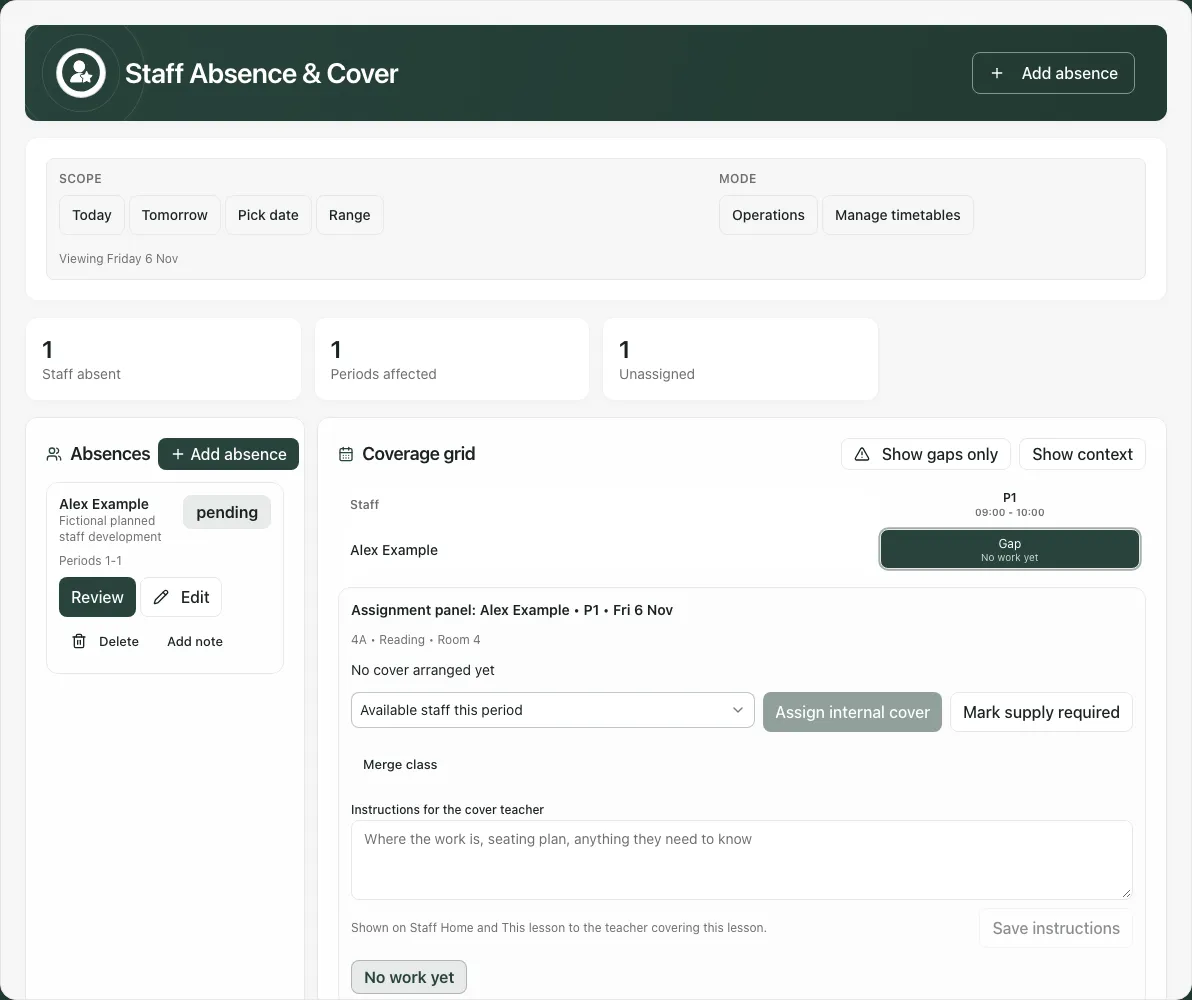
For internal cover, choose Assign available cover staff, inspect the offered colleague and select Assign internal cover. Availability is checked against recorded timetable/absence information; confirm the real operational arrangement as well. Check the returned Covered by name and the cell.
Alternatively use Mark supply required or Merge class only for the arrangement the school has actually authorised. “Supply required” records the requirement; it does not book a supply agency or confirm a named adult has arrived. “Merged” records the arrangement; the school remains responsible for deciding that the class can safely operate that way.
These arrangements replace one another. Clear arrangement removes the current internal/supply/merged arrangement; check that the resulting gap is understood. It does not cancel the absence.
In Instructions for the cover teacher, give practical lesson information, then Save instructions. The guidance explains that it appears on Staff Home and This lesson for the covering teacher. Do not assume a saved note was read, or that absence approval separately sends it to someone.
6. Reconcile a concurrent change without losing either person’s work
Section titled “6. Reconcile a concurrent change without losing either person’s work”If another manager changes an open absence, the form can bring in fields only they changed while retaining yours. Read Your changes are not saved yet and the named incoming changes.
Where both changed the same field, compare Yours and Theirs, then choose Keep yours or Use theirs for every conflict before saving. A date range is one choice: do not combine half of each person’s dates into an arrangement neither chose. Cover conflicts are considered lesson by lesson.
A removed absence cannot be saved as a new one simply because its original record disappeared. Close/recheck the list and follow the removal message. If instructions changed while you typed, the instructions panel similarly offers Keep yours / Use theirs before Save instructions.
For an uncertain connection response, use the offered recovery/retry and check the current record before creating anything again. A permission or validation refusal is not a reason to keep retrying unchanged input.
7. Configure an operational timetable where offered
Section titled “7. Configure an operational timetable where offered”With the required access, switch Operations → Manage timetables. Choose Staff member, Day of week, Period number, Period name, Start time, End time, optional Class, Subject, Room and Activity type. Check the period/time order. Repeat for days applies the entry to the selected weekdays.
Use Add timetable entry, or an existing row’s Edit → Save timetable entry. Inspect the returned staff/day/period/time rather than treating imported class lessons as a complete operational mapping. Duty and non-teaching entries can also count as needing cover when their staff member is absent.
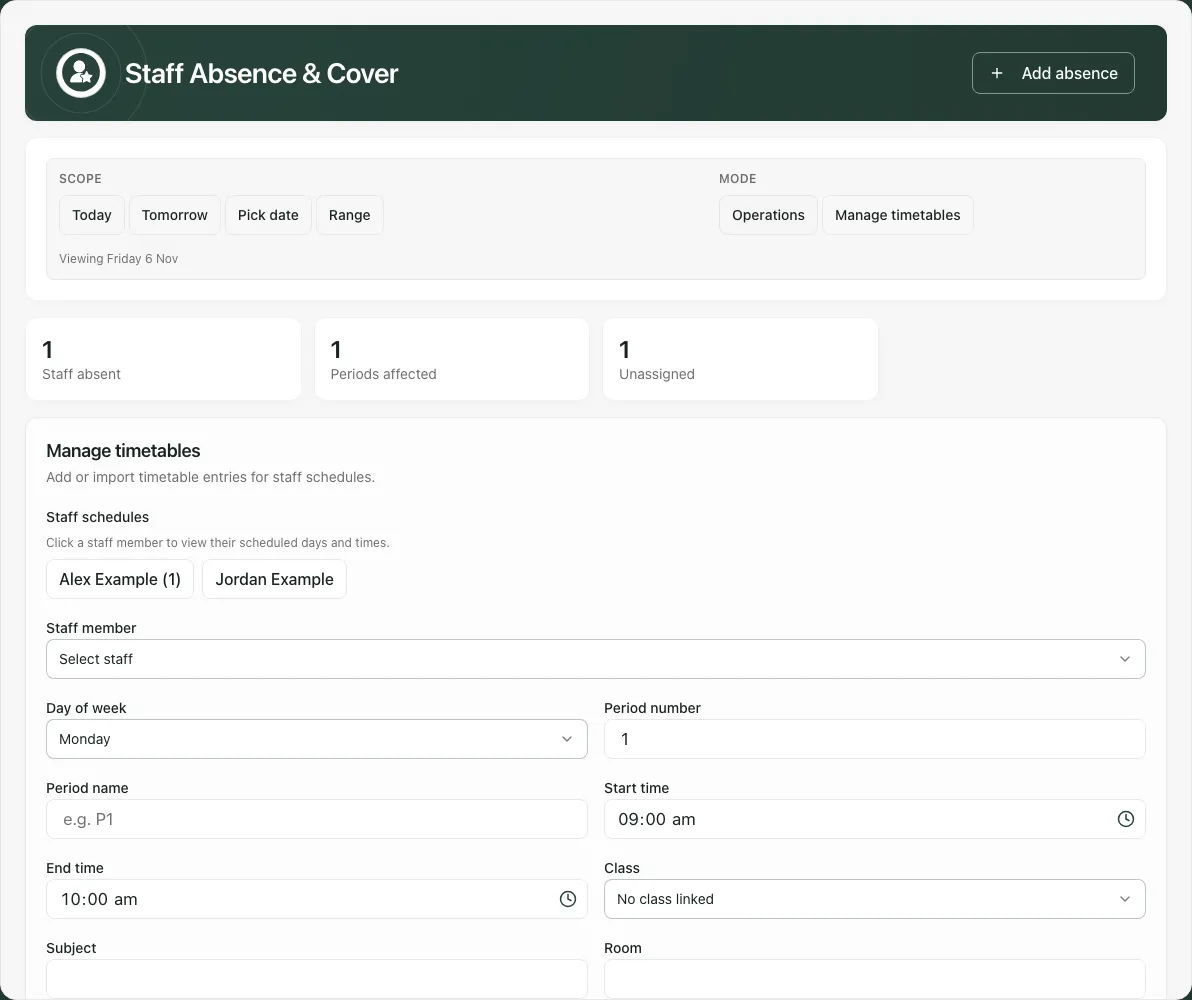
Import from staff schedule selects another staff member’s schedule to copy, then Import schedule. Check source and target before using it; it is not a file/MIS import or an automatic live synchronisation. Deleting an entry requires the offered confirmation.
If an open entry changed, Load the latest version explicitly replaces what you entered. Preserve any intended wording separately before choosing that replacement, then reapply it against the current record. A deleted entry cannot accept an edit.
8. Use the AP route and phone view appropriately
Section titled “8. Use the AP route and phone view appropriately”For an alternative provision, the notice says Cover is arranged on the Weekly Rota. Record/approve the absence here, then use Open the rota for [day] to inspect the affected sessions and arrange staffing there. A school period grid is not the AP staffing model.
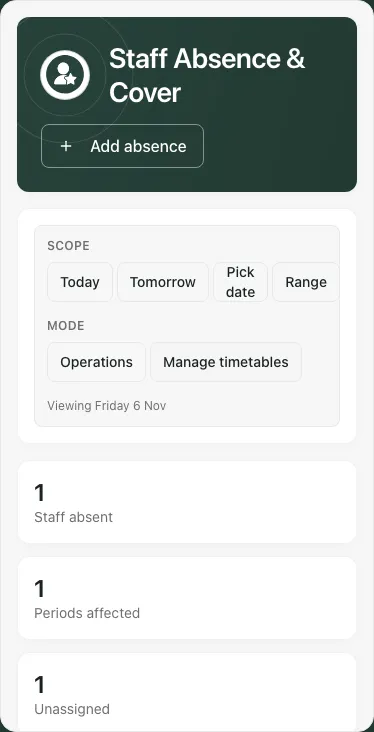
On a phone, check the selected day and scroll through the board/assignment panel. Within a dialog, scroll to its save controls and wait for confirmation before leaving.
Troubleshooting
Section titled “Troubleshooting”- Coverage Unavailable: check staff mapping, lesson periods/times and failed reads before claiming there are no gaps.
- Staff record unavailable: check the original staff record; do not interpret a raw identifier as a person’s name or substitute another colleague.
- No eligible cover option: investigate timetable, existing absence/cover commitments and the actual staffing arrangement; do not invent an available person.
- TA-managed refusal: use TA dated cover as directed, rather than duplicating the absence here.
- Range seems to show one day: choose Day to show from the range; daily figures are intentional.
- Deleted or changed while editing: inspect the current record and resolve the named conflict, rather than resaving stale values.
Common questions
Section titled “Common questions”Does approving absence fill the cover gap?
Section titled “Does approving absence fill the cover gap?”No. Approval and an internal cover assignment are separate. Inspect the affected lessons and check the actual cover decision.
Where do AP teams arrange session staffing?
Section titled “Where do AP teams arrange session staffing?”Alternative provisions use the same absence record but arrange session staffing on Weekly Rota.