Create, review and share a pupil passport
Written for: SENCos, SEND team members and authorised school staff.
Find a pupil passport, update practical SEND guidance, confirm its review and check the intended sharing audience.
Editing or generating a passport is different from confirming that it is current guidance.
Before you begin
Section titled “Before you begin”Open SEND → Plans → Pupil Passports. Your access determines whose passports you can read and edit. Sharing and club-safe publication have their own permissions and decisions. School templates can change section labels/presentation, and some settings use an alternative-provision layout. A missing field or restricted passport is not evidence that the child has no need.
Find the passport you need
Section titled “Find the passport you need”- Check Whose passports. Class staff can start with their own classes where that view is available; SENCos/leaders normally start with the school register. Choose the intended lens before interpreting the list.
- Use Search pupil passports, Filters, Year group, cohort and Sort passports. Check the resulting pupil count and any source-availability notice.
- Choose All pupils, Not yet reviewed, Review overdue, No passport, No review date or Current to answer the review question.
- Read the pupil’s passport state, review and sharing state separately. A saved document can be unreviewed; an acknowledgement can be stale after content changes.
- Use the page controls for further results. The list includes permitted existing passports even when the pupil is no longer on the SEND register; register status and passport existence are distinct.
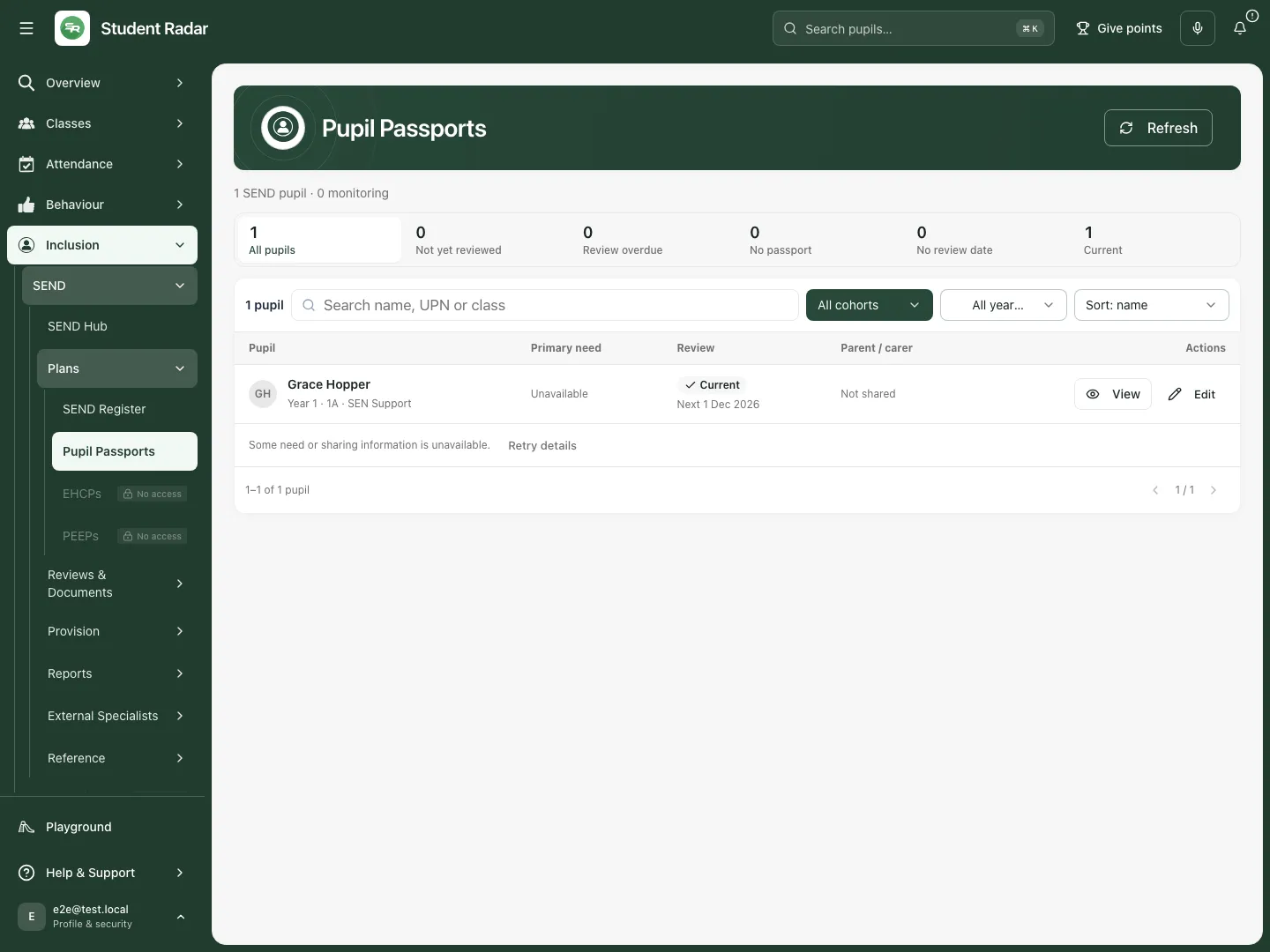
The fictional list shows Grace’s existing passport, review date and sharing state alongside permitted pupils needing a passport.
Read practical support in context
Section titled “Read practical support in context”- Select View passport for the intended pupil.
- Check the pupil, saved content and review notice. Not yet reviewed means nobody has confirmed accuracy; Review overdue warns that the guidance may be out of date.
- Read the sections that apply, including About me, Strengths, How to support me, Communication, Regulation, Do & avoid, Important people, Medical & safety, Pupil voice and Parent voice. Some templates also show Profile details and My next steps.
- Check when and from whom information was obtained. Do not infer a medical need or agreed adjustment from an empty section.
- If something is wrong, use Edit where permitted or ask the authorised colleague to review it. A passport does not replace a care plan, EHCP or safeguarding source.
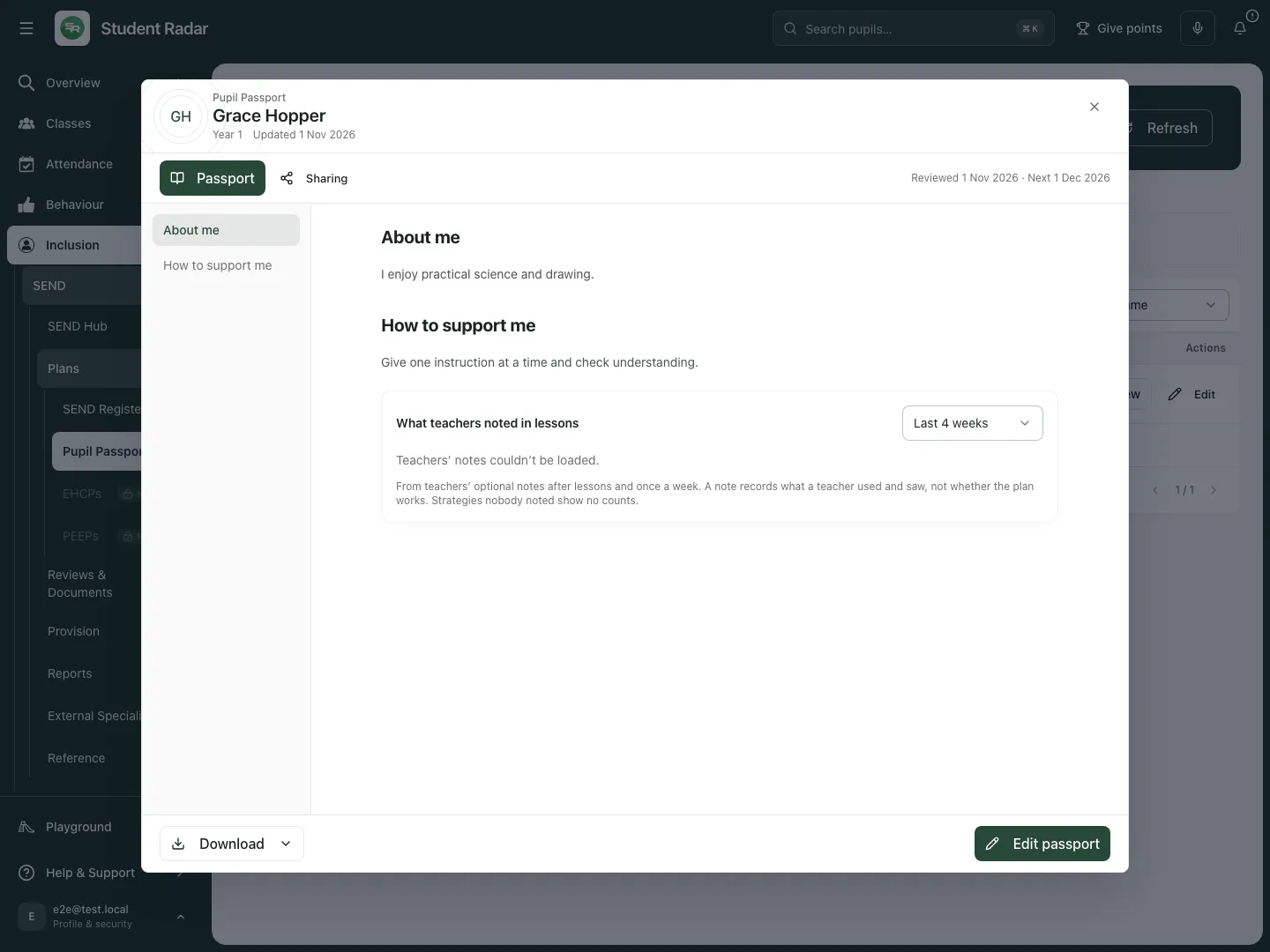
Grace’s fictional passport records interests and practical teaching support. The review status must be read alongside the content.
Create or edit a passport
Section titled “Create or edit a passport”- For a pupil without one, select Create passport. For an existing passport, select Edit passport or Edit from the viewer.
- Check the selected pupil and school template. Template changes shape presentation; they do not provide evidence about the child.
- Complete the structured sections where offered. Existing older passports can open as one rich-text document; use the formatting and section controls to keep headings and support clear.
- Record practical strategies, source/date and the pupil/family contribution honestly. Distinguish what is agreed, what was reported and what needs confirmation. Leave out unrelated sensitive detail.
- Use Preview where offered to check how the document will read. Correct unclear wording before saving.
- Select Save changes. Wait for the result, then close and reopen Edit passport to confirm the content. A content-only save preserves the existing review dates; it does not silently confirm a review.
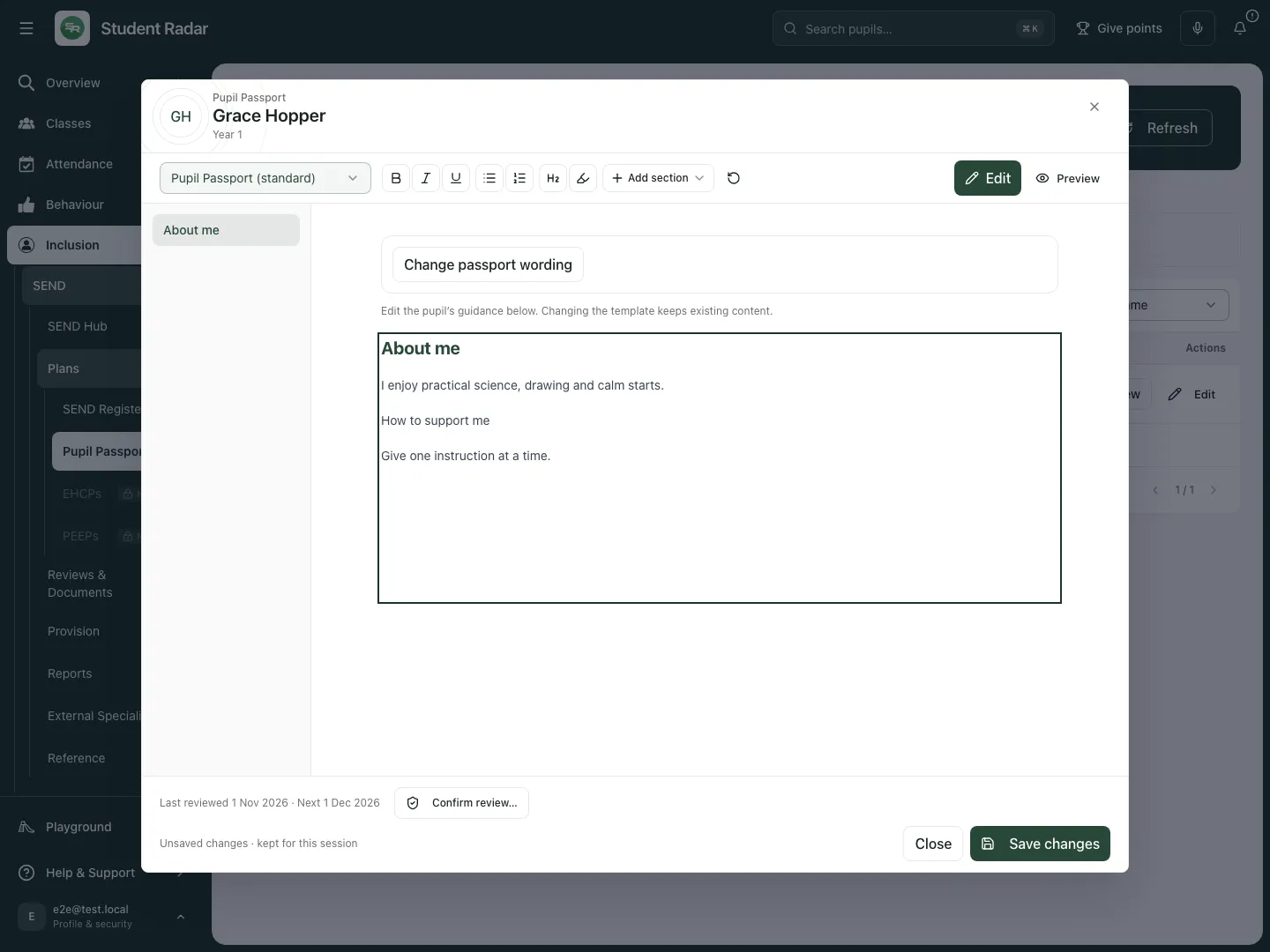
The fictional example edits an existing rich-text passport. Structured section editors and school templates are also supported where the saved passport uses them.
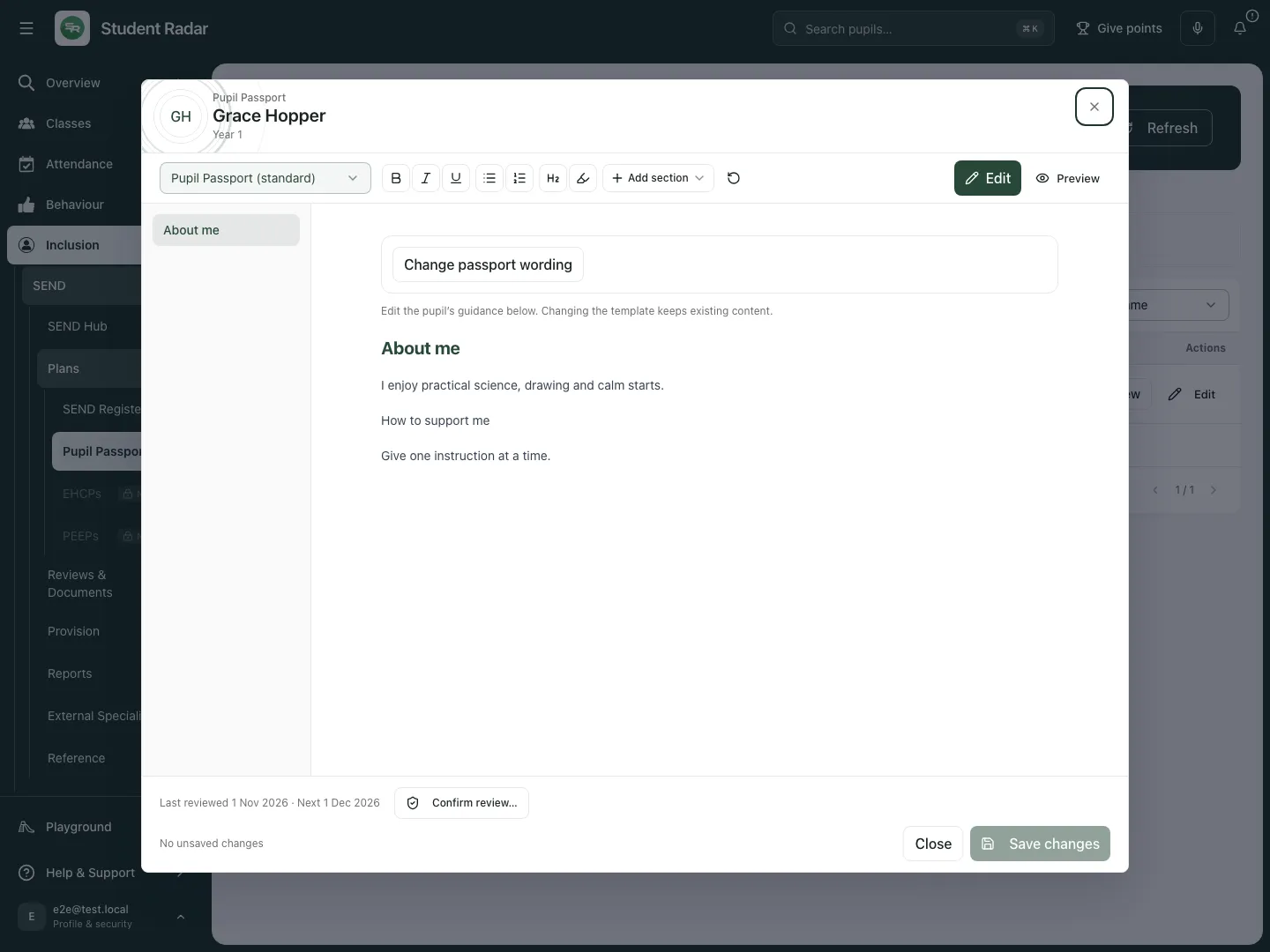
The fictional phrase “calm starts” remains after saving and reopening the passport.
Confirm a human review
Section titled “Confirm a human review”- Read and correct the complete passport with the appropriate pupil/family/staff evidence first.
- Select Review from the list or Confirm review… in the editor/viewer to open Confirm this review.
- Set Next review date to today or a later date. The quick choices are In 3 months, In 6 months and In a year; choose a date that suits the pupil’s review need.
- Select Confirm review. This prepares the confirmation for the editor’s next save; it has not saved the review on its own.
- Check the editor’s confirmation line, then select Save and confirm review. Use Change date or Undo before saving if needed.
- Reopen the passport to check the recorded last/next review dates and current/overdue notice. A review date is a reminder to keep guidance accurate, not proof that support had an impact.
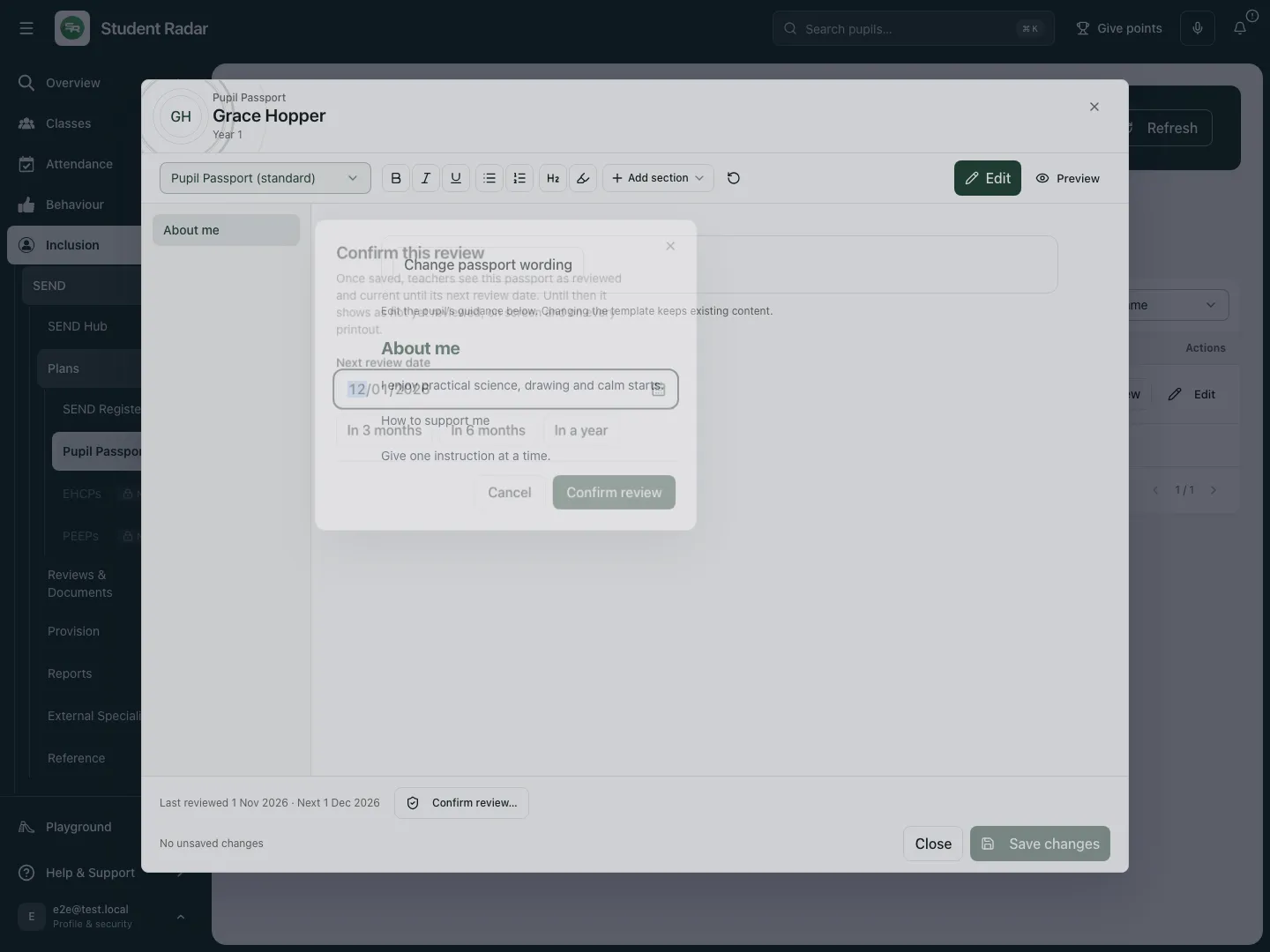
The review step chooses the next date before the separate save-and-confirm action.
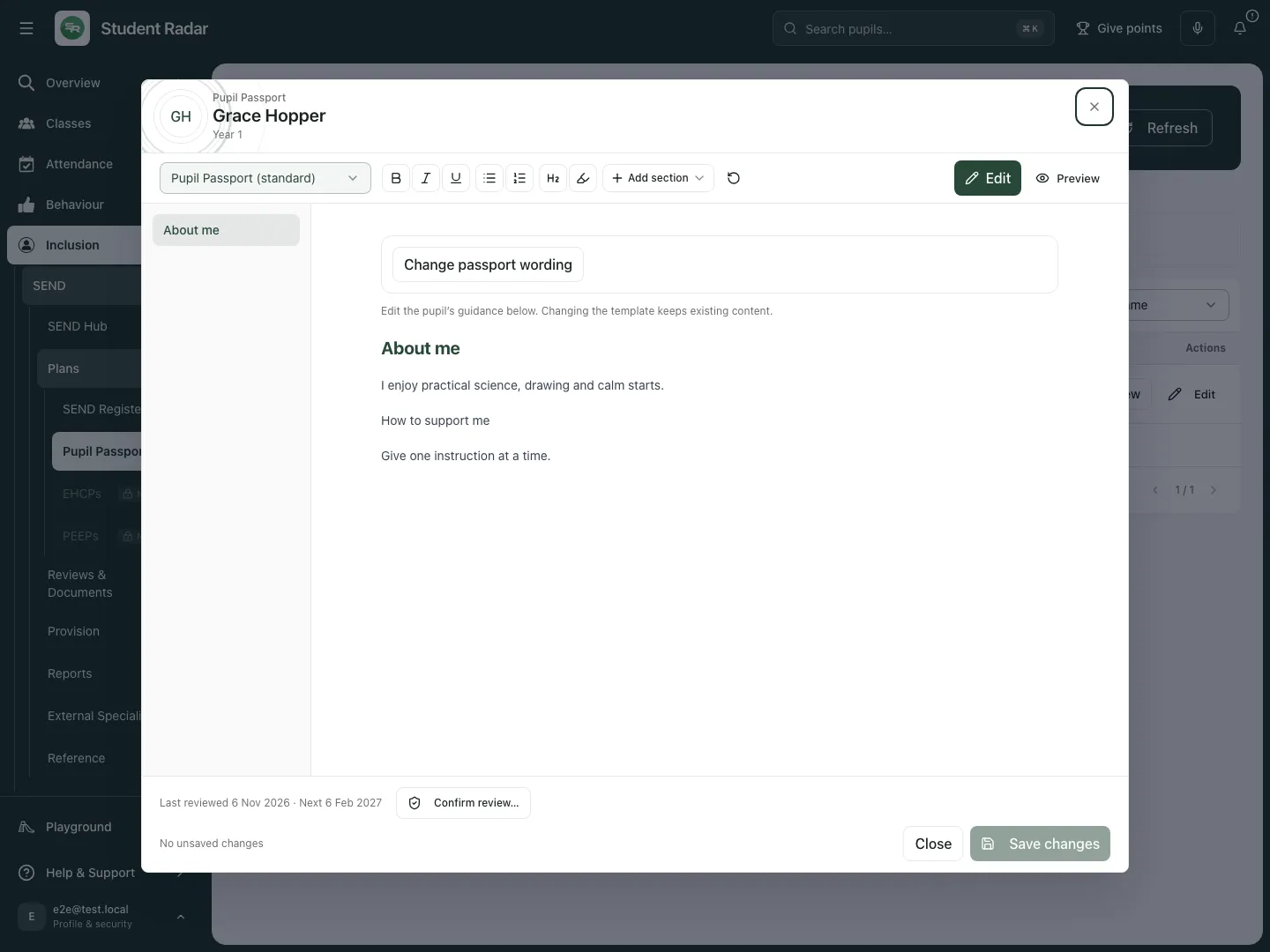
The fictional review is saved and reopened with its new last-review date. No live pupil record was changed in this example.
Share deliberately with a parent or carer
Section titled “Share deliberately with a parent or carer”- Open the viewer and select Sharing. Read existing links and acknowledgements separately from the passport’s review status.
- Select Share with parent/carer. Optionally label Who is this link for? so the recipient’s purpose is clear.
- Check the expiry stated in the form before Create secure link. This deliberately creates an expiring access link; share it only through the school’s approved communication arrangement with the intended recipient.
- Creating/copying a link does not prove that a message was sent or the recipient read it. Review opened/expiry and acknowledgement states in Sharing.
- If the passport changes after an acknowledgement, check the stale/unverified state and arrange a fresh review/acknowledgement where appropriate. A parent acknowledgement records the name given; it is not the same as independently verified identity or consent to every recorded action.
- Use Revoke beside the intended active link when it should no longer grant access, then check the result. Expired/revoked links and unavailable sharing reads must not be described as current access.
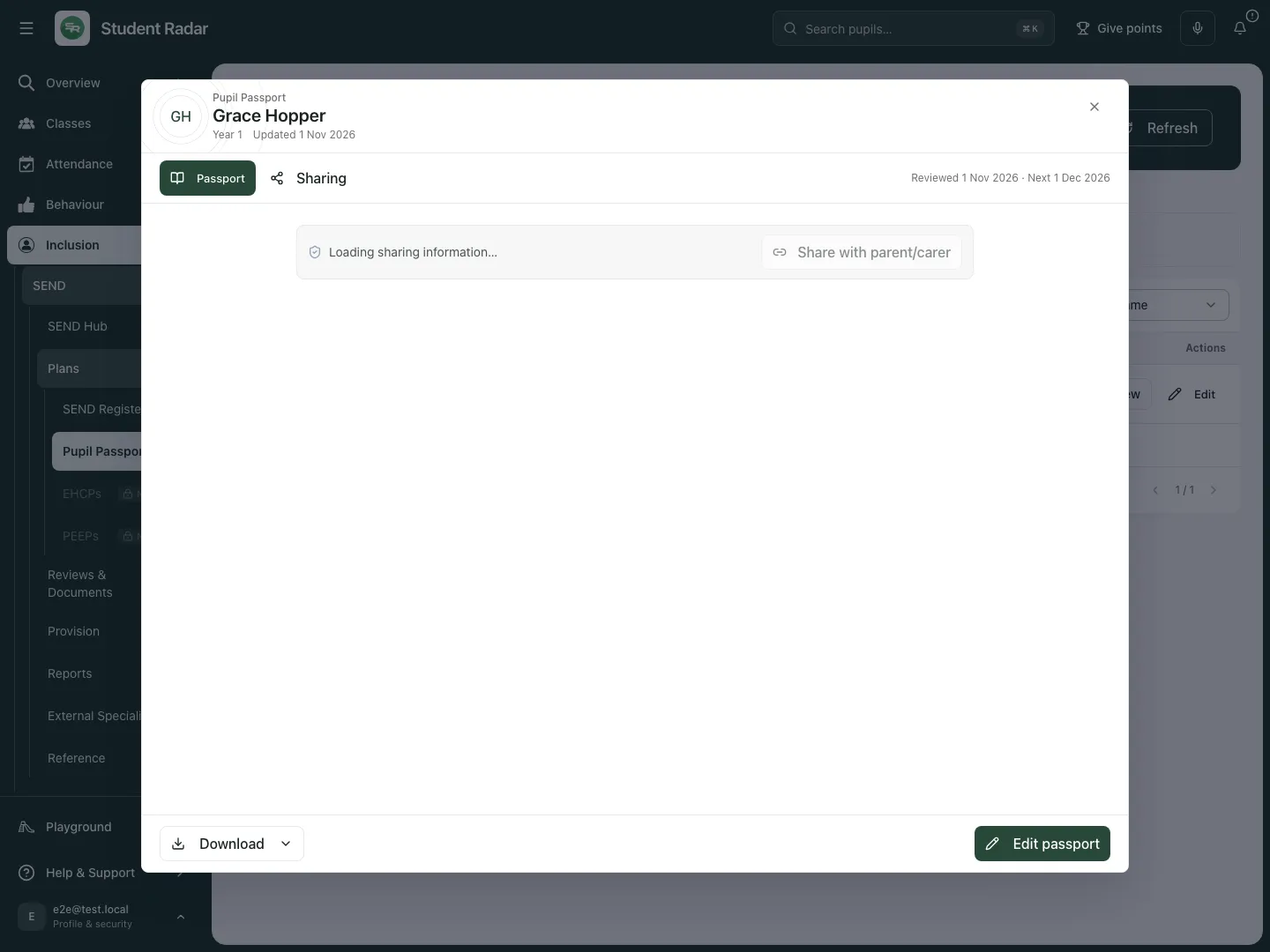
Sharing keeps link state and acknowledgements separate from document accuracy. Fictional school example.
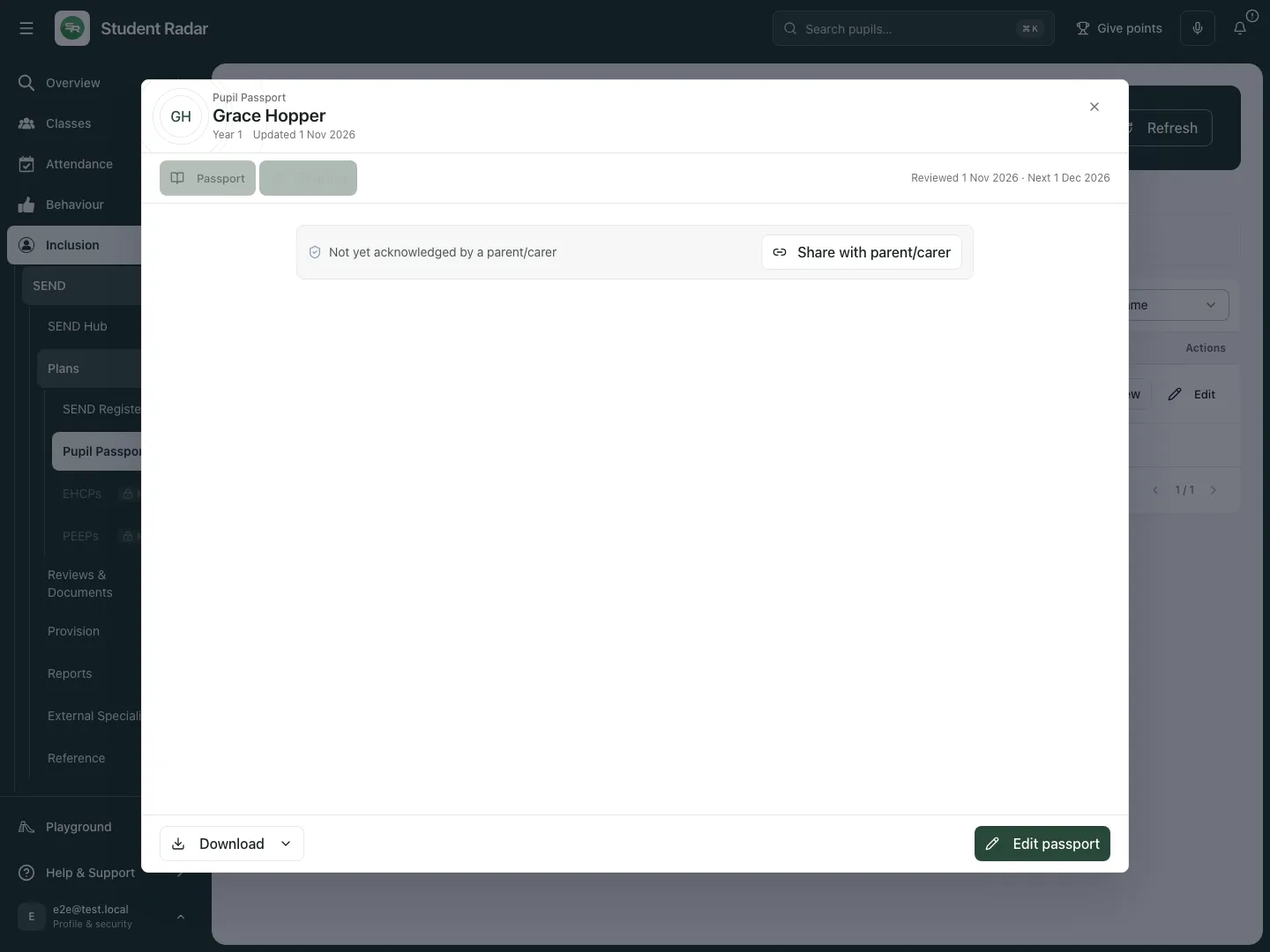
The fictional share form identifies the recipient label and expiry. This walkthrough opens the form and cancels; it creates no link and sends no message.
Prepare the right PDF
Section titled “Prepare the right PDF”Open Download in the viewer. Structured passports offer Staff version, Parent/carer version and Pupil version; older unstructured passports offer Download PDF. Review the selected audience and generated content before sharing, including any not-yet-reviewed or overdue notice. An audience label does not replace checking the document’s content and the recipient’s entitlement.
For the optional Child-friendly PDF route:
- Open Download → Child-friendly PDF to reach Create a child-friendly passport.
- Complete What does [pupil] like? with a short interest/theme description, leaving out names and sensitive information. This prepares a visual theme; it does not change the saved passport wording.
- Select Create PDF and wait for Creating PDF… to finish. Review the resulting wording, layout and theme before sharing.
- If preparation fails, keep the saved passport and use the ordinary PDF route while the issue is resolved. A downloaded PDF is a snapshot and does not update earlier shared copies.
Review Word imports before relying on them
Section titled “Review Word imports before relying on them”- Select Review Word imports when enabled for your school. In Upload pupil passports and support plans, choose the intended DOCX files (up to 20, no more than 10 MB each).
- For each file, inspect the suggested pupil name. Use Find pupil, then Select pupil to choose the correct permitted pupil. Selecting the pupil starts that document’s import; check the match before selecting.
- Follow its recorded state. Import creates a passport and draft ISP in the background with a five-minute limit. You can close the dialog and return to its progress; do not start the same file again just because it is still processing.
- A completed import says Passport and draft ISP created — awaiting staff review. Open pupil passport and draft ISP to check every proposed section/target against the original, then make the normal human review decision.
- If existing passport content was preserved, read the proposed imported sections rather than assuming they replaced the saved content. On failure/time limit, the original/existing records are retained; inspect the status and use Retry import when appropriate.
- Complete the normal Save changes and deliberate Confirm review → Save and confirm review steps after checking accuracy. Import completion is not review approval. School-specific import tools are separate configured paths; follow their matching/review controls before saving.
Review proposed wording rather than accepting it as evidence
Section titled “Review proposed wording rather than accepting it as evidence”- In the editor, open Change passport wording when the control is available.
- Choose First person or Third person under Passport wording. First-person drafting is a style; it does not establish that the words came from the pupil.
- Select Rewrite wording. Review Current wording beside Proposed wording. Quotations, medical detail and pupil/family-view sections are kept as written; do not use rewriting to invent facts or remove uncertainty.
- Choose Apply wording to draft only for a checked proposal, or Keep current wording. Applying changes the unsaved draft; complete Save changes when ready.
- If the text changed while a proposal was being prepared, generate a fresh rewrite for the current text. If no supported narrative sections are available, edit manually. Generation is not automatic review approval.
Publish the minimum club-safe support
Section titled “Publish the minimum club-safe support”- Select Publish club-safe support for the intended pupil when your account/school supports that workflow.
- Read the current structured statements and select only what the assigned session leader needs. The dialog draws eligible concise lines from support, communication, regulation, do/avoid and medical/safety sections; it does not invite publication of the whole SEND file.
- For any selected safety statement, tick I have reviewed this safety statement and approve it for assigned club leaders only after checking the content and audience.
- Select Publish selected support, then check the result. A new approved publication supersedes the previous version and leaders must acknowledge the changed brief; draft passport edits are separate.
- If the dialog says No eligible structured statements, add suitable concise guidance to the passport and review it again before publishing. If you are unsure about the audience, choose Cancel and seek the appropriate school decision.
Use a phone
Section titled “Use a phone”Use the compact list/cards, check the pupil and status, and scroll the editor/viewer to read the whole document. Check the next-review date and confirmation before saving. The same sharing and audience choices need deliberate review on every screen size.
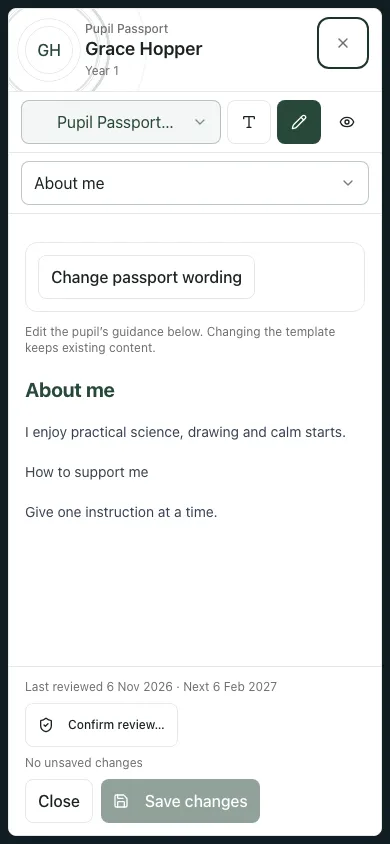
The fictional saved passport editor on a phone keeps the content and review controls within the same workflow.
Recover without losing the record
Section titled “Recover without losing the record”Passport access could not be checked. Retry or ask the administrator to check the exact pupil access. A deep link does not grant access.
The passport changed while I edited it. Reopen the current version and compare before saving; the editor preserves work where possible. Do not overwrite another colleague’s newer content blindly.
An unsaved/stale draft is offered. Read the draft/base warning and choose whether to recover or use the saved version. Check the current pupil and source revision; a browser draft is not a confirmed school record.
Sharing is unavailable. Retry the sharing/access read. Do not assume no links or acknowledgements exist.
No review date or no confirmed review. Use the deliberate review step after checking the content. Saving or importing alone is not confirmation.
Common questions
Section titled “Common questions”Does saving a passport confirm its review?
Section titled “Does saving a passport confirm its review?”No. Check the content, choose the next review date and use Save and confirm review when ready.
Why is a parent acknowledgement stale?
Section titled “Why is a parent acknowledgement stale?”It can become stale after content changes. Read the acknowledgement separately from the passport’s review state.
Related guides
Section titled “Related guides”Use SEND Hub, Use SEND Register. Read EHCPs and review outcomes and provision.